Users
The Users tab allows Admins and Super Admins to search for any user and manage their access or role settings.
How it looks
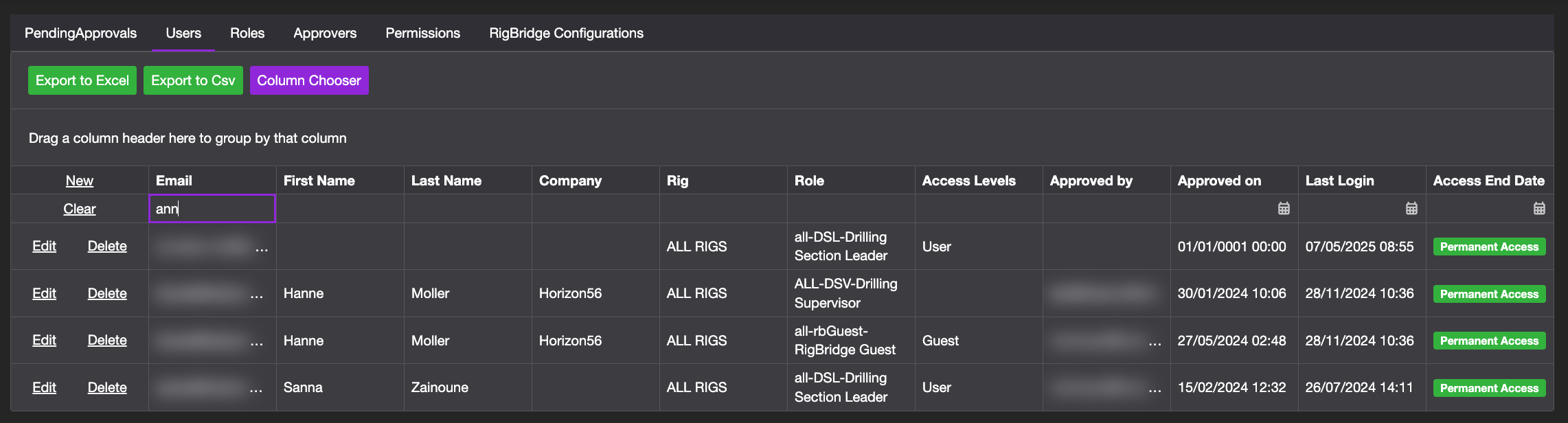
This tab includes a searchable table with all registered users. Information includes Email, First name, Last name, Company, Rig, Role, Access Levels, Approved by, Approved on, Last login, and Access end date.
You can search, filter, export/import user data, and customize visible columns for better navigation.
Step-by-step instructions
Add a user
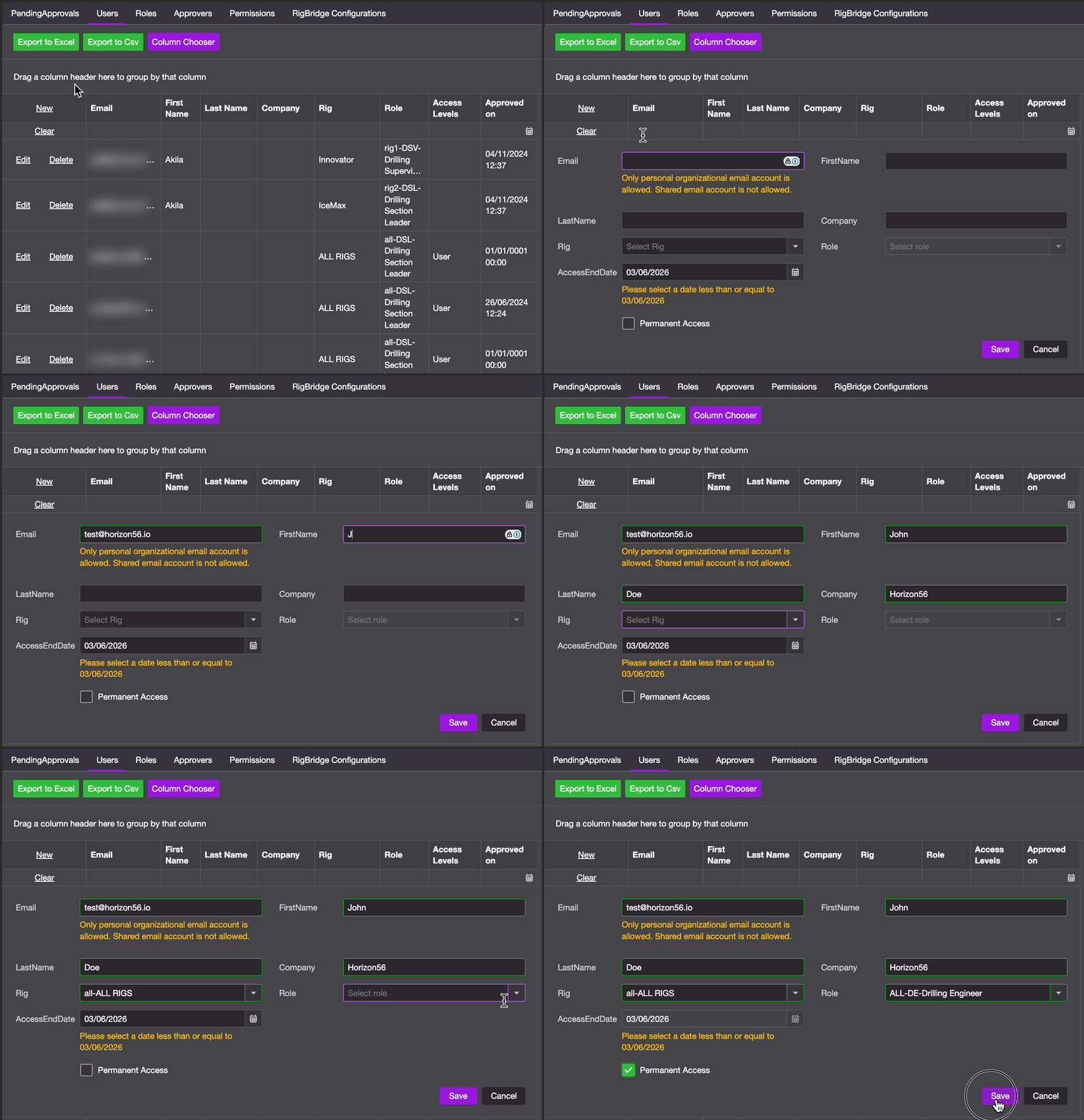
Go to the Users tab: Navigate to the Users section from the main top menu.
Click new: Select the New link located in the top-left corner of the table, just beside the Email column header.
Fill in user details: Enter the user’s email, name, company, role, rig access, and access end date.
Save the new user: Click Save to confirm. The user is now listed under Users and has access as defined.
Edit a user
Go to the Users tab: Navigate to the Users section from the main top menu.
Locate the user: Use the search fields on each column, at the top of the table, to find the specific user by e.g. email or name.
Click edit on the user row: Click the link Edit in the left side of the row. This will open the editable fields for that user.
Update details: Adjust any fields as needed, such as changing their role, updating rig access, or extending the access end date. You can't change the email.
Save changes: Click the button Save to apply the edits.
Delete a user
Go to the Users tab: Navigate to the Users section from the main top menu.
Locate the user: Use the search fields on each column, at the top of the table, to find the specific user by e.g. email or name.
Click delete on the user row: In the user’s row, click the Delete link located on the left-hand side.
Enter a reason for deletion: After clicking delete, enter the reason in the provided field, then click Confirm Deletion. The user will receive an email with the reason their access was removed.
Tips and tricks
Use filters to find all users from a specific company or rig.
Export the table before performing larger edits for backup.
Troubleshooting
If edits don’t apply, ensure your account has Super Admin rights.