Permissions
The Permissions tab in the System Configuration Tool lets Super Adminstrators define exactly what each user role can do in RigBridge. This includes both general (default) permissions that apply across all rigs and rig-specific exceptions. It's the control center for determining how roles behave across the platform.
How it looks
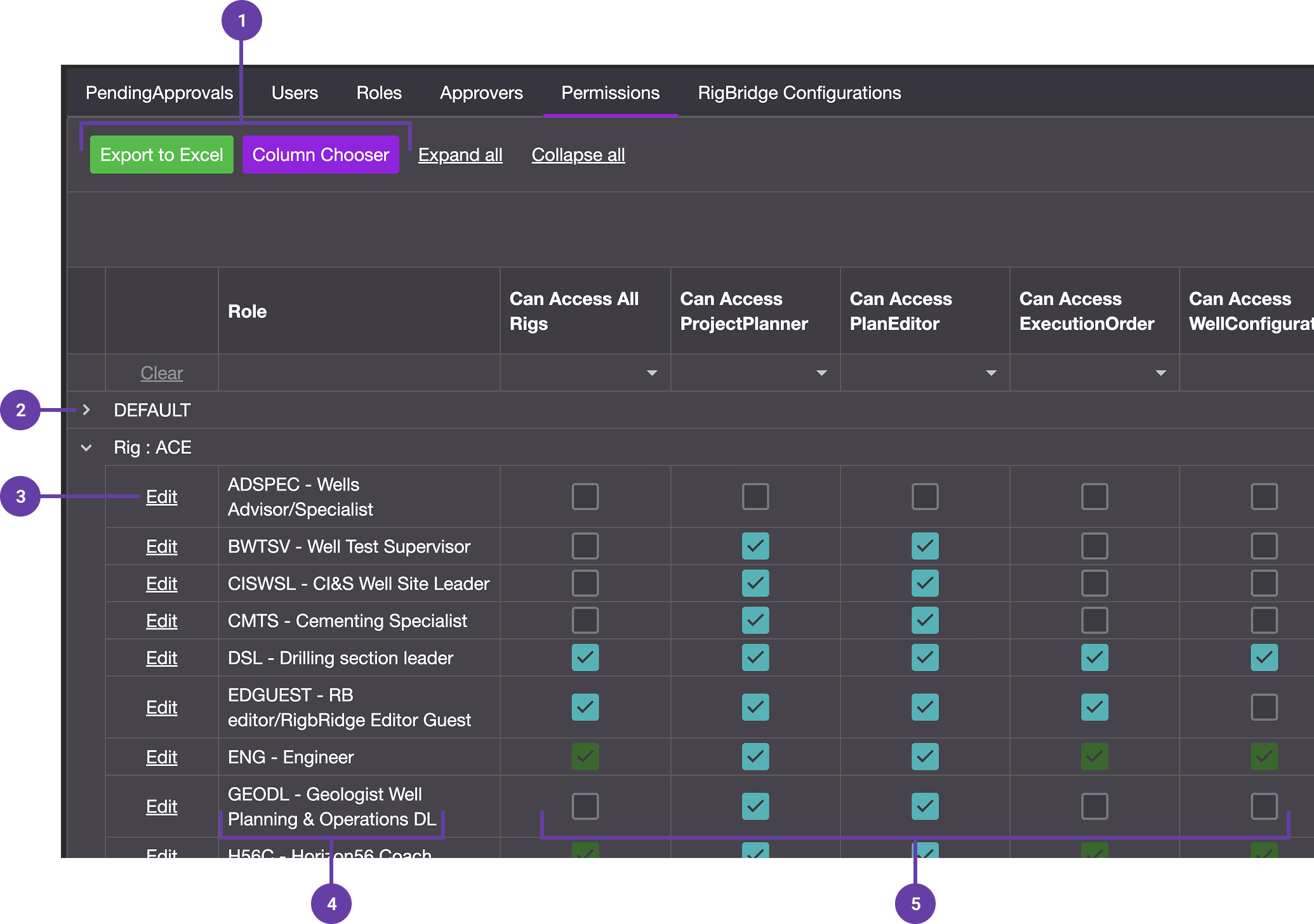
The Permissions tab shows a table of roles and permissions:
Export to Excel/CSV: Allows you to export the permission overview data for external analysis or reporting.
Grouped permissions: Default permissions are applied to all rigs by default. You can then customize individual permissions for each rig as needed. Can be expanded and collapsed. The permissions are configured using checkboxes.
Toolbar: Possible to edit a role.
Roles are listed on the left (e.g., Drilling Engineer, Supervisor).
Permissions are shown across the top (e.g., Can comment, Can approve plans).
Only Super Admins can access or edit this tab.
Step-by-step instructions
How to Export Roles
Go to the Permissions tab: Open the Permissions tab in the System Configuration Tool.
Find the export button: Look for the Export to Excel or Export to CSV button above the table.
Download the file: Click the button to download a copy of all roles and their permissions.
You can use this to create a template for the How to Import Roles (Bulk) step-by-step instruction.
How to Edit a Role
Go to the Permissions tab: Click on the Permissions tab in System Configuration Tool.
Find the role: Scroll through the list to locate the role you want to update. Click the Edit link next to the role to open its permissions for editing.
Change permissions: Check or uncheck the boxes to give or remove permissions.
Save changes: Click Save to apply your changes. The updated permissions will take effect immediately.
Note
In the permission overview, green checkboxes indicate permissions inherited from the default. Turquoise checkboxes indicate permissions that have been manually set or overridden on a specific rig.
Tips and tricks
Use default permissions to save time: Set a standard for each role and only use rig-specific overrides when needed.
Keep roles clear and specific: Use clear role names like “Operator Reviewer” or “Contractor Editor” to avoid confusion.
Changes sync automatically: When you update a role’s permissions in System Configuration Tool, all users with that role get the new access automatically.
Impacts on Team Members and Restricted Access: The permissions set in System Configuration Tool apply directly to users after they are added to a team. Team Leads cannot override these permissions. If a user is removed from a rig in the System Configuration Tool, their access is automatically disabled across all teams and events for that rig—even with Restricted Access enabled.
Troubleshooting
User doesn’t have expected access: Check if the user has been added to the correct team. Remember, permissions from System Configuration Tool only take effect after a user is part of a team.
User still sees restricted content: Ensure their role has been properly updated in System Configuration Tool. Also verify they were not previously granted broader permissions via an older role still in effect.
Permissions not updating in teams: Confirm that the role was edited directly in the Permissions tab. Any changes here should sync automatically to all teams using that role. If syncing doesn’t occur, try refreshing or reloading the team configuration.
Unable to delete a role: The role might still be assigned to users or active in one or more teams. Remove it from all assignments first, then delete.
User removed from a rig still appears in a team: This is expected—users are not auto-deleted from teams but are marked as disabled. Their access is blocked until re-added via the System Configuration Tool.
List of permissions you can set
Can access Project Planner: Can access the Plan Overview
Can manage phases
Can access PlanEditor: Can access the Plan Editor
Can sign plans
Can publish plans
Can edit plans
Can access execution order
Can update execution order
Can access Well configuration
Can access Rig configuration
Can access Well overview
Can manage wells
Can access Fleet overview
Can access RigPage
Can access Insights library
Can elevate insights
Can review and comment
Can manage teams: Used in e.g. Team Members.
Can add awareness comments
Can modify operational summary