Contingency plans
A Contingency Plan serves as a pre-approved alternative for operational tasks in case of deviations from the primary plan. In RigBridge, users have the option to designate a plan as a Contingency Plan.
Note
You need to add a contingency plan to an execution order. Within the Execution Order , a section is dedicated exclusively to Contingency plans. You can read more about how to use it on Execution Order.
Open a plan: Create a new plan or open an existing one.
Click on the contingency plan icon: Locate the toggle for contingency plans in the right-side panel under
 Properties.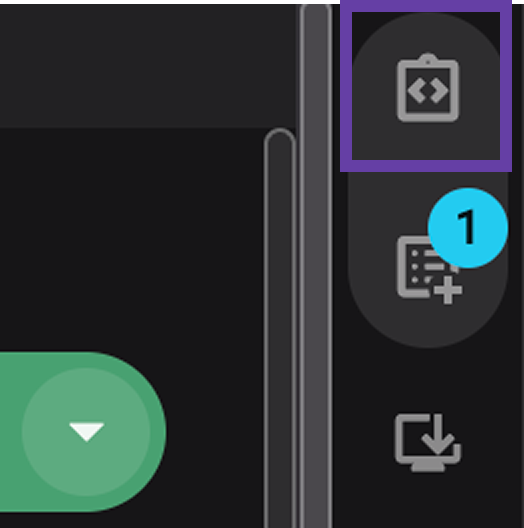
Locate the contingency toggle: On the Properties panel, find and click on the Contingency toggle to activate it.
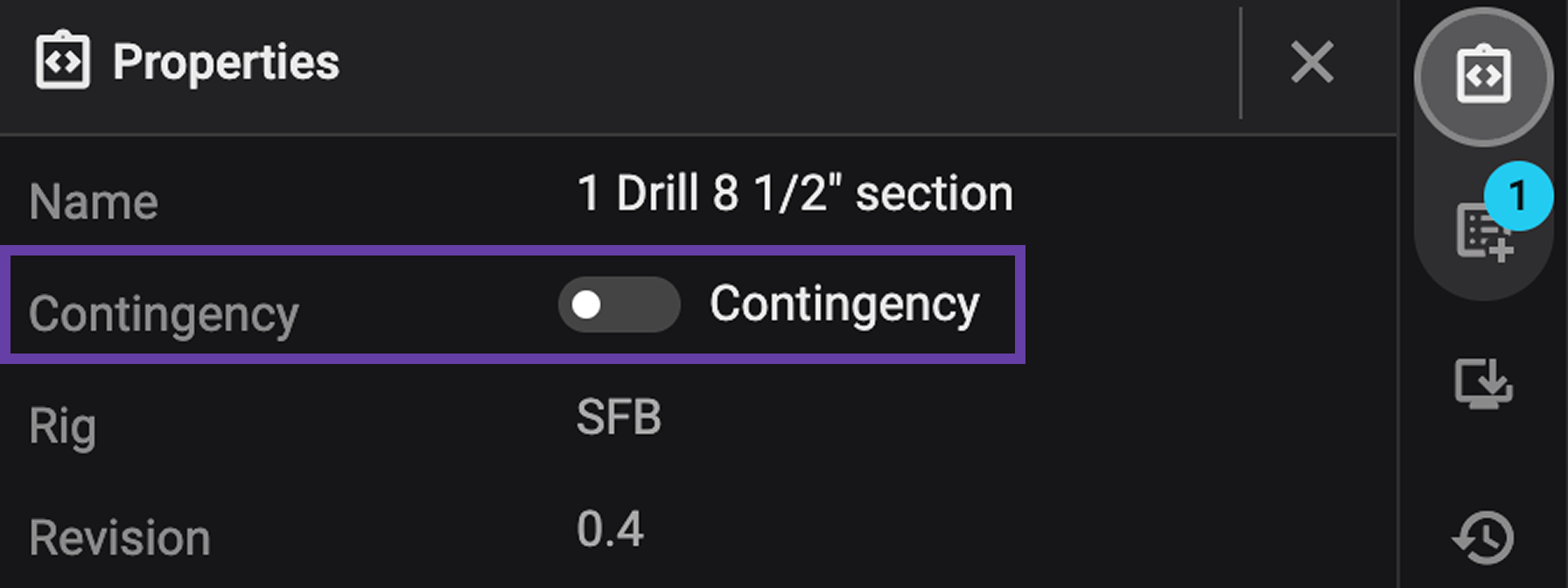
Activate the contingency plan: Your plan is now set up and ready to be used as a contingency plan. Make sure the plan status is set to Published.
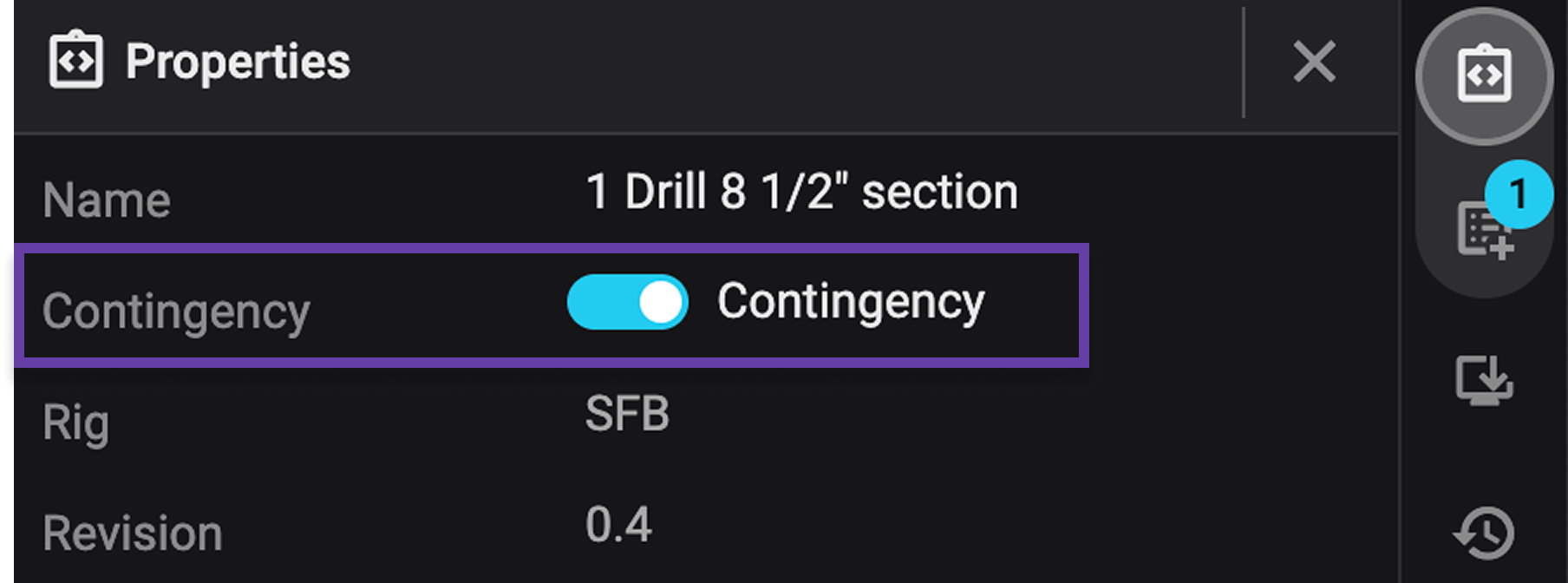
Open an existing contingency plan: Make sure the plan is either revoked or not Published.
Click on the contingency plan icon: Locate the toggle for contingency plans in the right-side panel under
Properties.Locate the contingency toggle: Click on the Contingency toggle to deactivate it.
Deactivate the contingency plan: Your plan has changed back to being a regular plan.