Project archive
The  Project archive feature in RigBridge is designed to help you keep your plan overview organized. It's mainly for engineers and planners, especially those in onshore teams managing multiple floor projects. When projects are complete, you can move them into an archive to reduce clutter in the active project view while still keeping them accessible for reference.
How it looks
The Project archive can be found on the Left sidebar, alongside the Plan Overview section. Clicking the Project archive icon takes you directly into the archive view.
In this archived section, the layout mirrors the Plan Overview:
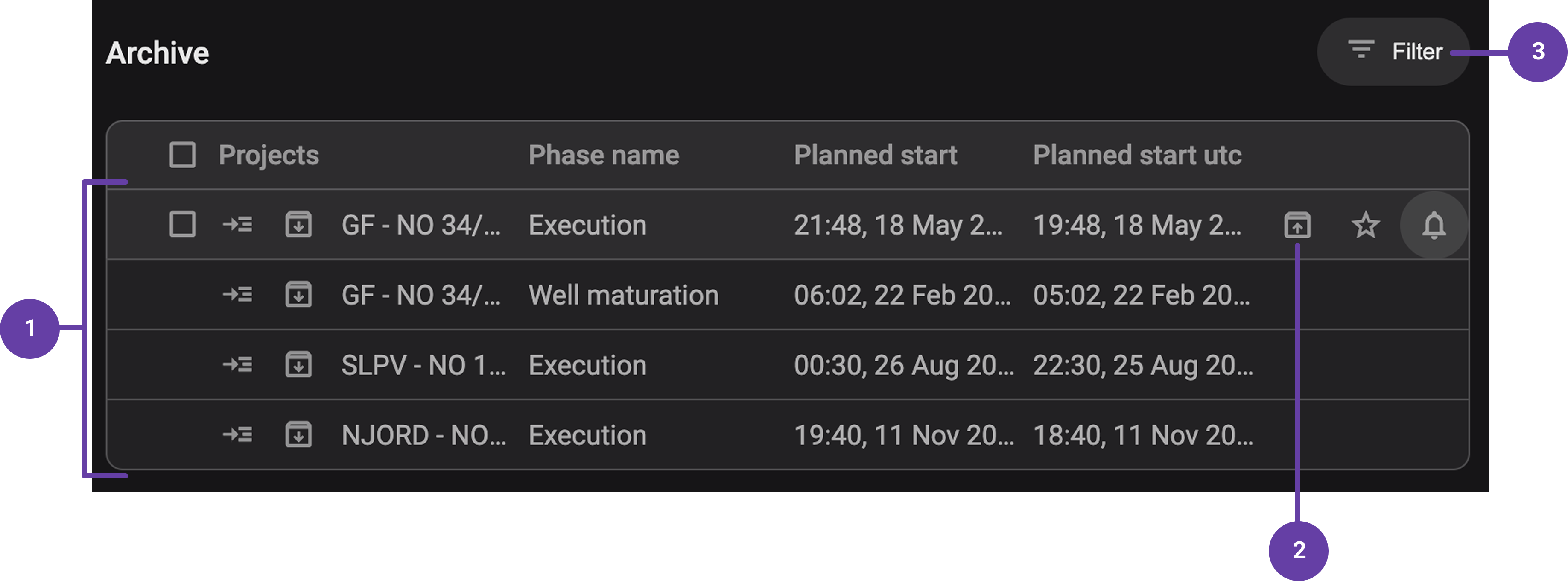
List of archived projects: The projects are organized in rows with columns containing project name, phase name, planned start, and planned start utc.
Archive icon: Visible when hovering over a row. If you have the right permissions, you can toggle this icon on or off to un-archive a project.
Filter: Apply filters to narrow the displayed data dynamically based on selected criteria.
When you open a plan from the archive, you access its Plan editor view:
Note
This view is read-only; to make changes, you need to un-archive the project by toggling the archive icon.
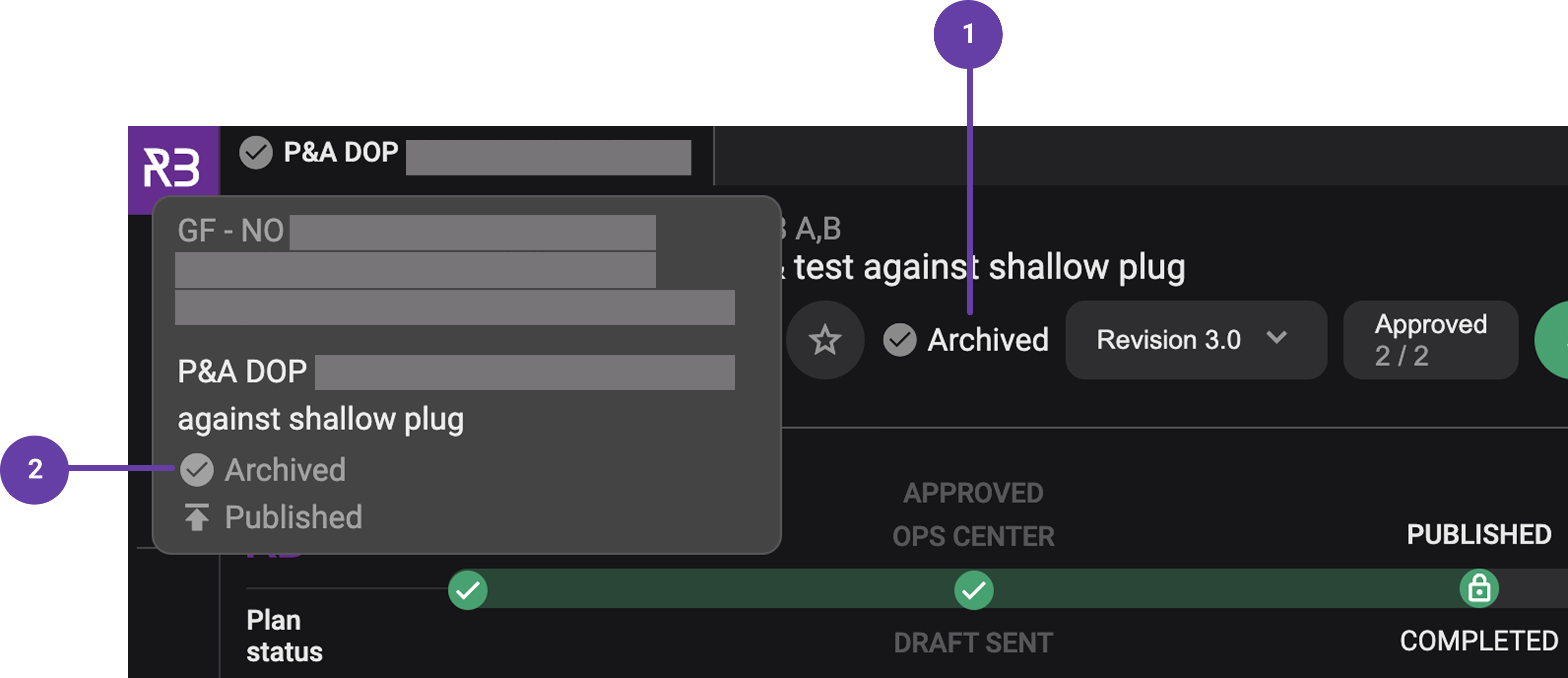
Archived tag: At the top of the page, there is a label showing that the project is Archived.
Archived status: If you hover over the tab name of the plan, it will display the plan status, showcasing that it's archived.
Step-by-step instructions
Access the archive: Navigate to the left sidebar in RigBridge and click the
archive icon.View archived projects: You'll see a list of archived projects similar to the active view. Use
 filters like rig, field, and
  favorites to narrow down the list.
Archive a project: In the active project list, find the project row and click the
archive icon. You cannot archive if any plan within the project is still in an active or published state. Drafts, completed, or abandoned plans won’t block archiving.Notice
Only users with permission can archive a project.
Reactivate a project: In the archive view, remove the archive icon by clicking on it again. This moves the project back to the active section and unlocks plans for editing.
Filter and search: You can apply the same filters as in active view (e.g., by field, rig, or favorite).
Examples
You’ve completed a drilling plan and no longer need to see it daily, so you move it to the archive.
If you want to refer to lessons learned in a past project, you can find them in the archive without cluttering your current workspace.
Tips and tricks
If a project seems to have “disappeared” from the active view, check the archive; it may have been moved.
You can mark archived projects as favorites and filter them accordingly.
Troubleshooting
Can’t find a project?: Check if it's archived.
Can’t archive?: Ensure no plans in the project are in an active or published state.
Need to edit an archived plan?: You need to reactivate the project first.