Change between different view modes
In RigBridge, you can easily switch between three viewing modes: Edit, Read, and Print. To switch modes, click on the bottom right corner of the plan progress bar.
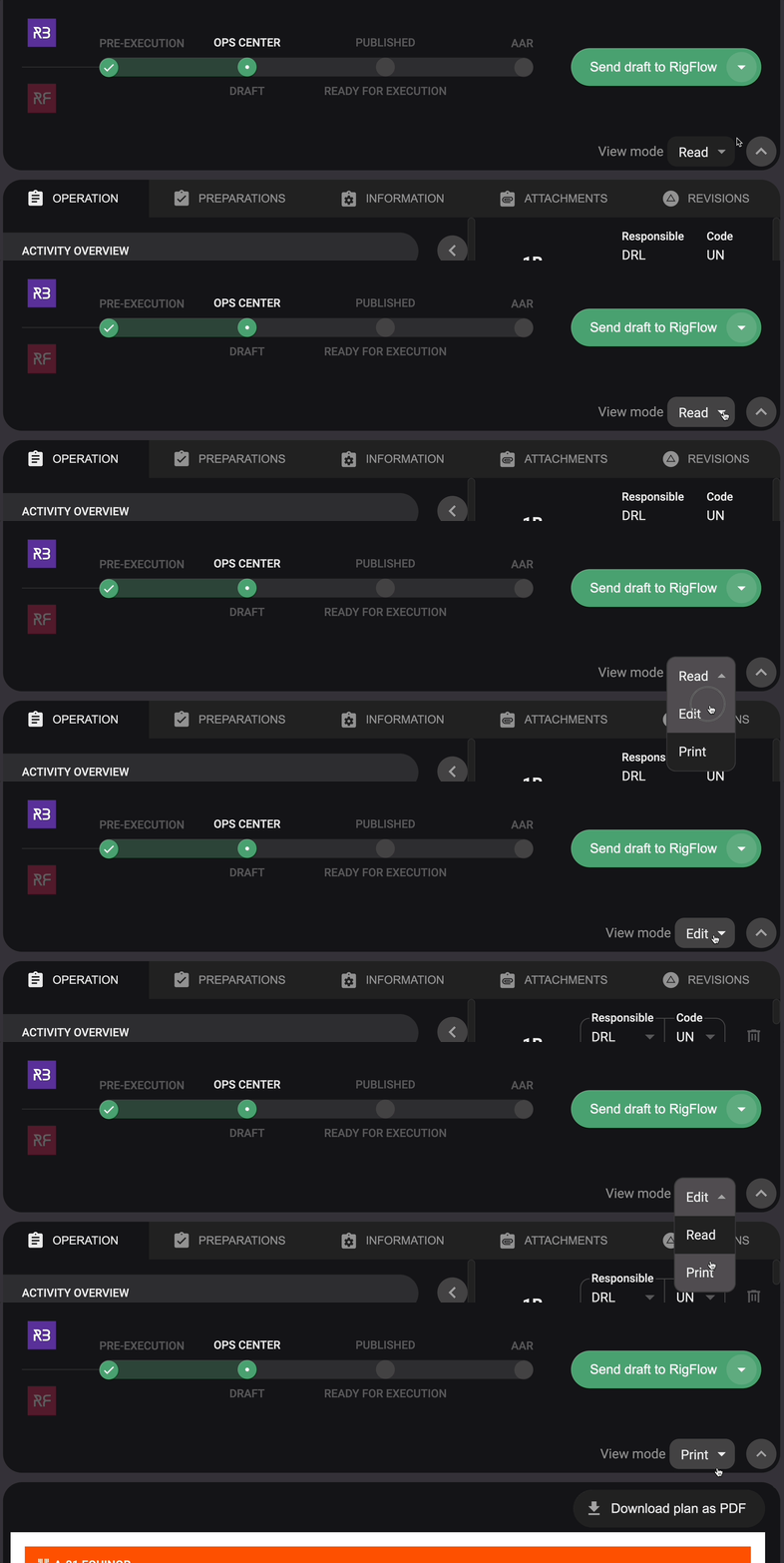
Edit mode, you can navigate between steps using [page up] or [page down]. For a thorough understanding of how RigBridge Edit mode functions, you can read more about it in Text Editor
Read mode, users can scroll through different steps. The text shown is based on what was entered in edit mode. Clicking on the text opens the editor for making changes. This also works for preparations, risks, parallel activities, and operational parameters.
Remember, new functions like risks or preparations can't be added in read mode if they weren't entered in edit mode first. Read mode gives a clearer view of how steps will look and work in RigFlow. You can navigate between steps using the [page up] or [page down].
Print mode, allows you to create a traditional paper-based PDF view. This can be downloaded and used as a backup or printed for users who don't have access to a digital workspace in the field.