Actual values on properties
The Actual values on properties feature in RigBridge helps ensure that the real values observed during well operations are reported back accurately and replace originally planned or target values. This makes it easier to keep subsequent operations aligned with real-world conditions. The feature is mainly used by engineers and operational staff. It applies to a short list of integrated system properties, for example, casing depth. It is currently not supported for user-added properties.
How it looks
You’ll find actual values on properties through both the Reference tab on the operation and the Right sidebar Properties panel at the section level in RigBridge.
Reference tab
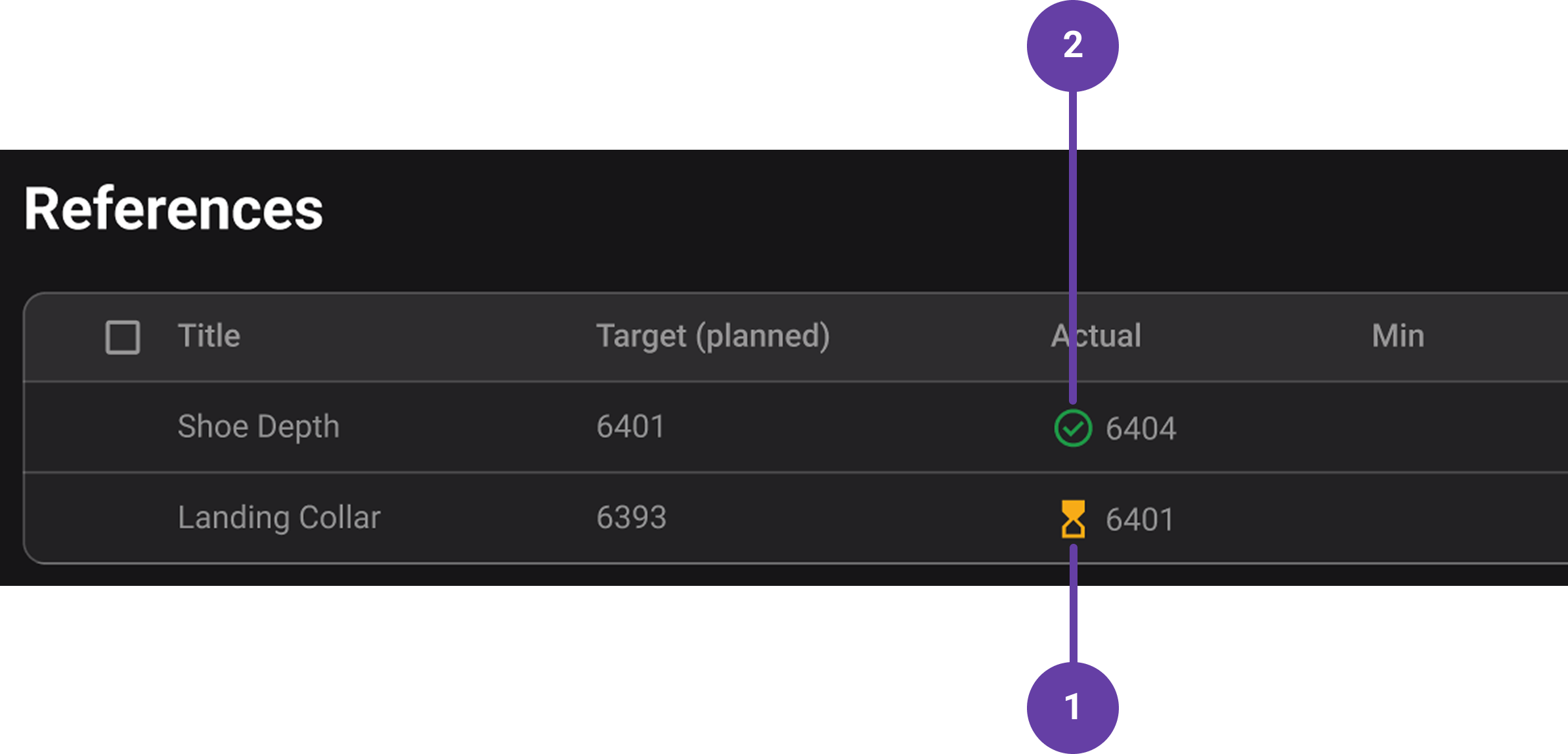
 Actual value is awaiting approval: Once a report back for a referenced property is submitted from RigFlow, RigBridge displays a yellow hourglass icon indicating that an actual value is awaiting approval.
 Approved actual value: After the actual value is reviewed and approved in RigBridge, the status updates, and the hourglass icon is replaced, signifying that the value is now approved and locked for further changes.
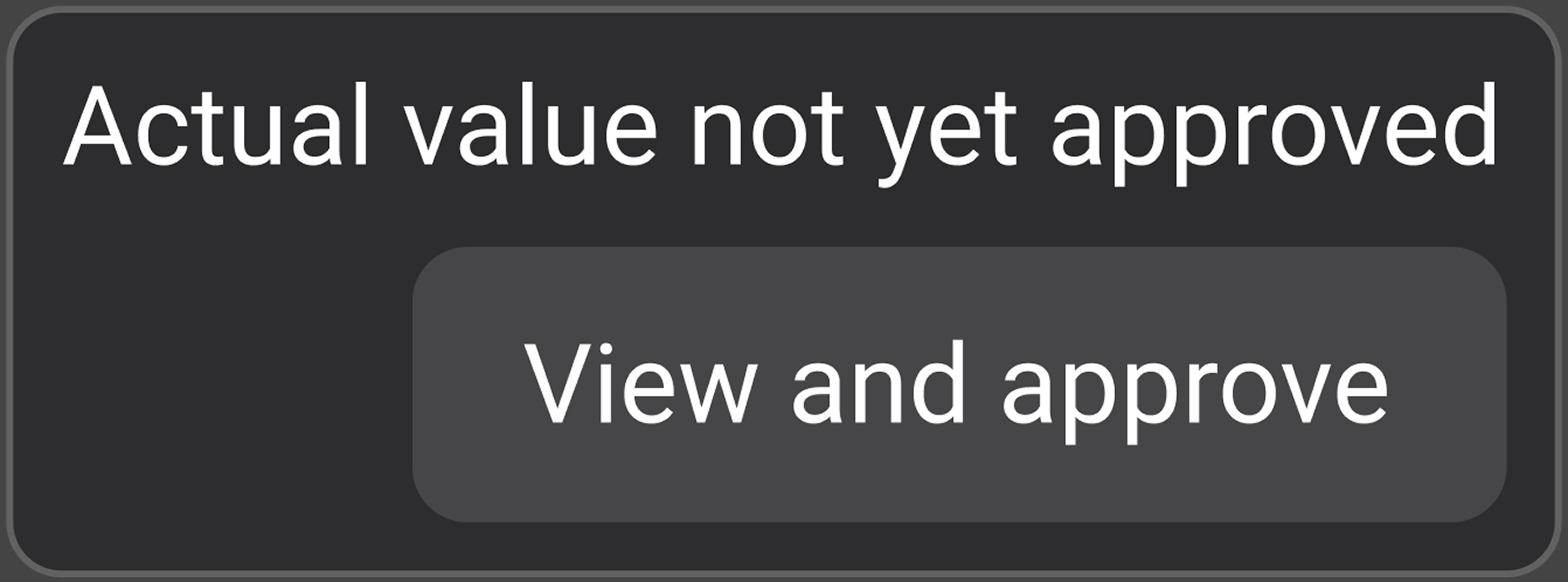
View and approve button: Hovering over the yellow hourglass icon reveals a tooltip with a View and Approve button. Clicking this opens a modal where you can see the submitted value, edit it if needed, and approve it directly from the Reference tab.
Properties panel
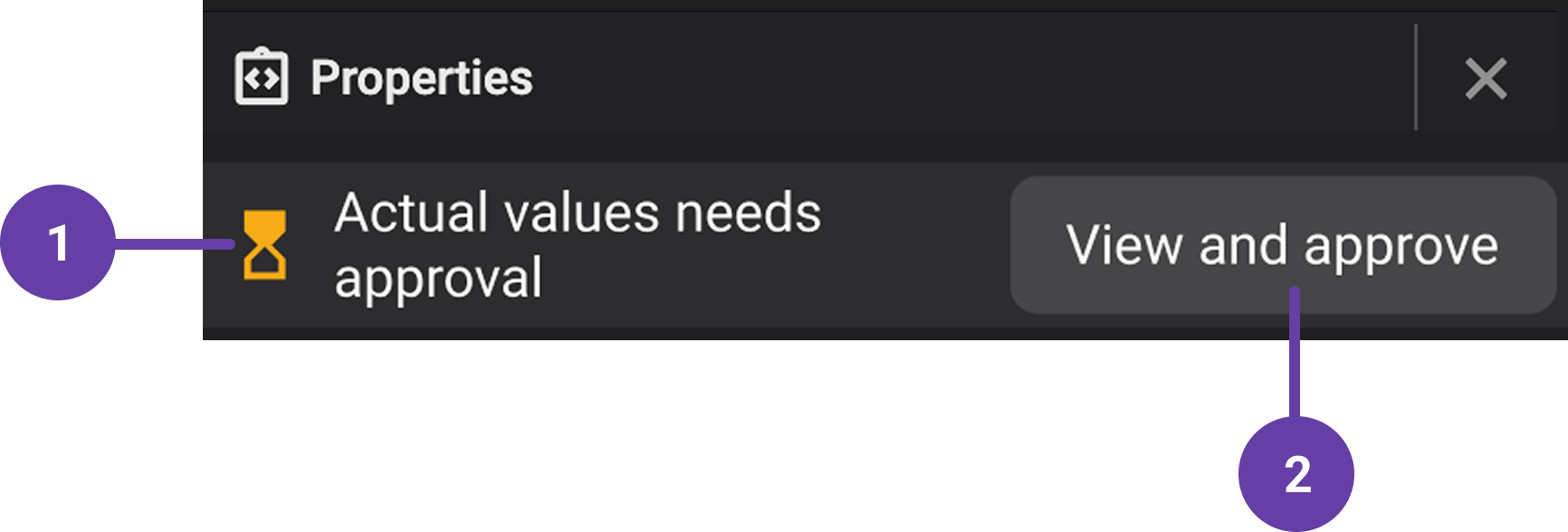
Banner at the top of the Properties panel: When one or more actual values are awaiting approval, a banner appears at the top of the Properties panel. It notifies you that an actual value needs approval and provides a quick way to manage them.
View and approve button in the banner: Clicking the banner opens a modal window listing all actual values that are waiting for approval. If there are multiple, you can review and approve them all from this single view.
Note
If you scroll down the Properties panel, you’ll see hourglass icons next to individual properties awaiting approval. Hovering over these icons brings up a View and approve button for approving a single value.
View and approve modal
When you click the View and Approve button (either from the hourglass icon or from the banner in the Properties panel), a modal window opens showing the actual value that was submitted from RigFlow.
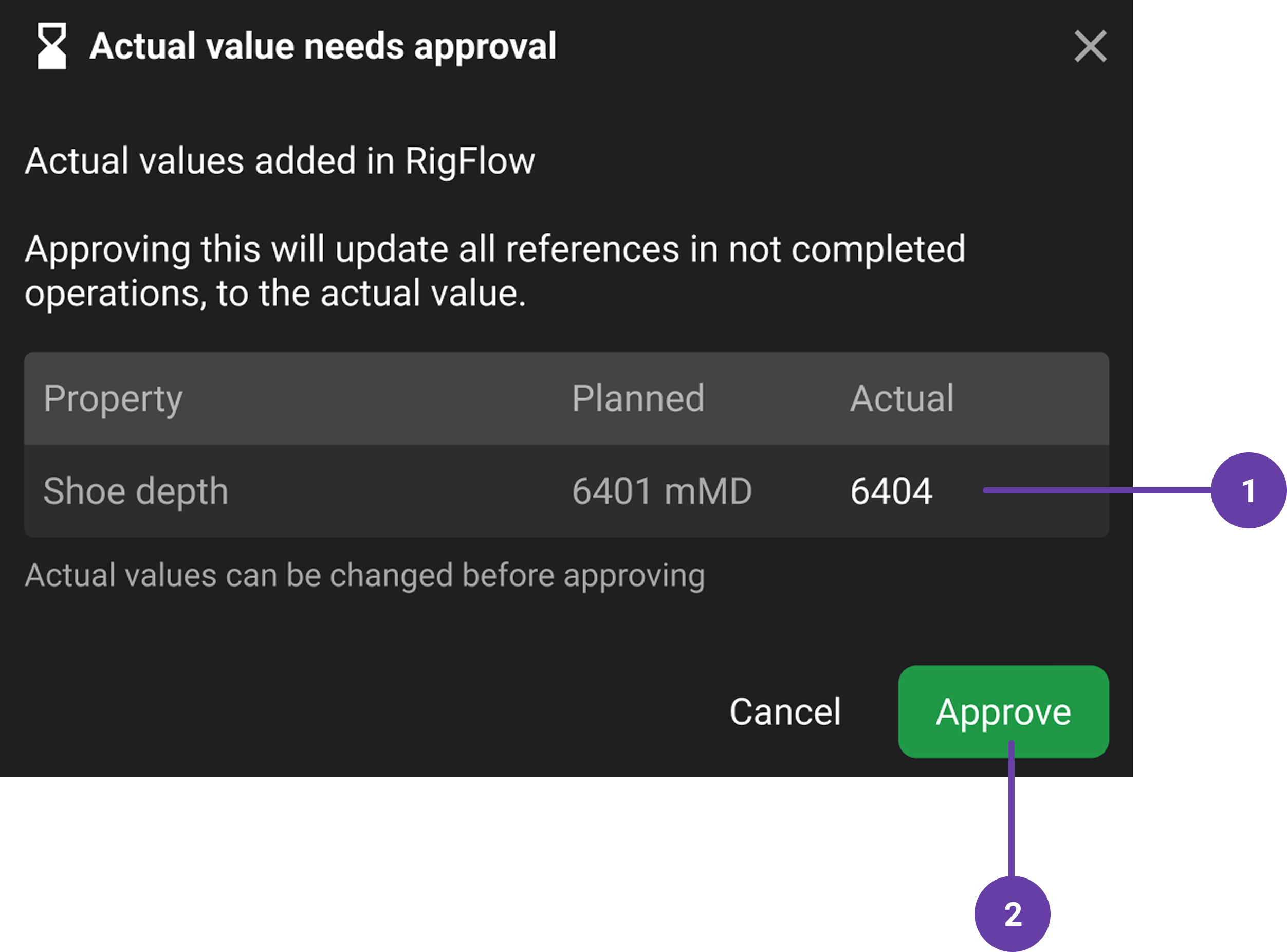
Actual column: Inside the modal, you’ll see a table-style view that includes the Actual column, where the submitted value is displayed. This is the value you are being asked to approve. The modal allows you to edit the actual value before approving it.
Note
If there are multiple actual values awaiting approval, the modal will list all of them together, letting you review and approve them in one place instead of individually.
Approve button: Once you click Approve, the value becomes approved and locked, and the modal closes.
Step-by-step instructions
Once a report back for an actual value is submitted from RigFlow, you need to approve it in RigBridge so it can replace the planned value in any subsequent references. Here's how to do it:
Go to the plan or section in RigBridge: Navigate to the operation or section where the property was reported back. You can find the pending approval either in the Reference tab of the specific plan or in the Right sidebar Properties panel at the section level.
Look for the approval indicator: An
hourglass icon will appear next to the property in either location, indicating an actual value is awaiting approval. Alternatively, you might see a banner or snackbar message at the top of the Properties panel that says “Actual value needs approval.”Approve from the References tab: Go to the Reference tab of the operation where the actual value was submitted. In the properties table, look for the yellow hourglass icon next to the relevant property. Hover over the icon to reveal a tooltip with a View and Approve option. Click it to open the approval modal.
Approve from the Properties panel: In the Properties panel at the section level, click the banner at the top that indicates actual values are awaiting approval. This opens a modal listing all pending values for that section. If there’s more than one, you can review and approve them all in one place.
Review and edit the value: In the approval modal, you’ll see the actual value submitted from RigFlow listed in the Actual column. If the value needs adjustment, you can edit it directly in the modal before clicking Approve.
Approve the value: Click Approve to confirm the actual value. Once approved, the value is locked and will replace the planned value in any references where it’s used, ensuring future operations reflect the confirmed data.
Important
Once approved, no further edits are allowed. Even if someone changes the report back in RigFlow, the approved value in RigBridge stays unchanged.
Examples
Casing shoe depth: Planned at 3200 meters, but installed at 3205 meters. Updating this with an actual value ensures tripping operations later reference the real depth.
Tips and tricks
Approved values are locked; make sure the value is correct before approving.
Use the banner at the section level to handle multiple approvals at once.
Troubleshooting
Values not showing: Try refreshing the page.
Need to edit an approval: Approved values cannot be deleted or edited; double confirmation is required for accuracy.