Rig Page
Rig Page is a centralized dashboard designed for users on drilling rigs. It provides a real-time overview of activities and data related to a specific rig. This tool is accessible through both RigFlow and RigBridge and helps you stay on top of key data in one place, improving awareness and coordination onboard.
How it looks
Rig Page is built with widgets—modular blocks that display different types of information. These widgets are grouped into columns, and the layout automatically adjusts based on screen size and whether any side panels are open.
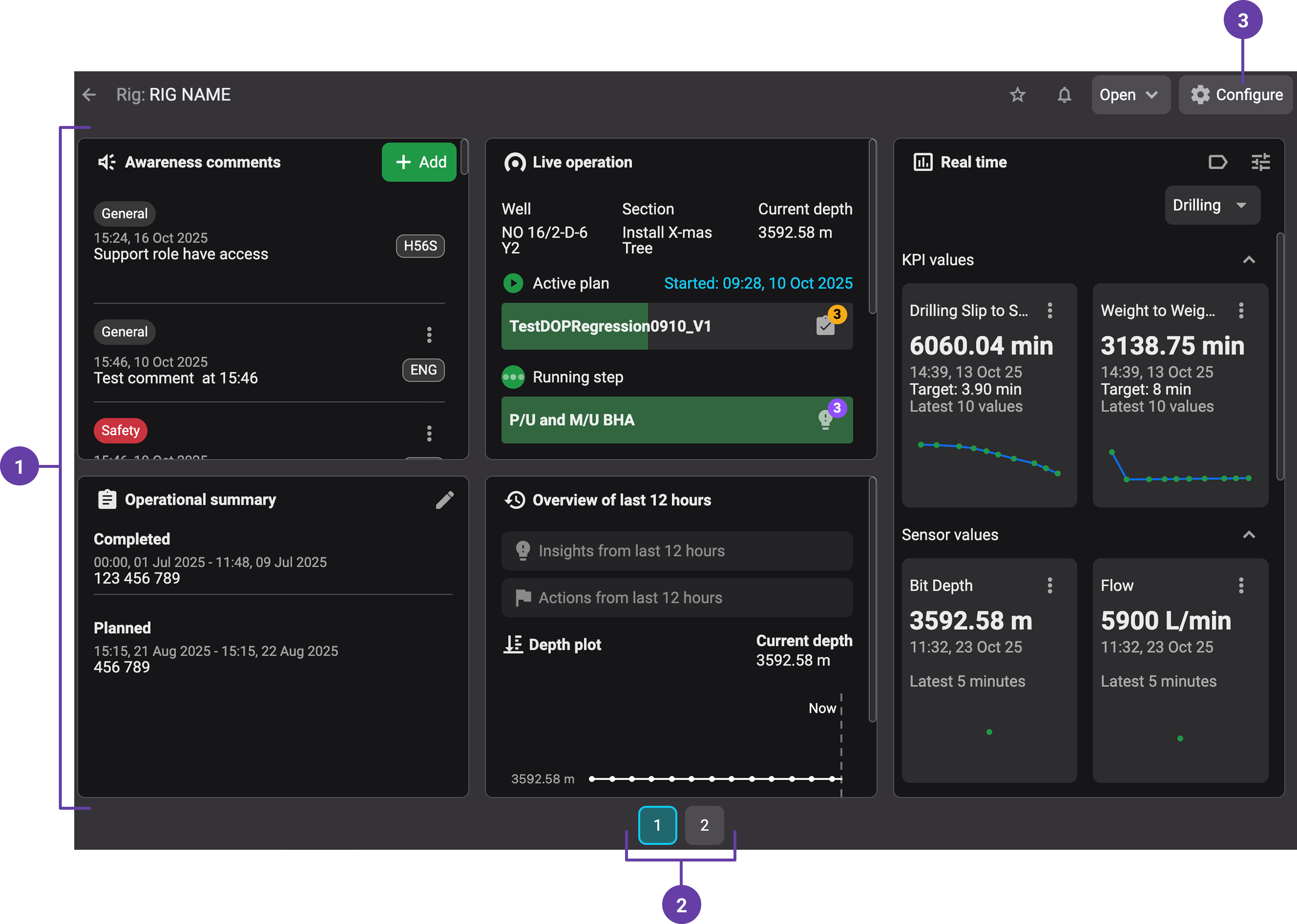
Widgets: Widgets are modular blocks of information about your rig. Some widgets (like Awareness Comments and Operational Summary) are fixed in place for safety and cannot be moved or turned off.
Pages: When there are more widgets than can fit on one screen, Rig Page organizes them into multiple pages. You can switch between pages using the navigation buttons at the bottom. The number of pages automatically adjusts based on your screen size and whether side panels are open.
Configure button: The Configure button lets you personalize your Rig Page. You can drag and drop widgets to reorder them across pages, turn widgets on or off, and reset everything back to the default layout. Any widgets you turn off are stored at the bottom of the configurator for easy access later.
Step-by-step instructions
Accessing Rig Page
Open Fleet overview: Navigate to the Left sidebar , and click on the
 Fleet overview icon.
Access Rig Page: Click the Open button on any rig card. If the button is split into two, that means Rig Page is available for that specific rig. Read more about Fleet overview here: Fleet Overview.
Use the configurator
Open the configurator: Click the Configure button to open the layout settings.
Adjust your widget view: Drag widgets between pages as needed. Swapping a widget into a page will push others down to the next page.
Hide and unhide widgets: Use the checkboxes to toggle widgets on or off. Hidden widgets collect at the bottom of the configurator.
Restet to default: If needed, click Reset to default to revert to the standard layout. This also closes any open side panels
Read more about the configuration button here: Configuration.
Use the widgets
Locate the widget: Each widget appears as a block on your Rig Page. Scroll through the page or switch between pages to find the one you want.
Open or expand the widget: Some widgets show key details right away. Others can be expanded or opened for more information (for example, real-time metrics or logistics timelines).
Check the content: Read the information displayed, such as comments, summaries, metrics, or updates.
Use available options: Many widgets include quick actions like filters, toggles, or view changes.
Edit if permitted: If your role allows, you can add, edit, or remove content inside certain widgets (like Awareness Comments or Operational Summaries).
Customize placement: Use the Configure button to move widgets between pages, turn them on/off, or reset them to the default order.
Read more about each widget here: Rig Page widgets.
Tips and tricks
Awareness Comments cannot be turned off or moved. They stay at the top left for safety reasons.
The number of visible columns changes with screen size, side panels reduce space, and increase the number of pages.
Use the Show until setting in Awareness Comments to avoid outdated notices lingering.
Troubleshooting
If widgets disappear: Go to configuration and check if they are disabled or if the integration is turned off.
If side panels are open and the layout looks strange: Reset to default to clean up.
Need to configure access levels: Administrators can set who has permission to update Rig Page content, depending on the server setup:
On a cloud server - Access levels can be configured directly in System Configuration Tool.
On a local server - Access changes must go through the support team.