Fleet Overview
Fleet overview is a new feature in RigBridge designed to give you a quick snapshot of all active rigs connected to your RigBridge environment. It's primarily intended for users who want an at-a-glance summary of operations without navigating into each individual rig. This is especially useful for planning offices and users who manage or monitor multiple rigs.
How it looks
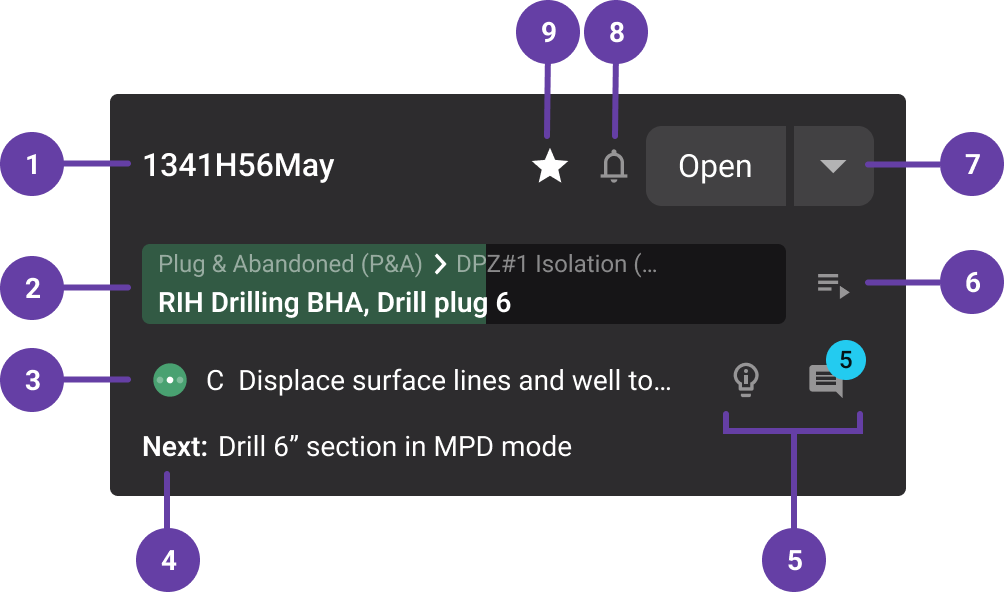
The Fleet overview feature presents a dashboard-style interface with rig cards. Each card represents one rig and displays critical information like:
Rig name: The rig name identifies which rig the card is showing. It’s your starting point to understand which operation the data relates to.
Running plan progress bar: This horizontal bar shows how far the current plan has progressed. It uses task counts (e.g., 5 out of 10 tasks completed) to estimate completion and gives you a quick visual indicator of operational progress.
Running step: This line displays the primary step that is currently being executed in the running plan. It helps users instantly understand what phase the operation is in.
Next: This shows the upcoming plan, if one is scheduled. If no new plan is queued or visible due to access restrictions, this section will indicate that accordingly.
Indicators for new
 insights or
  comments: If any insights or comments have been recently added to the running step; they’ll show a counter next to the relevant icon. Clicking on these icons opens a preview, allowing you to review the added content and stay up-to-date with recent activity.
Open button: This dropdown button allows you to choose to open the plan in:
 RigFlow
Rig Page (only when the rig has an associated Rig Page)
 Favorite and
  subscription icon: Located at the top of each rig card, these icons help you personalize your Fleet overview:
Click the
star icon to mark a rig as a favorite. This allows you to quickly filter and display only the rigs most relevant to you by using the Show Favorites Only toggle. Favorites are user-specific rather than role-based, therefore, you will have your personalized view every time you log into RigBridge.To subscribe for notifications of a specific rig, click the
notifications icon. When the bell is highlighted, you’ll be notified about status changes in the running plan. Clicking the bell again unsubscribes you, removing those notifications.
Step-by-step instructions
Accessing Fleet overview
Open Fleet overview: There are two ways to access the Fleet overview:
From the landing page after logging into RigBridge by clicking the select
 Fleet Overview.
Use the
Fleet overview icon on the left sidebar.
Navigating rig cards
Navigate the Rig cards: Once inside, you'll see a list of rig cards. Each card represents a rig in your organization, depending on your user access level. If you have access to multiple rigs, they will all be listed here.
Select an action: Each card has an
 open dropdown button. Depending on what is available for that rig, clicking on it gives you these options :
Open in
 Plan editor – Takes you directly to the current running plan so you can view or edit it. Click here to read more about Plan editor.
Open in
 Plan Overview – Provides a higher-level view of the entire plan structure for that rig. Click here to read more about Plan overview.
Open in
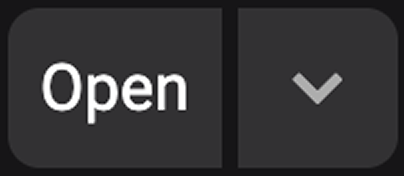
RigFlow – Opens the linked instance in RigFlow for that specific rig. If you're not logged in yet, you'll be prompted to sign in.Open in Rig Page – If the rig has an associated Rig Page, the open button is split. Clicking the left side of the button takes you straight to Rig Page (a dashboard view with rig-specific information and tools). Read more about Rig Page here: ???.
Using favorites
Mark a rig as a favorite: To favorite a rig, hover over the rig card and click the
star icon. This marks the rig as a favorite for your user profile.Filter your favorites: You can toggle the Show favorites only filter at the top right corner to display your starred rigs. This is useful when you only want to focus on rigs relevant to your work.
Subscribing to notifications
Subscribe for notifications: Next to the favorites icon, click the
notifications icon to subscribe to plan status updates for that rig.Confirm subscription: A highlighted
 icon means you’re subscribed. Notifications will alert you when changes occur in the running plan.
Adjust subscriptions settings: Double-click the
notifications icon to open the subscriptions settings menu, where you can toggle notification options for that specific rig. Changes are saved automatically.Unsubscribe: To unsubscribe, click the
notifications icon to open its settings, and click on the unsubscribe button. It will return to its unhighlighted state, indicating that notifications are turned off for that rig.
Viewing insights and comments
View new insights and comments: If a rig has new
insights or comments, small counters will appear on the corresponding icons.Open and review insights and comments: Click on these icons to open and review what’s been added during the plan’s execution.
Checking plan status and progress
View current step: Each card displays the current running step of the active plan and shows a progress bar based on how many tasks have been completed. Click here to read more Plan status bar.
View upcoming plan: On each card, you'll also see a label for the upcoming plan, if one is scheduled. If no plan is running, the card will say No upcoming plan.
Accessing more rig details
Access rig details: The Right sidebar displays a set of icons. When you click on a rig card, the sidebar updates to show information relevant to that specific rig
Select an option: Based on your role and permissions, the Right sidebar will provide access to rig-specific information such as:
 Properties and
  user-added properties.
 Attachments.
The
 Operation overview overview.
Handling access restrictions
Restricted access label: If you don’t have permission to view a rig or its current plan, the card will display a Restricted label. You won’t see the plan details until access is granted.
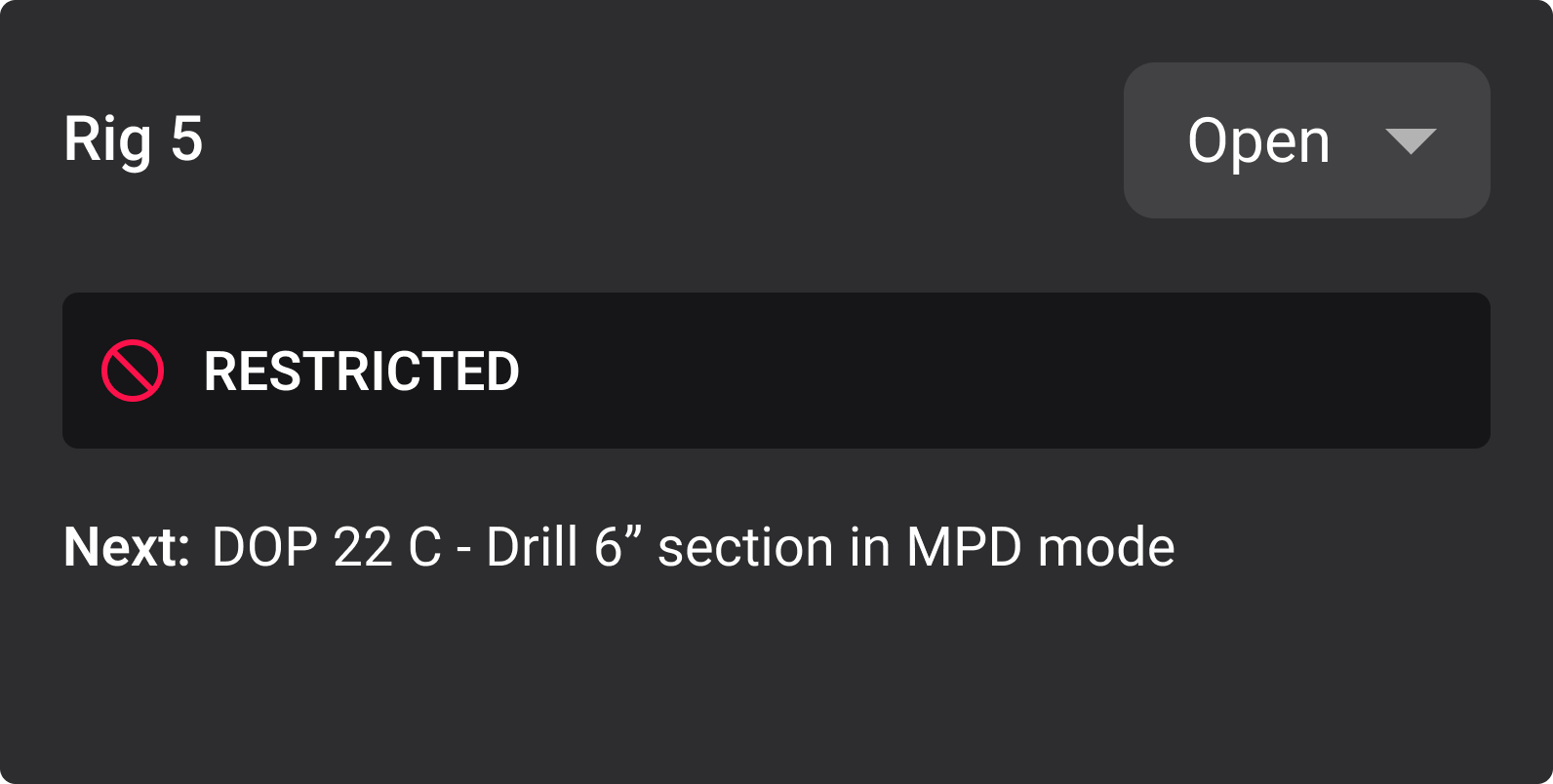
Troubleshooting: If you had been granted access, but the rig still appears as restricted, please contact our 24/7 support team for immediate assistance.
Examples
Personalized view for daily monitoring: As an individual user responsible for three specific rigs, you mark those rigs as favorites. You open the Fleet overview, filter by favorites, and quickly check the current running step on each rig and whether there are any alerts.
Quick access to Rig Page: Instead of navigating through multiple menus, you simply click the Open button on the rig card to go straight to its dedicated Rig Page for a detailed view. Read more about Rig Page here: ???.
Tips and tricks
Use Favorites Wisely: Helps minimize clutter and tailor the view to your role.
Troubleshooting
Missing Rigs: Ensure your user access level includes those rigs.
Pagination Limitation: Only 12 cards display per page currently; use pagination to see more.
Restricted Access: If you lack access to a rig, a “Restricted” label will appear instead of plan data.