Review/Offshore Draft
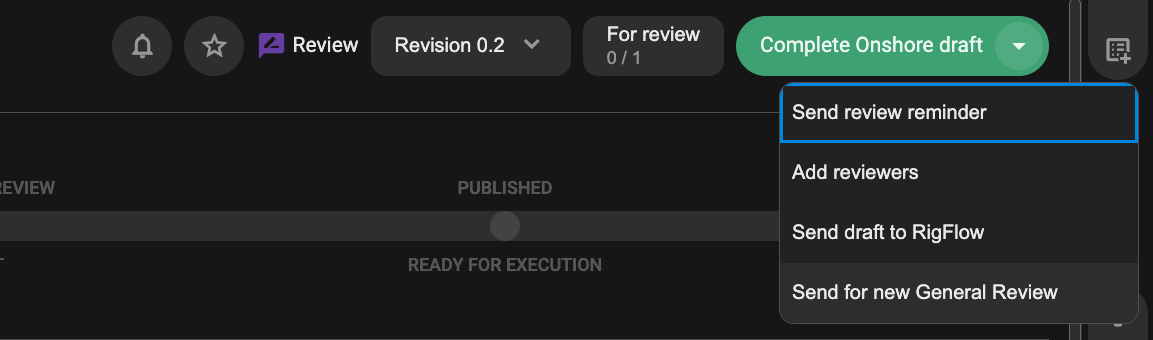
When your plan is in the Review/Offshore Draft, you’ll notice a small arrow next to the green button in the status bar. Clicking this arrow opens a dropdown menu with several helpful tools for managing the review process. Here's what each option does:
Send review reminder: This option allows you to nudge reviewers who haven’t yet submitted their feedback. It's a helpful way to keep your plan on track without needing to send separate emails manually.
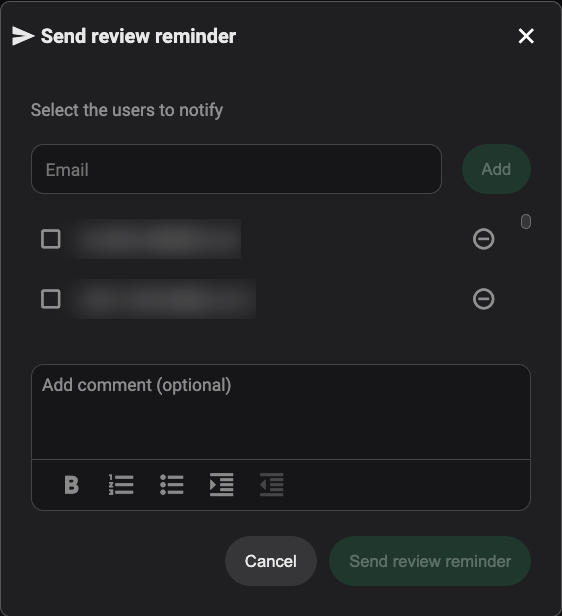
Add reviewers: If you forgot someone or need to include additional input, this lets you add more reviewers even after the plan has already been sent for review. You can select users from the list or type in a new email and press Add.
Send draft to RigFlow: If offshore personnel need to review the plan, you can use this option to send a read-only version to RigFlow. This makes the plan visible offshore so they can leave review comments directly from their RigFlow environment. This will also add the plan to the Execution order.
Send for new review: After making changes based on initial feedback, use this option to restart the review process. It clears the previous review state and allows you to send the updated plan to either the same or different reviewers.
Confirm you have reviewed the plan
Complete your review: Once you've reviewed everything, click the For review button located in the Plan status bar.

Mark yourself as done: After clicking the For Review button, a list of reviewers will appear. Behind your name, there will be a Done button. Click it to mark your review as completed.
Sending a Plan for Review (Draft → Review/Offshore Draft)
Once all reviewers have finished their feedback and marked their review as done, it's time to send the plan for formal approval. This locks the plan and notifies assigned approvers to begin their review and sign-off process.

Make sure all reviewers are done: Before proceeding, confirm that every assigned reviewer has clicked the Done button in the review list.
Click “Send for Approval”: In the Plan status bar at the top of the screen, click the green button labeled Send for approval.
Select approvers: A dialog box will appear. Choose one or more Team Members who have approval permissions assigned within the plan. Only users with the appropriate roles will be available for selection.
(Optional) Add a comment: You may include a comment to provide context or instructions for the approvers.
Set optional toggles:
Auto-publish for execution when all approved: Turn this on to automatically publish the plan once all approvers have approved.
Notify user when plan is published: Visible only if Auto-publish is enabled. Turn it on to notify selected users as soon as the plan is published.
Submit the request: Click Send for Approval to initiate the approval workflow.
Plan status changes to Awaiting Approval: The plan becomes locked for editing. Approvers will now see the plan in their review queue until they take action.