Rig Email Distribution
Rig Email Distribution is a feature in RigBridge designed to automatically notify key personnel whenever a plan is published to RigFlow. It’s especially useful for ensuring that everyone who needs to receive published plans gets them directly in their email inbox, complete with a PDF attachment. This feature is particularly helpful for rig teams, supervisors, and planners who need consistent communication without manual forwarding.
How it looks
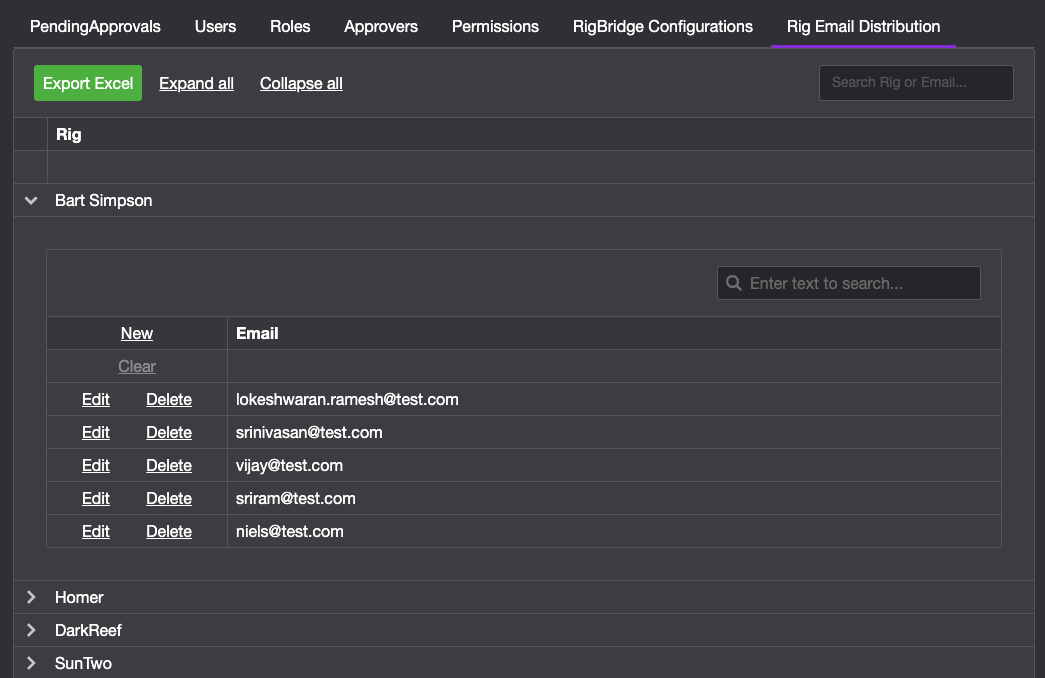
You’ll find the Rig Email Distribution tab at the top of the System Configuration Tool. From here, you can add or remove email recipients for each rig you are assigned to.
Each rig listed has an expandable section where you can view and manage the emails associated with it.
You can use the Expand All and Collapse All options to make it easier to navigate multiple rigs.
Emails are listed clearly, and you can add new recipients by typing their addresses into the field provided.
Step-by-step instructions
Add an email recipient to a rig
Open System Configuration Tool: Navigate to the System Configuration Tool from your RigBridge environment.
Open the Rig Email Distribution tab: Inside System Configuration Tool, locate and click the Rig Email Distribution tab. It should appear alongside other configuration tabs like Permissions.
Find the Rig: Scroll through the list of available rigs until you find the one you want to update. Each rig is listed by name and may already show existing email recipients. Click the
 expand arrow next to the rig name to view its current list of recipients.
Add the Email Address: Click the New link located at the top-left corner of the table. Then, enter the full email address of the person you want to notify (for example, john.doe@company.com) into the input field. After that, press Enter or click the Save link to add the recipient.
Confirm Addition: Make sure the email appears in the list for that rig. This means the recipient will now automatically receive published plan emails with attached PDFs.
Delete an email recipient from a rig
Open System Configuration Tool: Navigate to the System Configuration Tool from your RigBridge environment. This tool is available to Super Admins.
Open the Rig Email Distribution tab: Inside System Configuration Tool, locate and click the Rig Email Distribution tab. It should appear alongside other configuration tabs like Permissions.
Find the Rig: Scroll through the list of available rigs until you find the one you want to update. Click the
expand arrow next to the rig name to view its current list of recipients.Delete the Email Address: Click the Delete link next to the email address you want to remove. A confirmation box will appear - click Yes to confirm and complete the deletion.
Examples
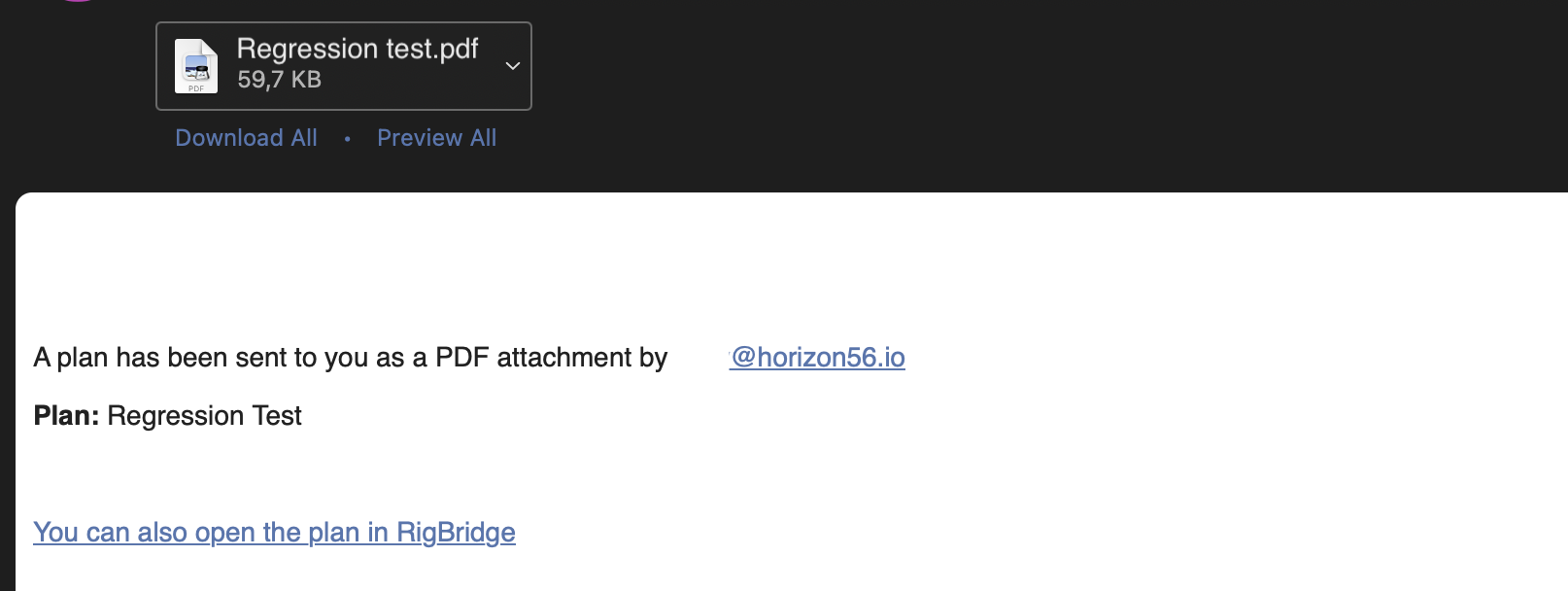
If you publish a plan in RigBridge for a Rig A into RigFlow and have listed john.doe@company.com under a rig in the Rig Email Distribution tab, that person will receive an email with the PDF plan attached.
Tips and Tricks
Double-check email spelling to avoid missed notifications.
If a user is not receiving emails, confirm they are listed under the correct rig and the plan was indeed published (not just saved or drafted).
Troubleshooting
Not seeing the tab? You may not have super admin access. Confirm your role or contact someone who does.
Emails not received? Check spam folders, ensure correct email entries, and verify that the plan was published.
Access denied to sysconfig? You need a super admin or user admin role. Check with your administrator.