Well page
The Well page is an in-depth view providing detailed data and operational insights for a selected well. It acts as the central hub for managing and tracking activities associated with the well.
How it looks
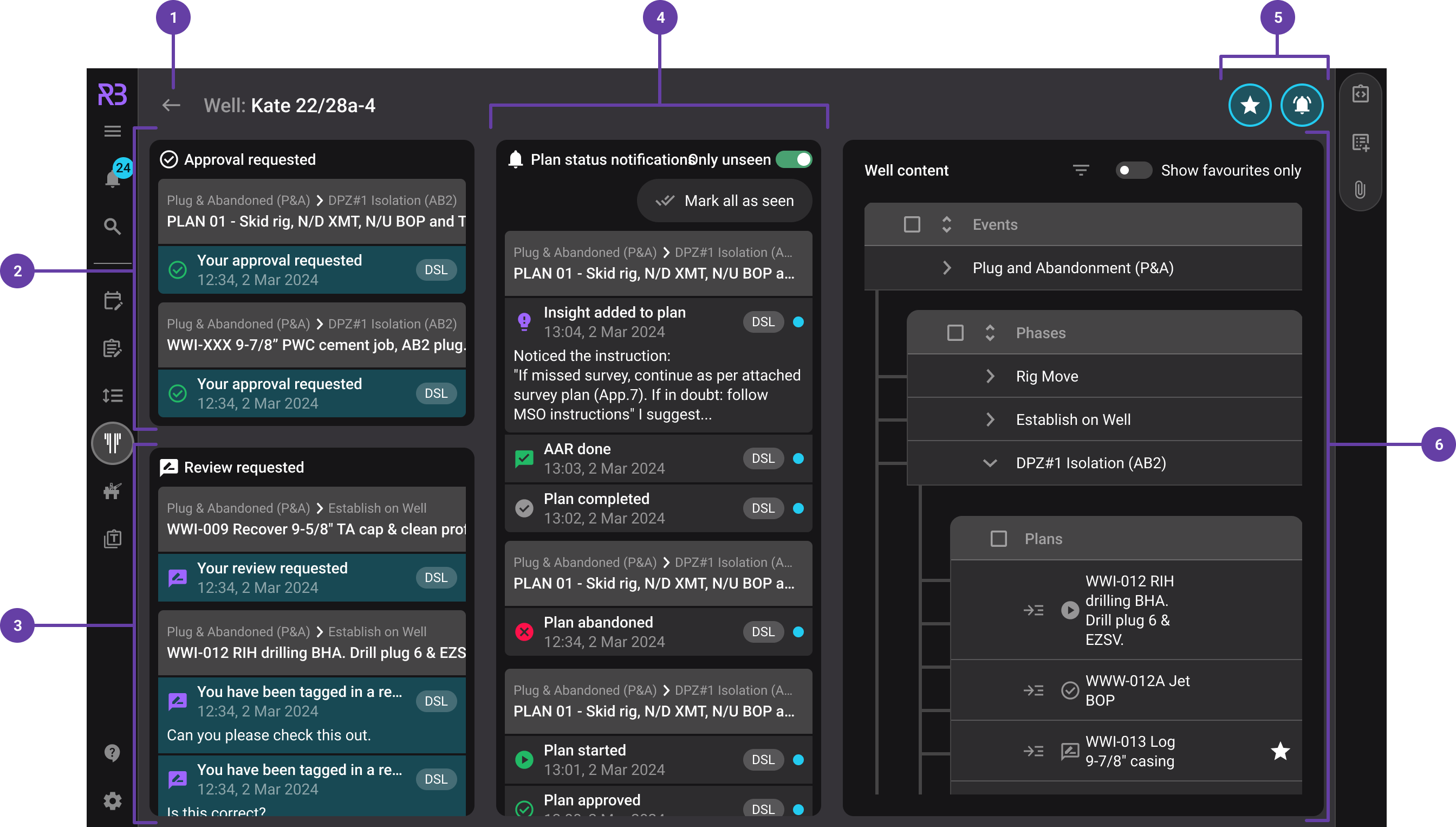
The Well page layout is structured to provide easy access to critical information. Key elements include:
Go back to page overview: A navigation option that allows users to return to the Well overview, enabling seamless switching between individual wells and the broader overview.
Approval requested: Displays the number of pending approvals associated with the well, helping users track what needs authorization.
Review requested: Indicates the count of reviews awaiting action for the well, ensuring users can prioritize and address pending tasks.
Plan status notifications: Shows notifications related to the status of active plans, such as updates, completions, or delays, keeping users informed of key developments. For more information, refer to Notifications & Subscriptions.
Favorites and notifications: Allows users to mark the well as a favorite for quick access and toggle notifications on or off for real-time updates.
Well content: Displays details of the well, including the plans and, e.g., events and phases related to it. This helps users view all associated activities and their status at a glance. Well content has a filter where you can filter for Draft, Approved, Active etc. For more information, refer to Using grids in RigBridge.
Step-by-Step instructions
Open RigBridge and navigate to the
 Well overview section from the menu or sidebar.
Click on a specific Well card in the Well overview.
The Well page for the selected well will open, displaying detailed data about the well.
On the Well page, locate the Plan status notifications section.
Review the listed notifications, which provide updates about the status of active plans.
Use the Only unseen toggle to filter the notifications:
Turn it on to show only new or unseen notifications.
Turn it off to display all notifications, including those already viewed.
Click on a specific notification for more details about the status or to take necessary action.
On the Well page, find the Approval requested or Review requested section, which shows pending requests for the well.
View the pending approval or review requests.
Click on a specific request to open it and take the necessary action.
Locate the Well Content section on the Well page.
View or filter the displayed information, which includes related plans, events, and phases tied to the well.
Enabling the "Show favourites only" option will filter out all content that is not marked as a favourite.
Click on any row to access additional details or manage related activities.
You can also click on Add... to include content in any layer of the hierarchy. If you don't see this option, you don't have the necessary permissions.
Troubleshooting
Access Denied: Ensure you have appropriate permissions for editing properties.
Missing Data: Verify linked plans and confirm correct setup of integrations.