Add a property to a plan
You can add properties in such areas as the Operation tab (Instructions, Notes, Operational Parameters) and the Information tab.
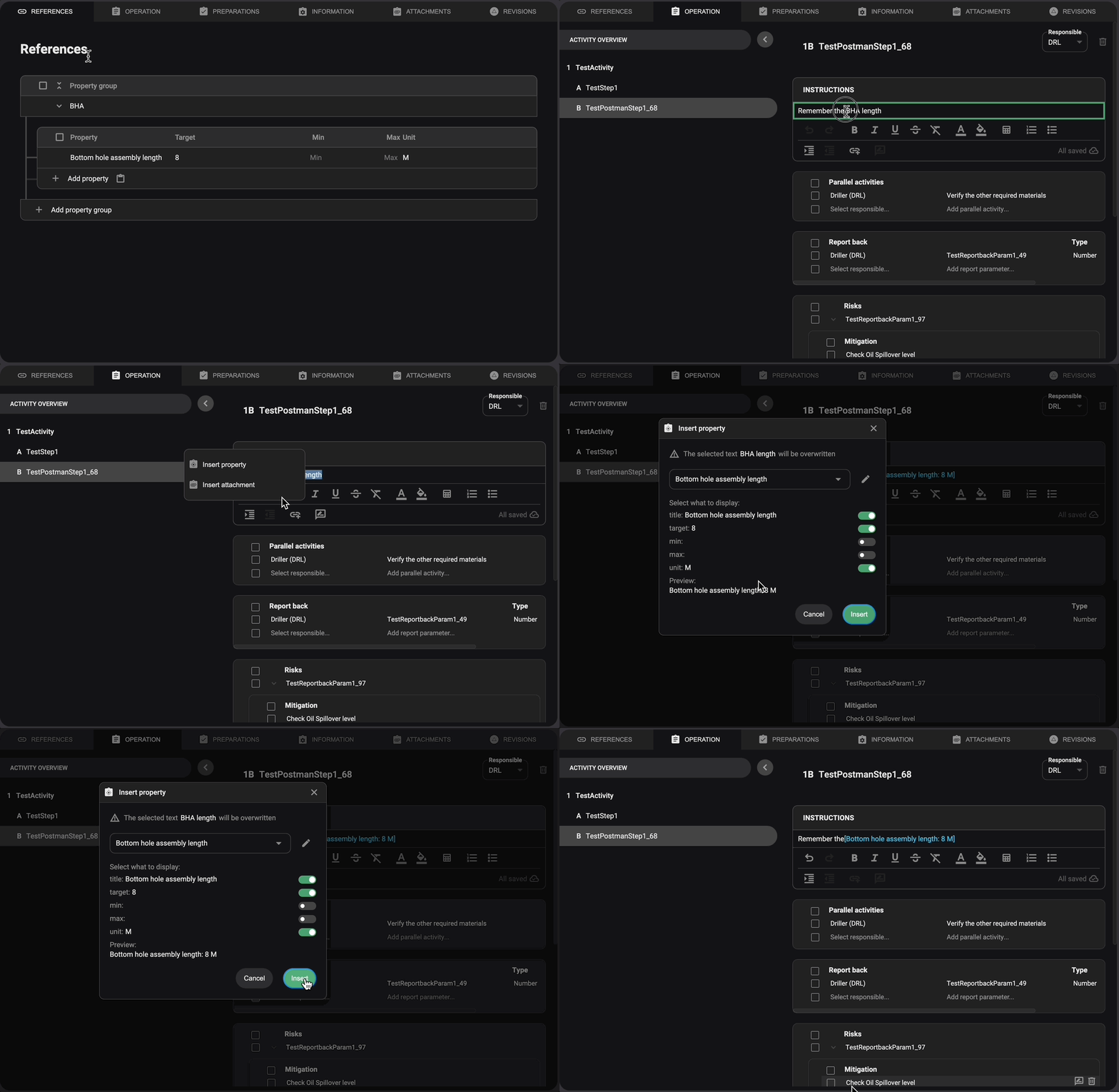
Open the Operation Tab: Navigate to the plan view and access the Operation tab.
Find the Instruction: Identify the location within Instructions where you want to incorporate a property from the References.
Select Text or Placement: Highlight the text you want to replace with the property, or click where you want to insert it.
Open the Link Menu: In the text editor toolbar, click the Add link icon.
Choose Insert Property: Click Insert property, then search for or select the desired property.
Select Display Fields: A dialog box will appear, allowing you to toggle which fields from the property should be displayed in the instruction.
Insert the Property: Click the Insert button to apply the property to the instruction.
Confirm the Integration: The reference has been successfully added to the instruction.
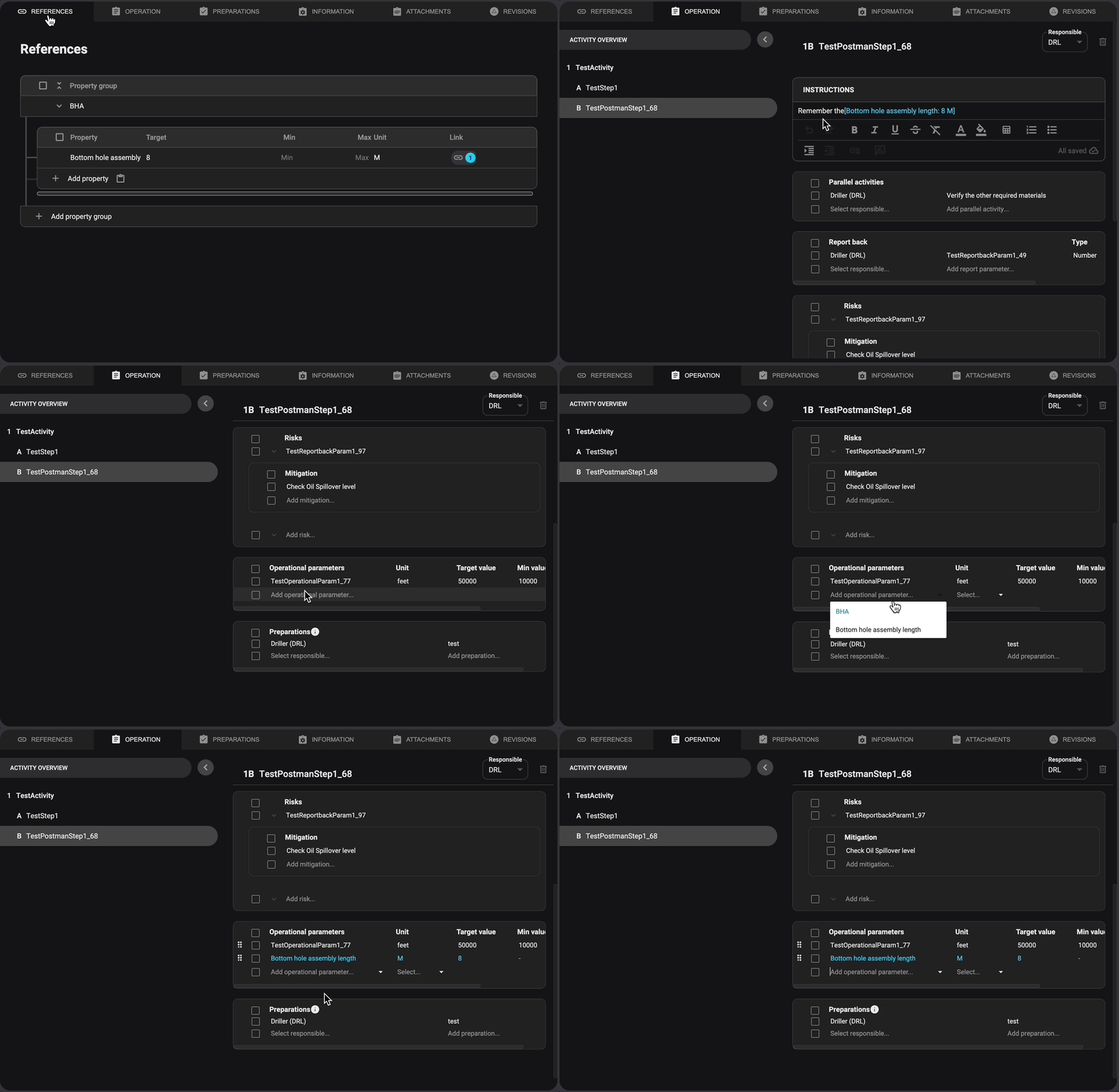
Open the Operation Tab: Navigate to the plan view and access the Operation tab.
Find the Operational Parameter: Identify the location within Operation Parameters where you want to incorporate a property from the References.
Click the Title Field: Click on the Title field to open a dropdown menu.
Select a Property: Select or search for the desired property from the dropdown; this will automatically populate the remaining fields.
Confirm the Integration: The reference has been successfully added to the Operational Parameter.