Rig Configuration
 Rig Configuration in RigBridge provides a comprehensive overview of the rigs involved in your plans. This feature allows you to view detailed metadata for each rig, making it essential for project managers and planners to manage rig deployment and operational decisions efficiently. Rig Configuration centralizes rig-related information, ensuring informed decision-making.
How it looks
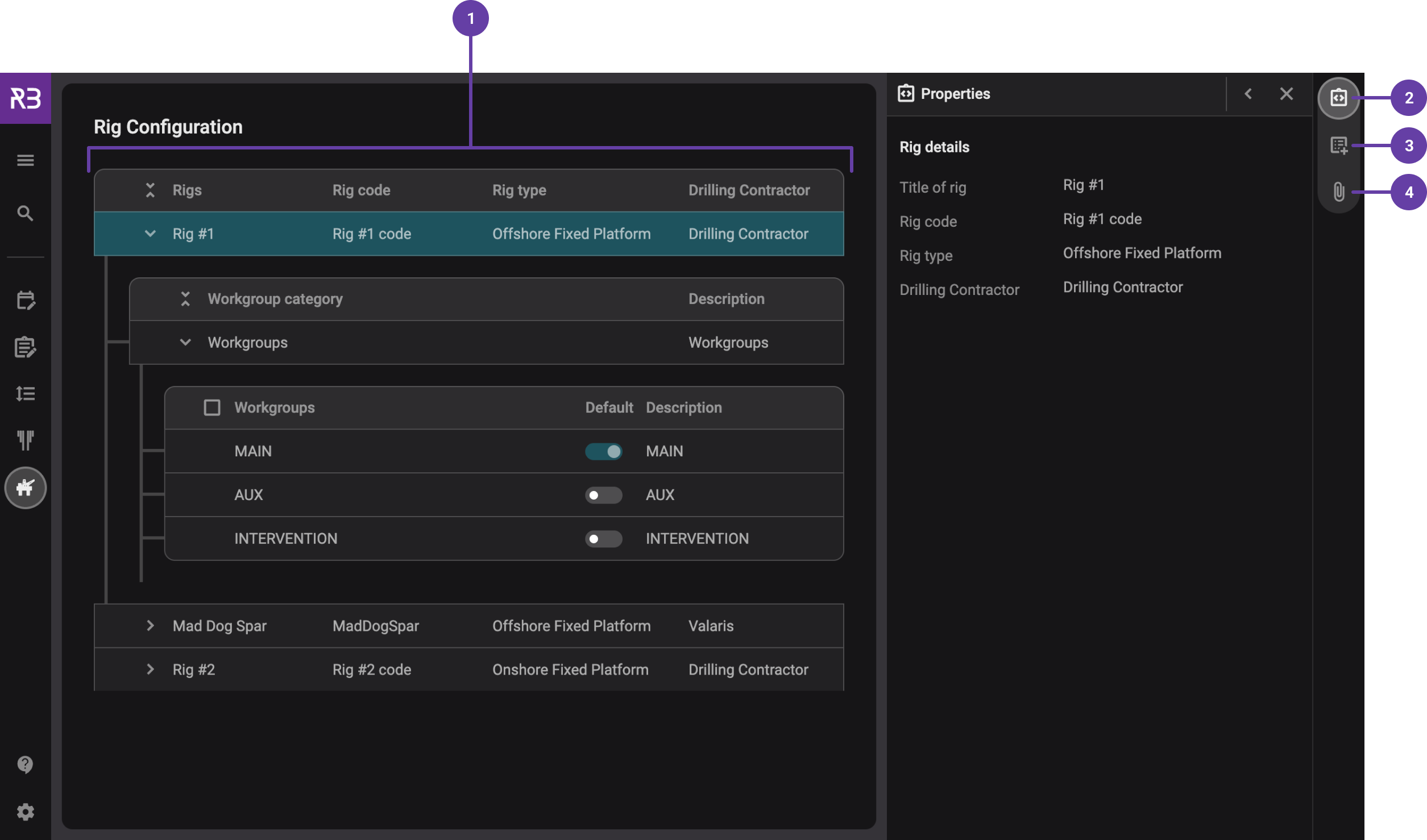
The Rig Configuration feature comprises two main components:
Rig Overview List: Located in the main view, this list provides a quick summary of all available rigs, making it easy to find the rigs relevant to your planning and projects. You can also define which workgroups are associated with each rig.
Rig Properties Panel: Displayed in the right-side panel, it showcases specific metadata for the selected rig, such as technical specifications, status, and associated tasks. This panel is customizable to reflect your organization’s data requirements.
User-Added Properties: Displayed in the right-side panel, this section allows you to add detailed information about rig equipment, such as casing specifications for various sizes, e.g., the weight and Drift ID of a 20" casing.
Attachments: Displayed in the right-side panel, this section shows attachments related to the selected rig. It can include rig-specific documents not added to Rig Properties or those that support Rig Properties, such as certifications.
Note
If a rig is not listed, you can send a request to Horizon56 support for its creation.
Step-by-step instructions
Access the Rig Configuration: Open RigBridge and navigate to the
 Rig Configuration section from the Left sidebar.
View rig details: Click on a rig in the overview list and review its details in the
 Properties panel on the Right sidebar.
Create a workgroup (permissions required): Select the rig you want to work with and expand the relevant workgroup category. Click the
 Add workgroup row in the table and enter a title and description. Use the toggle to set it as default if needed.
Edit rig properties (permission required): Select and click on a rig in the overview list, and edit its details in the
Properties panel on the Right sidebar.
Tips and tricks
Update Metadata: If you have permission to update metadata, regularly update the metadata in the properties panel to maintain accuracy.
Quick Access: Favorite frequently used rigs for faster access in future planning sessions.