KPI
The KPI Integration feature in RigBridge is designed to streamline Key Performance Indicator (KPI) management within drilling operations. It eliminates the need for engineers to manually input KPIs into RigBridge, ensuring continuous updates and accurate tracking throughout the planning and execution phases. The feature primarily benefits drilling engineers and rig personnel by providing real-time access to performance expectations and operational benchmarks.
How it looks
The KPI panel is accessible within RigBridge in two locations:
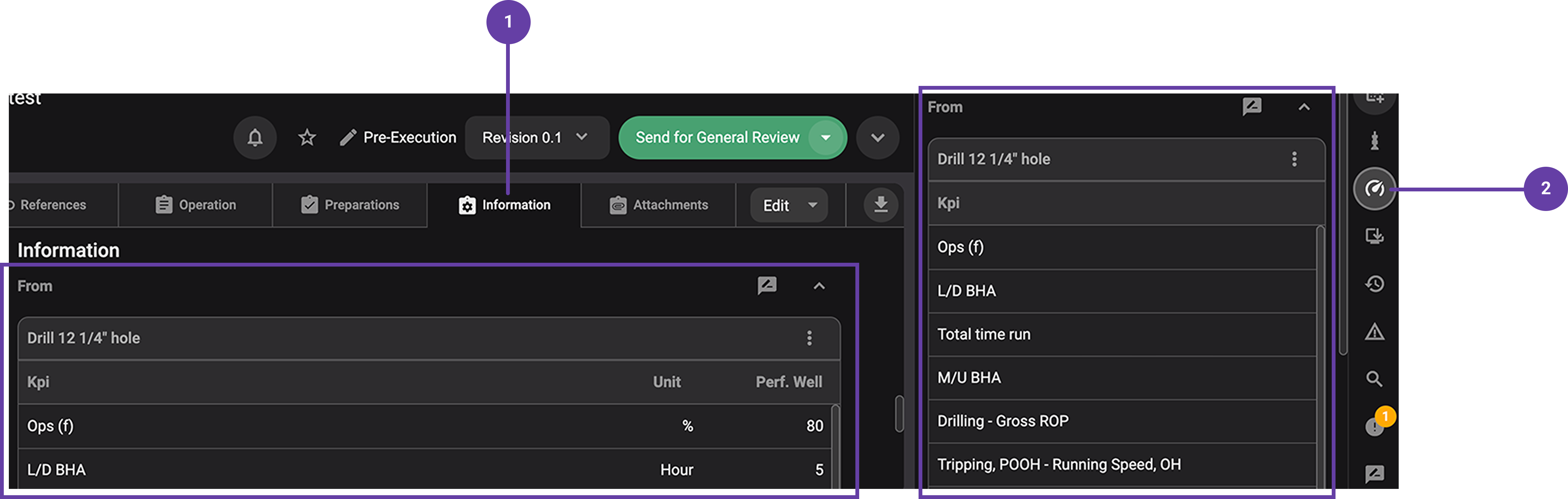
Main KPI panel: This is found in the
 Information Tab of the Plan editor. It contains:
KPI name
Unit of measurement
Expected performance values (e.g., tripping speed, make-up time)
Right sidebar KPI panel: A simplified KPI view that provides quick access without navigating away from the main workflow. It is located on the Right sidebar. It contains:
KPI name
Unit of measurement
Expected performance values
Note
The data is read-only, ensuring a single source of truth and preventing unauthorized modifications.
Important
KPIs are automatically transferred from the third-party integration, they originate from two possible sources: Section KPIs or Run KPIs from linked tasks. If the tasks are not properly linked, the information will not be transferred to RigBridge.
Step-by-Step instructions
Access the KPI panels
Navigate to your plan in RigBridge.
Click on the
Information Tab to see the main KPI panel .For quick access to the KPI information, use the
 KPI Tab on the Right sidebar.
If no value is defined in the third-party integration, an
 information icon will indicate missing data.
Examples
A drilling engineer planning a tripping operation can check the expected tripping speed KPI to ensure the plan aligns with operational targets.
A rig crew member can review the target time for BHA make-up before beginning the process.
Tips and tricks
Within both panels, users can perform the following actions:
 Review Tab: Allows users to add comments or flag KPIs for discussion before execution.
 Expand and
  Collapse: Users can collapse or expand the KPI table, making it easier to focus on other parts of the plan if needed.
 Not Applicable: If a KPI is not relevant for a specific operation, it can be marked as Not Applicable by clicking on the
  more menu. This prevents it from being sent to RigFlow.
Troubleshooting
KPI table not visible: Ensure task linking has been completed in the Plan editor.
KPI values missing: Check if they are defined in your third-party integration and update if needed.
Unable to edit KPI values: KPIs are read-only in RigBridge; update them in your third-party integration.
KPI updates not reflected: Wait a few minutes; KPI synchronization occurs regularly.