Well overview
The  Well overview feature in RigBridge is designed to provide users with a clear, aggregated view of all relevant information for their wells. This feature simplifies workflows by consolidating data, making it accessible for both operational users and management, who need insights across multiple wells.
How it looks

You can access the Well Overview page from the RigBridge front page by clicking the Well overview icon or by going to the left sidebar under the same icon.
The view contains the following:
Well Cards: Each card contains the well name, options to favorite or enable notifications, a progress bar, and a RigFlow button for plan details. For more information, refer to Well Cards.
Favorites: Use the "Show favorites only" toggle in the upper-right corner to display only your favorite wells. If no favorites are selected, users will see all wells.
Well Cards
The Well card is a vital feature of the Well overview, providing a snapshot of each well's status and activities. It offers users a simple way to monitor well updates and favorite specific wells and quickly navigate to detailed data on the Well page overview or execution tools like RigFlow.
How the well card looks
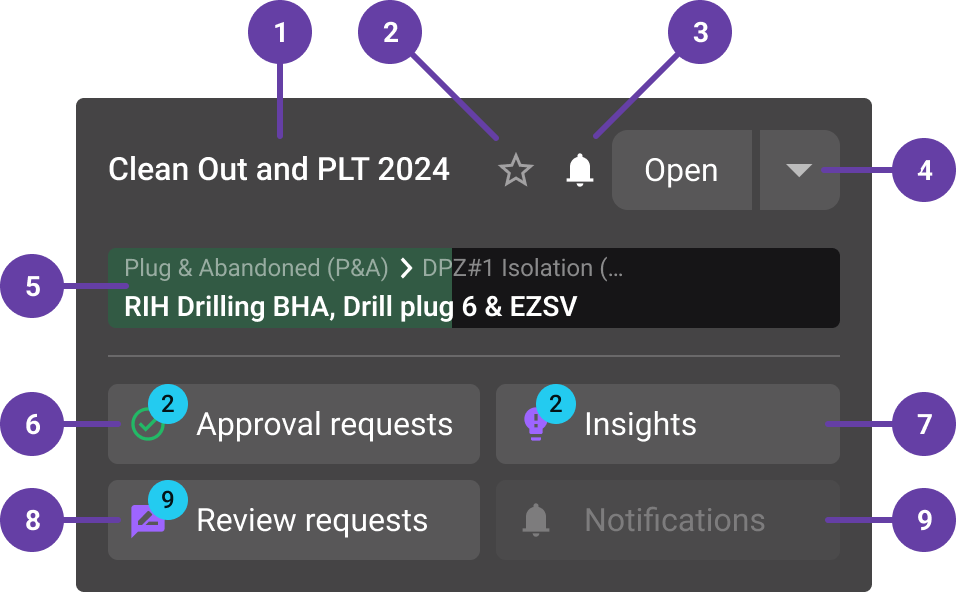
Well Name: Clearly displayed at the top of the card.
Set as a favorite: Allows you to enable or disable this well as a favorite.
Notification toggle: Let you enable or disable notifications for the well.
Open button and dropdown menu: Clicking the Open button displays the Well page, while clicking the dropdown icon reveals options such as Open in Plan editor , Open in Plan overview, or Open in RigFlow . For more information on Well page, refer to Well page.
Progress bar: This bar displays the status of the current running plan. If no plan is active, it shows "No active plan."
Approval Requests: Total number of pending your approval requests for the well.
Insights: Total number of insights for the well.
Review requests: Total number of pending your reviews for the well.
Notifications: Total number of notifications related to the well.
How to access the Well page
Clicking on the card's open button will show the detailed Well Page, where users can view all associated data, operational parameters, and additional insights for that specific well. For more information, refer to Well page.
Tips and Tricks
Use filters to focus on specific Fields or Rigs when managing many wells.
Update your list of favorite wells for quick navigation.
Troubleshooting
Empty Page Issue: Ensure you have favorited wells or toggle off "Show favorites only" in the upper-right corner.
Filters Not Working: Confirm that the selected criteria match your data.
Permission limitations: You can only view wells for which you have the necessary permissions, such as being a member or an admin.