Insight Library
The  Insight Library is a dedicated app within RigBridge that helps users manage and access key insights across multiple plans. It solves the challenge of having to navigate through various plans to find relevant insights by automatically aggregating and presenting them in one centralized location. This feature is handy for drilling engineers and team members involved in planning and execution, ensuring they can optimize new plans using past insights.
How it looks
Two key ways to access insights are through the Insight Library app on the left-side panel and the Relevant Insights panel on the Right sidebar of the Plan editor.
Key features include:
Relevance Levels: Insights are tagged by relevance—Rig, Field, Region, or Global—which controls where they appear for users
Editable Insights: When adding an insight, users can edit the content to improve clarity, though edits are optional.
Commenting and Notifications: Users can comment on insights and tag team members to notify them of updates.
Export to PDF: After applying a search or filters in the Insight Library app, you can download a PDF file that includes all listed insights along with any attached files (such as images, PDFs, or spreadsheets) for offline review or sharing.
Supported files
Attachments are limited to the following files: PDF, images (jpg, jpeg, png) and Excel (xls and xlsx)
Insight Library app
The  Insight Library App is located on the left-hand side panel of RigBridge. Insights can be added directly from plan-specific insights using an Add to Insight Library button. A colored icon next to an insight indicates it's part of the library, while a white icon shows it hasn't been added yet.
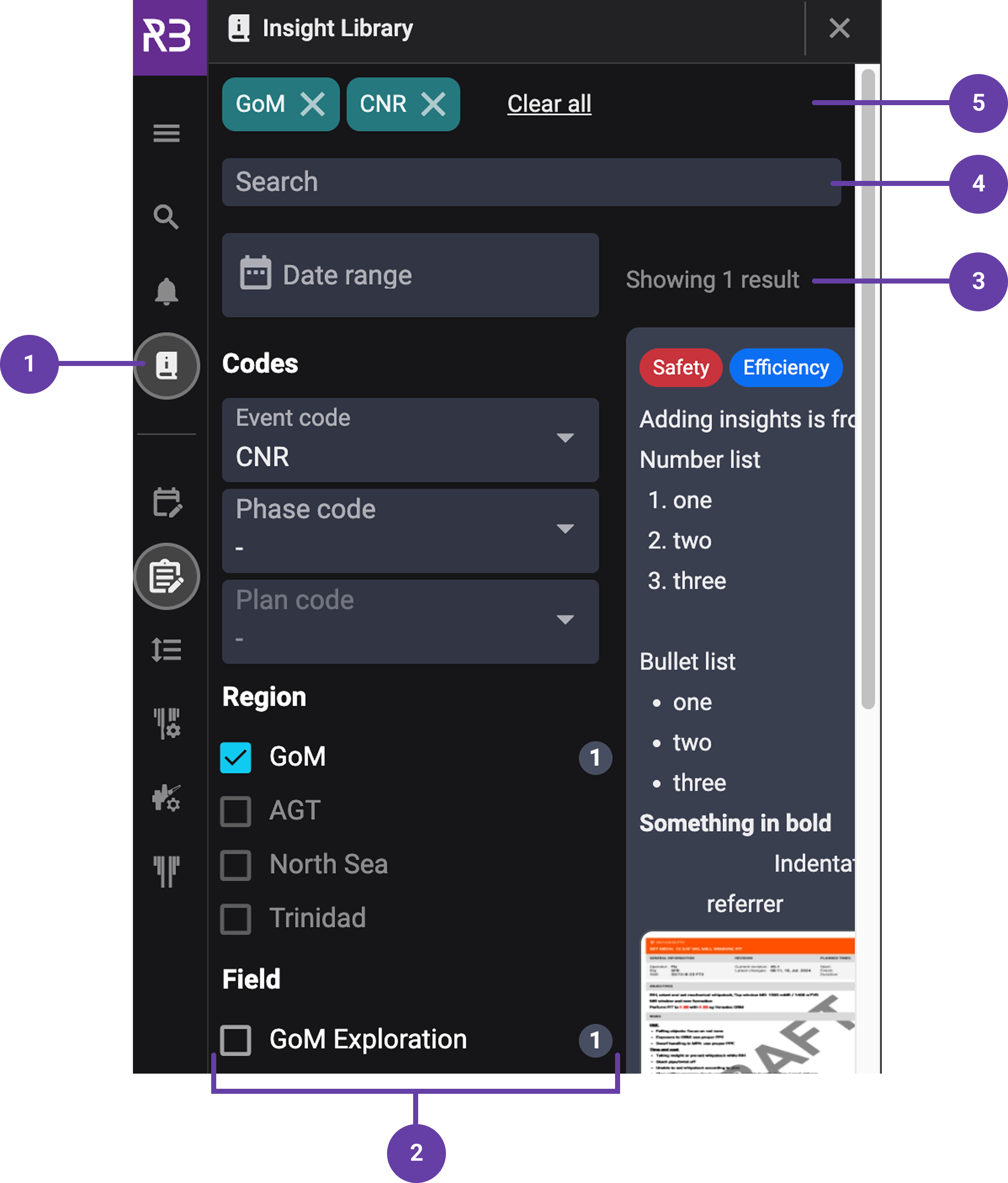
- Insights Library icon: Located in the left-side panel. Click this icon to open the Insight Library app and view all saved insights.
Filters: Found on the left side of the screen. You can filter insights by date, tags, relevance level (Rig, Field, Region, Global), and other attributes. This helps narrow down large sets of insights.
Results Panel: Located on the right side. This is where insights appear as cards after applying filters or searching. Each card shows a preview of the insight, including title, tags, and date.
On this panel, you can also access the
 export button to download a PDF file that includes all listed insights.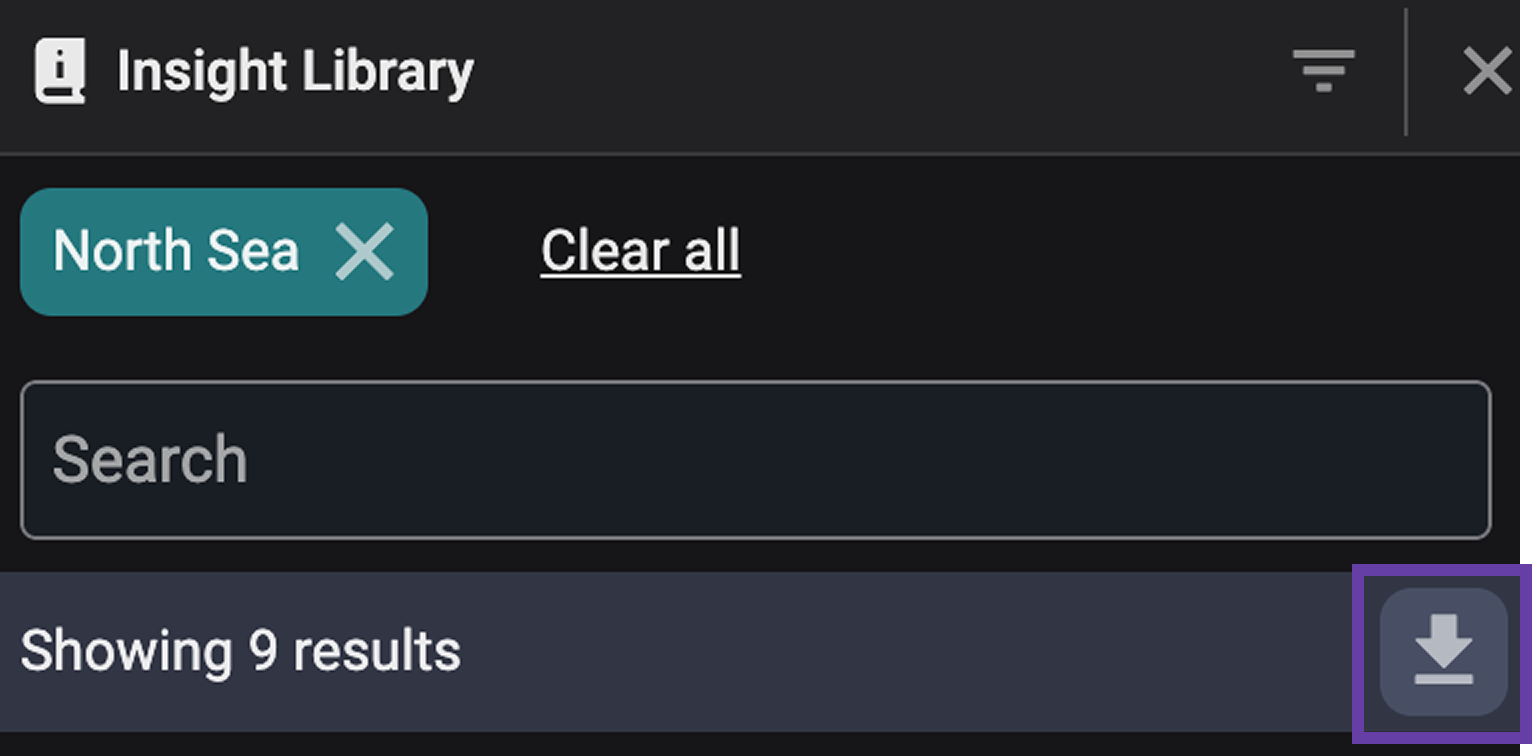
Search bar: Positioned at the top of the view. Allows you to enter keywords to find specific insights based on content, tags, or titles.
Filters applied: Displays any active filters you've selected. You can remove individual filters or clear all to reset your view.
Relevant Insights app
The  Relevant Insights App is located in the Right sidebar of the
  Plan editor in RigBridge. It automatically displays two sub-apps with insights from the Insight Library and related plans based on the current plan's codes and selected relevance level:
 Added Insights Tab: This section shows insights that were created directly within the current plan. These are typically added during or after execution, so the tab is often empty while the plan is still in the editing phase.
Show Relevant Insights button - When empty, the tab includes a helpful button labeled Show relevant insights, which redirects users to the
Relevant Insights Tab, ensuring they still have quick access to insights from the library or related plans.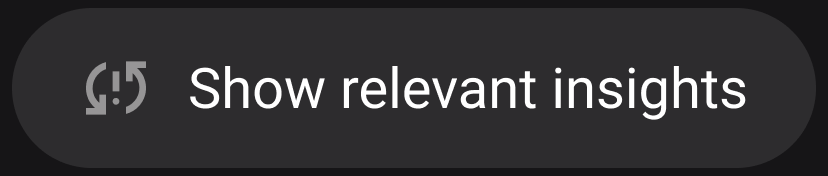
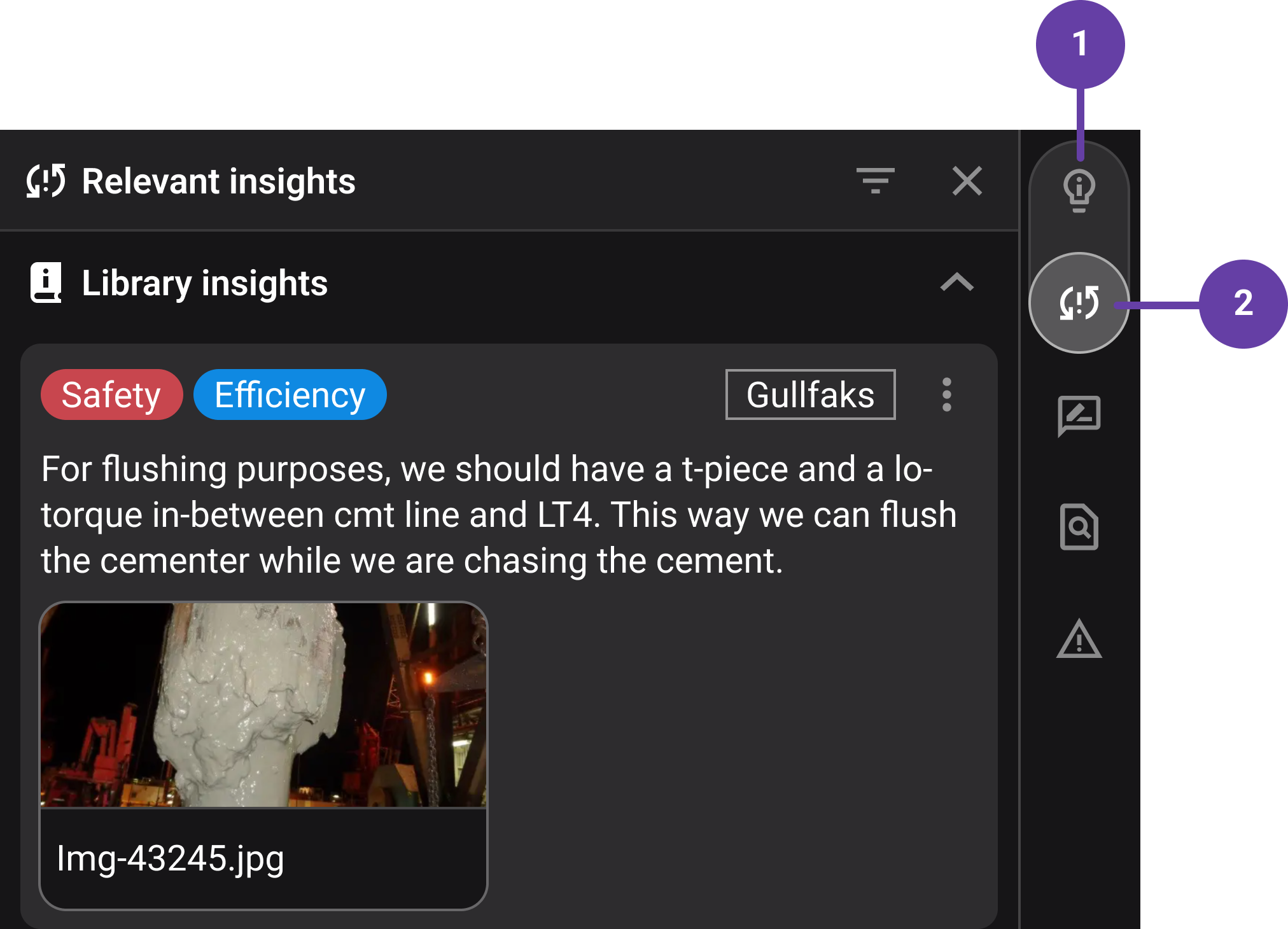
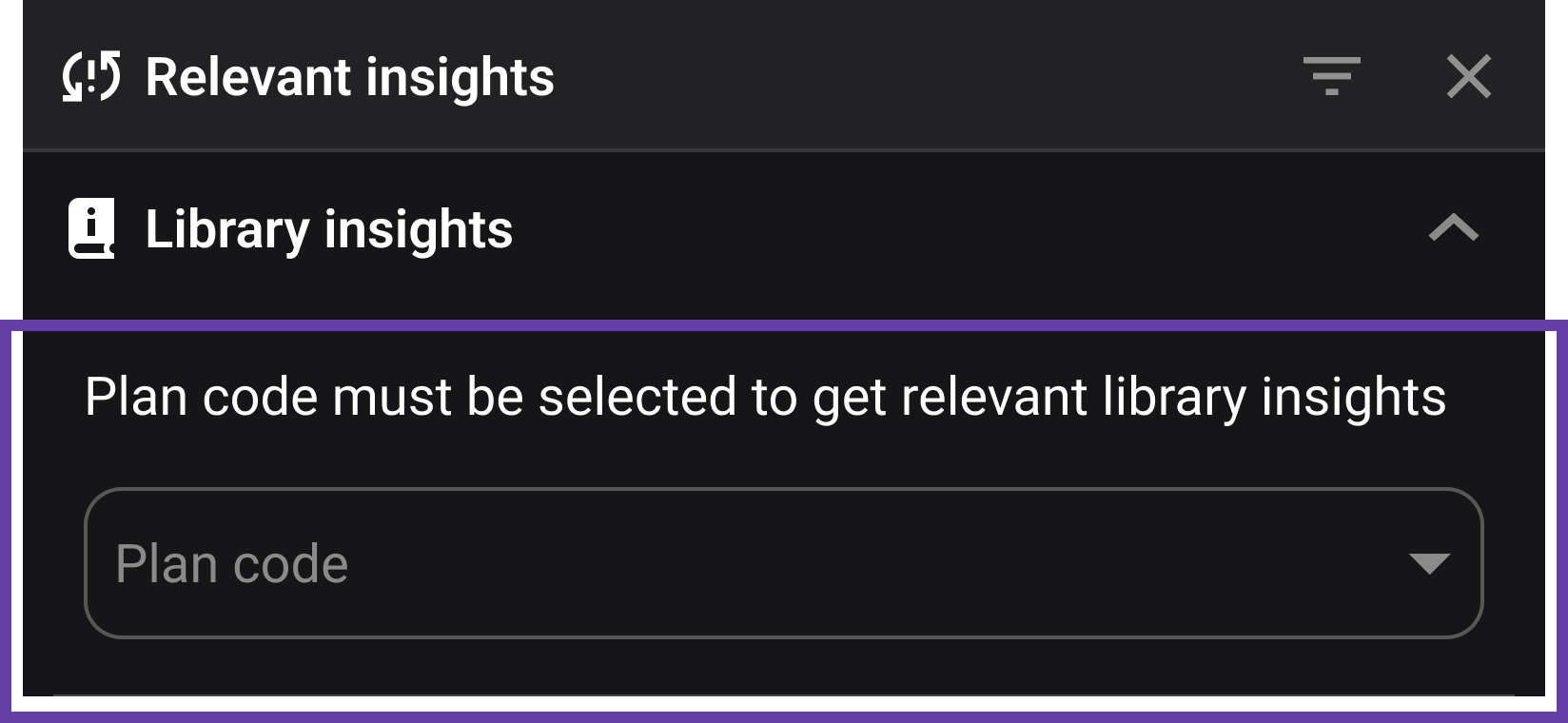
- Relevant Insights Tab: Automatically displays insights from the library that match your current plan’s codes and relevance level. It may also show insights from related templates or copied plans.
- Library insights section - This sits at the top and can be
 expanded or
  collapsed. A badge shows the number of matched insights.
Plan code selector - If your plan doesn’t have codes yet, you can assign them here to activate insight matching.
 Filter icon - May appear to help you narrow the displayed insights.
Insights details card

When you click on an Insight in the Insight Library, the Insight details card opens. This view shows all the key information associated with that insight. Here’s a breakdown of each component:
Plan Details: Displays a reference to the plan and step where the insight was originally created. This helps trace the context of the insight and locate it within its operational history.
Tags: Keywords assigned to the insight. Tags help categorize insights by topic (e.g., safety, efficiency, general) and allow for quick filtering and retrieval.
Creator’s Information: Shows who added the insight to the library and the timestamp. This is useful for tracking contributions and for follow-up if clarification is needed.
Insight Content: Shows the main body of the insight—what was learned or observed. This may include lessons, observations, or recommendations, often tied to performance, safety, or procedures.
Attachments: Lists any files linked to the insight, such as PDFs, images, or spreadsheets. These provide additional context or supporting documentation and can be downloaded for review.
Relevance Level: Indicates the scope of where the insight should apply.
Step-by-step instructions
Adding Insights to the library
Navigate to the insight in a plan.
Click the
Send to Insight Library button on the Right sidebar.In the pop-up modal, set the Relevance Level (Rig, Field, Region, or Global).
You can also set tags (e.g., safety, efficiency, general) and add
 attachments.
If needed, you can also edit the insight in the text box.
Click Add to publish the insight to the library.
Setting the Relevance Level
The Relevance Level defines where the insight will appear and who can see it.
Once the insight has been added to the Insight Library, click the
 edit icon on the pop-up modal.
On the Relevance level display menu, select the option depending on how broadly the insight applies:
Rig - Insight applies only to the specific rig.
Field - Insight applies to all wells within the same field.
Region - Insight applies to a larger operational area or geographical region.
Region - Insight applies to a larger operational area or geographical region.
Click Save changes to save it in the library.
The insight will now show up automatically in future plans that match the selected level.
In the Insight Library, use the Relevance Filter on the left to view insights by specific relevance levels.
Using Tags for Insights
Tags help organize and filter insights based on key themes or topics. They make it easier to find related insights later.
Once the insight has been added to the Insight Library, click the
edit icon on the pop-up modal.On the Tags display menu, select the tag that better describes the insight - Safety and/or Efficiency, or General.
Click Save changes to save it in the library.
In the Insight Library, use the Tag Filter on the left to view insights by specific tags.
Accessing Insights
Accessing through the Insight Library app
Click on the
Insight Library icon in the left-side panel of RigBridge.To find an insight, use the search bar to enter keywords,
Or click on the
filter icon to choose between tags, relevance level, date range, and more to narrow results.Click on any insight card in the results list to open the full insight and get more details.
Accessing through a plan
While in the
 Plan editor, go to the Insights Panel on the right.
View Relevant Insights, which include insights from the library, template insights, and copied plans based on your plan’s codes and relevance settings.
Click on the Insight Library icon next to an insight. A change of color in the icon will indicate if an insight has already been added.
Accessing through the Relevant Insights app
Open a plan.
Click on the
Relevant Insights icon on the Right sidebar.You will be presented with two sub-apps, toggle between them, and select your desired view.
Relevant Insights – Auto-matched from the Insight Library based on plan codes and relevance level.
Added Insights – Insights created directly within the current plan.
If your plan doesn’t yet have codes, you can select them directly in the plan code panel to activate the relevant insights.
- Expand or collapse the Library Insights section to browse or focus.
Viewing, filtering and downloading insights
Open the Insight Library from the left-hand panel.
Use filters (e.g., code set, date range) or search for keywords to narrow down insights.
Click on an insight card to view details.
After applying a search or filters in the Insight Library app, you can export the visible list of insights by clicking the
Export button located above the Results Panel. This will generate and download a PDF containing the listed insights, including any attached files.
Editing or removing insights (Admins Only)
Select and access an insight.
Use the
 Edit or
  Remove buttons in the top right corner of the modal.
Confirm deletion if removing; note that this action is irreversible.
Examples
A Drilling Engineer creating a new plan for a specific rig will automatically see relevant insights from previous projects on that rig in the Relevant Insights panel.
During a team meeting, users can export insights related to safety for discussion using the Export to PDF feature.
Tips and tricks
Always set the correct Relevance Level when adding insights to avoid cluttering irrelevant plans.
Edit insights to make them concise and clear, especially if there are extensive comment threads.
Attach images, diagrams, or spreadsheets to provide additional context.
Troubleshooting
Cannot add or edit insights in the Insight Library: Only users with the correct permission level, as configured in RigBridge SysConfig, can add or edit insights. Contact your administrator if you believe you should have access but cannot perform these actions.
Insights not showing in Relevant Insights panel: Verify that the plan codes are correctly set and match the relevance settings of the insights.
Accidentally deleted an insight: Deletion is permanent, but you can always re-add the original insight if it still exists in the plan.
Can't find an insight in the library: Ensure you've applied the correct filters or search terms. The search is strict and doesn’t account for typos.