How to use the splitscreen on the Right sidebar
RigBridge’s split-screen feature enables you to work with two panels side-by-side, making it easier to manage information and tasks efficiently.
When a Right sidebar application is open, a vertical bar separates it from the main view. You can resize the sidebar by dragging this divider or quickly toggle its width using 
 arrow icons located in the top-right corner of the sidebar display.
Step-by-step instructions
Manually resize the sidebar (dragging)
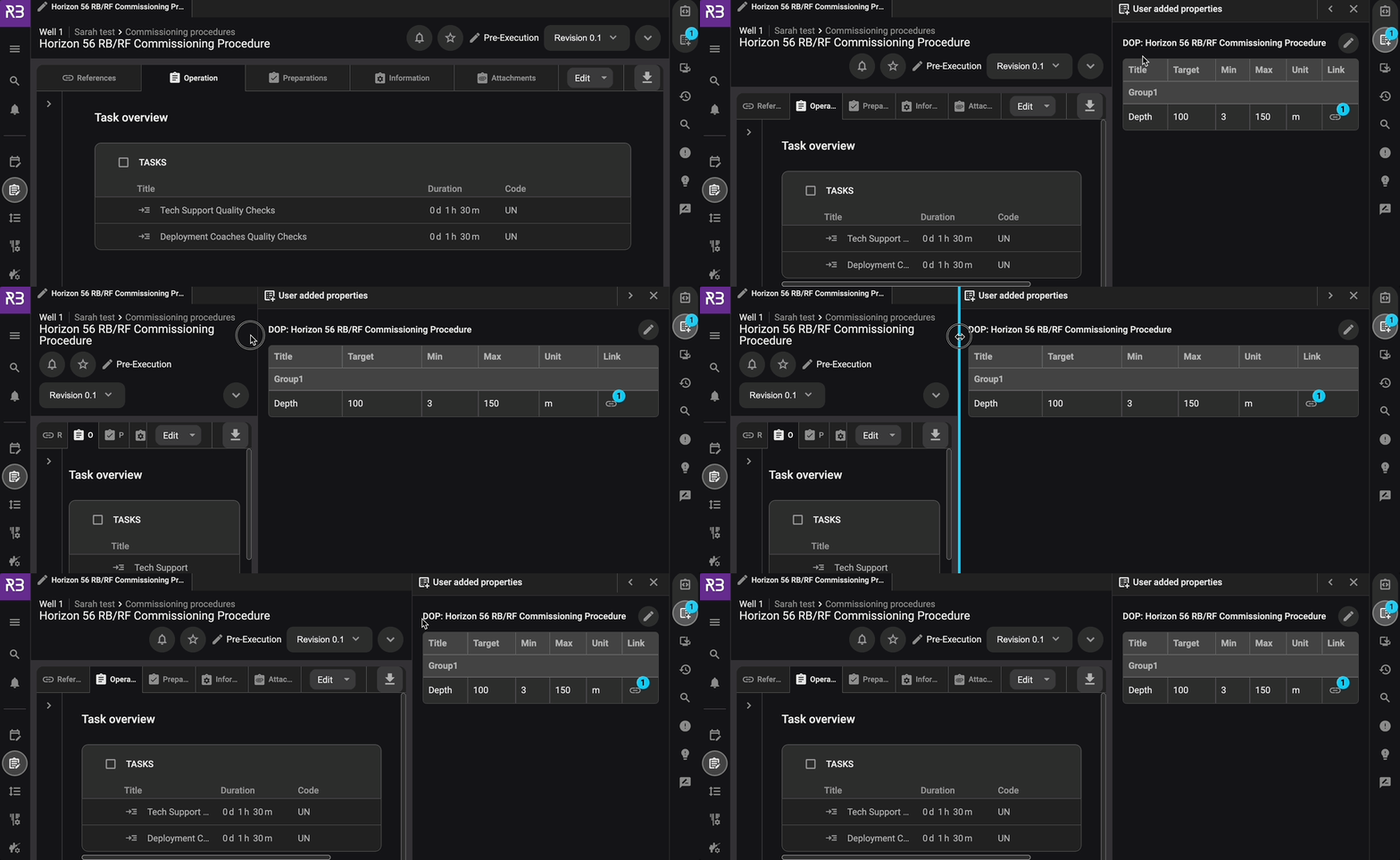
Open any application from the Right sidebar.
Locate the vertical bar separating the main screen and the right sidebar.
Click and drag the bar.
Drag it left or right to adjust the sidebar's width to your preference. The resizing is limited to a maximum width.
Resize with the arrow icons
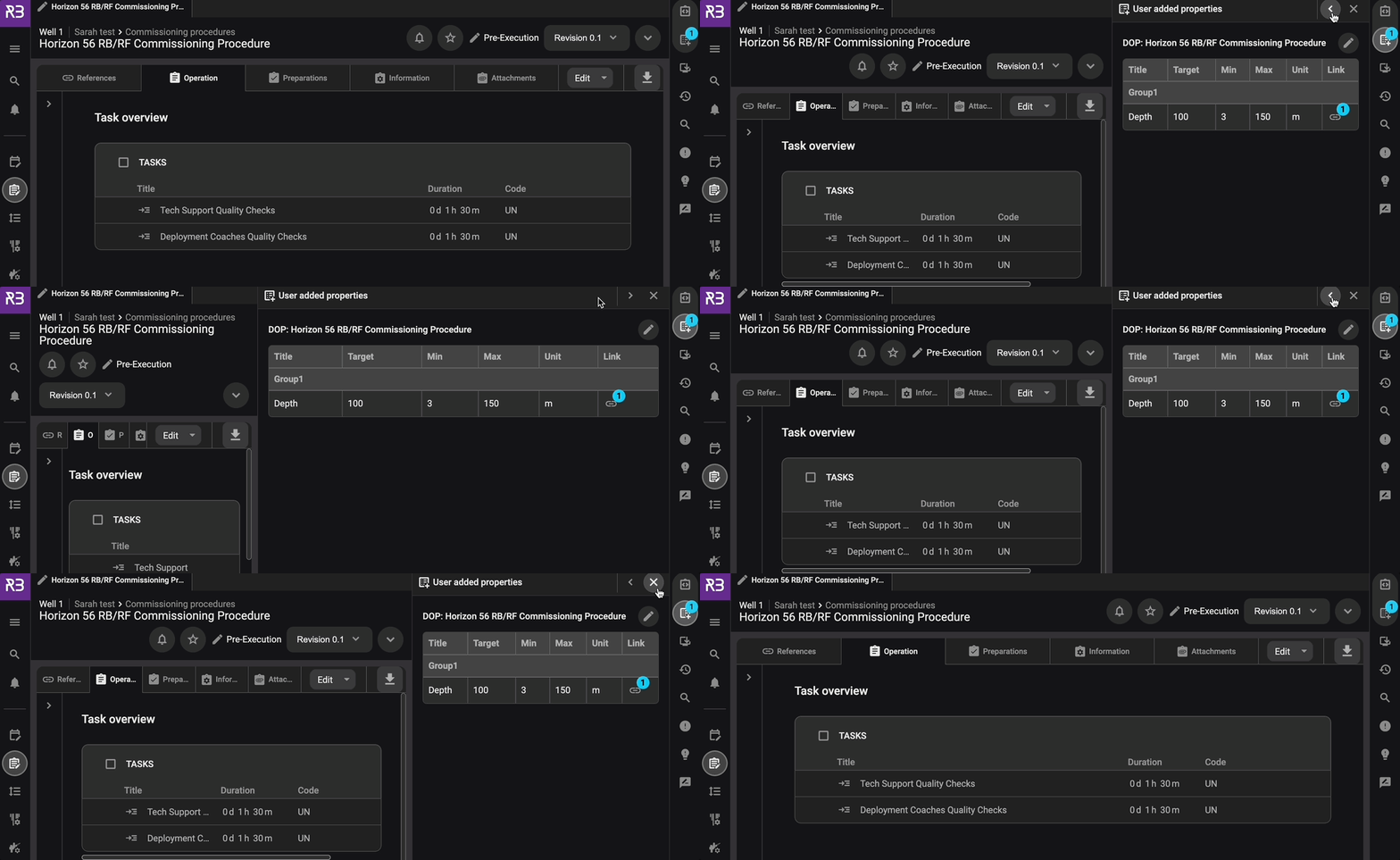
Find the arrow icons on the top right corner of the Right sidebar display.
Click the
maximize arrow to instantly expand the right sidebar to the maximum allowed width.Click the
minimize arrow to return the Right sidebar to its default size. This does not fully close the display; it returns it to its default layout.
Tips and tricks
Use the
arrow icons for quick switching instead of dragging for speed.Ideal for quickly reviewing without toggling between tabs.