OnePagers
The  OnePagers feature is designed to store and share best practice documents, typically one-page PDFs, that can be referenced across different plans. This feature serves as a centralized library for standardized operational guidance. It helps eliminate the need for scattered PDFs and ensures consistent reference to validated documents.
How it looks
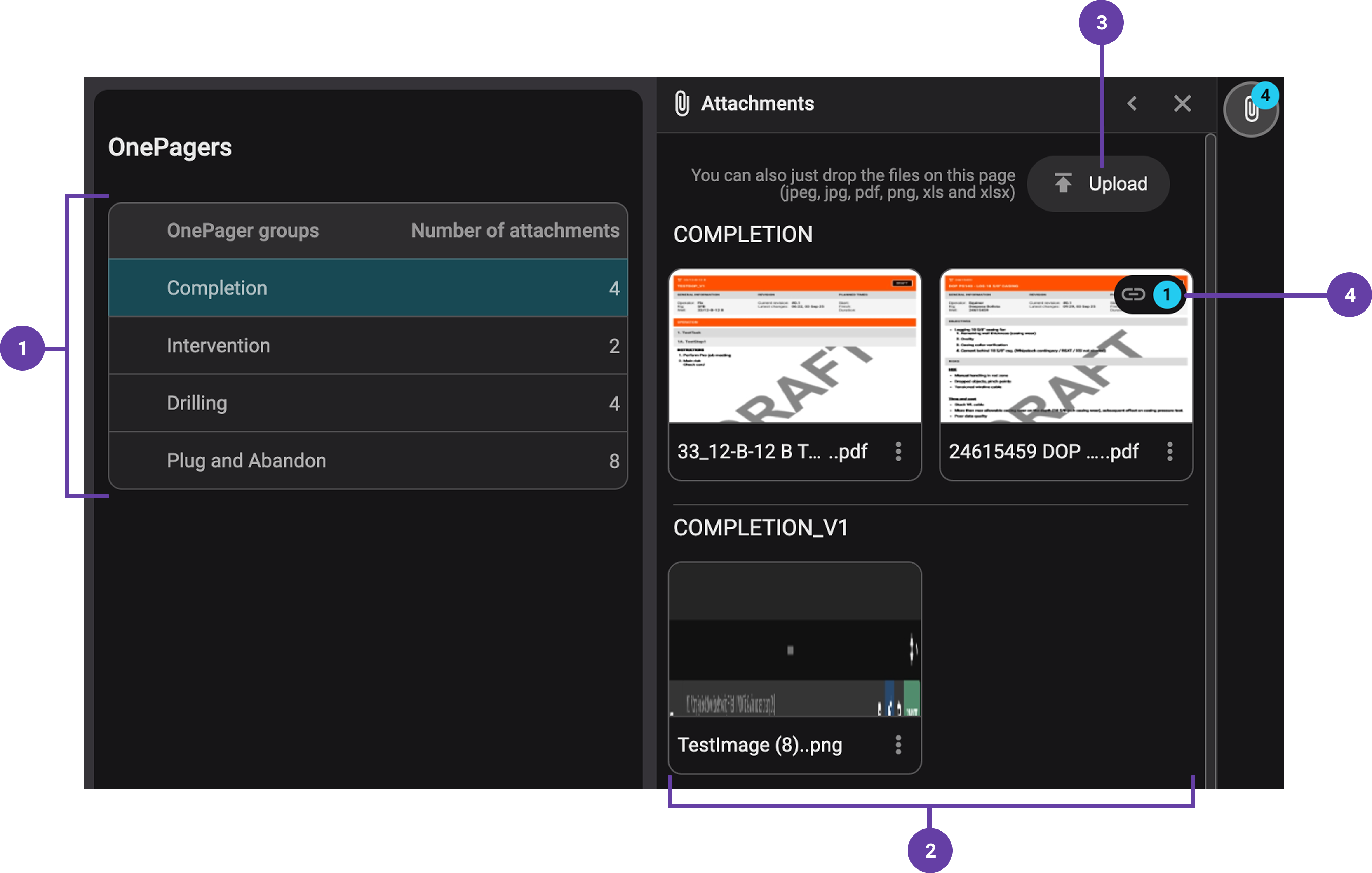
OnePagers Operation Types panel: This section lists the main groups, which represent different disciplines. The number of documents in each group is also shown. These groups help organize best practices at a high level.
 Attachments viewer panel: When you select a group, you’ll see its related documents and subgroups appear in the Right sidebar. Subgroups under each main group allow further categorization, such as by vendor or specific operation type.
 Upload and manage groups button: Use the Upload button to either upload a file to an existing group or create a new subgroup.
Linked to panel: A link icon means the document is used in plans. Click it to view a list of linked plans; each one is clickable and will take you directly to that plan.
Tip
Only Admins can access and manage the OnePagers app. However, all users can link OnePagers documents when working in the Plan editor.
Step-by-step instructions
Link a OnePagers attachment from the Plan editor
Open a plan in Plan editor: Select the plan you want to edit and open it in the
 Plan editor.
Highlight the instruction's text: In the
 Operations tab, highlight the specific text where you want to link the OnePagers document.
Link an attachment: Click the
 link content icon, then select
  Insert Attachment from the dropdown to open the list of available links.
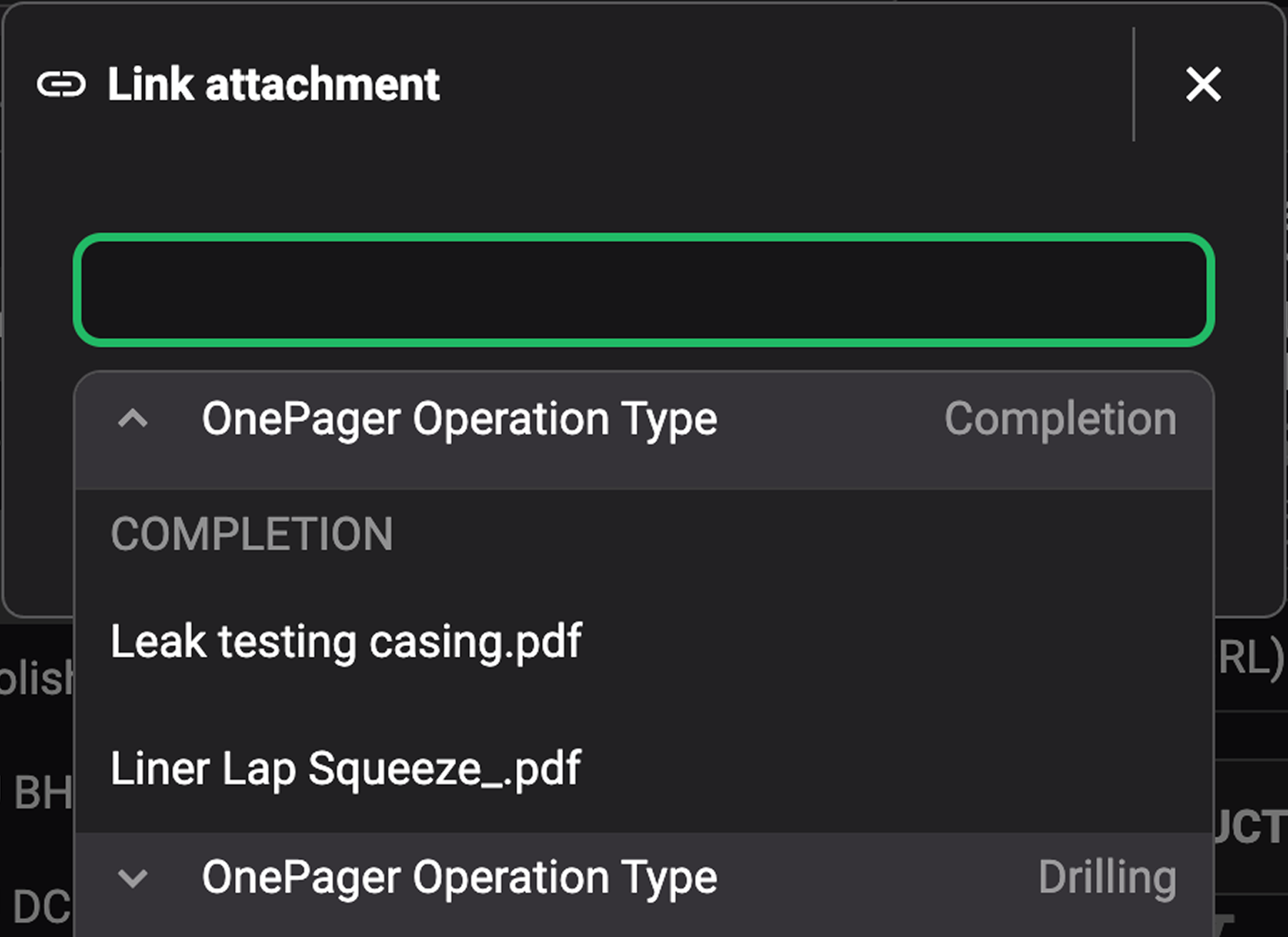
Select a OnePagers document: At the top of the list, expand the OnePagers section. Open the relevant group and subgroup, then click the document you want to link.
Note
Learn more about linking or unlinking attachments here: Linking or un-link an attachment
Navigate OnePagers (Admins only)
Accessing OnePagers (Admins only): Go to the RigBridge landing page or directly to the Left sidebar and click the
OnePagers icon to open the OnePagers panel.Browse main groups: On the OnePagers Operation Types table, view the main discipline groups (e.g., Drilling, Completion, Intervention). The number next to each shows how many documents are inside.
Viewing attachments and subgroups: Select a group on the OnePagers operation types table and click on it. The Right sidebar will open and showcase the documents attached to that group.
Use the attachments viewer panel (Admins only)
Open the Right sidebar: Select a group from the OnePagers Operation Types table, and click on it to open its attachments Right sidebar panel.
Upload documents or create subgroups: Use the
Upload button on the Attachments Right sidebar panel to add new documents or create subgroups. Select a file and assign it to a group or subgroup.Download, replace, and delete attachments: Click on the
 more menu on a document to access options for
  downloading,
  replacing, or
  deleting it. Select the action you need from the dropdown.
Deleting subgroups (Admins only): Subgroups can only be deleted if they are empty. Once no documents remain, you can manually delete the group.
Navigate to linked plans: If a document is linked to other plans, a
 link icon will appear next to it. Click the icon to view a list of those plans. Each item in the list is clickable, allowing you to jump directly to Plan editor.
Tips and tricks
Add OnePagers to your plan templates to ensure best practices are always included.
Take advantage of the
Replace feature to update documents without changing links in existing plans.
Troubleshooting
Can't access the OnePagers app: Access is limited to Admin users. If you believe you need access, contact your manager or system administrator to review your permissions.
Can't delete a group: Make sure the group is empty first. You can only delete a group if it is empty.