Find and search
The Find and Search functionality in RigBridge is a powerful tool that enable you to quickly locate and review project and plans, both current and historical. Using the features in find and search, you can enhance your efficiency and ensure better planning and execution.
Click on the  Find icon located in the left side panel. When the find modal is shown you can:
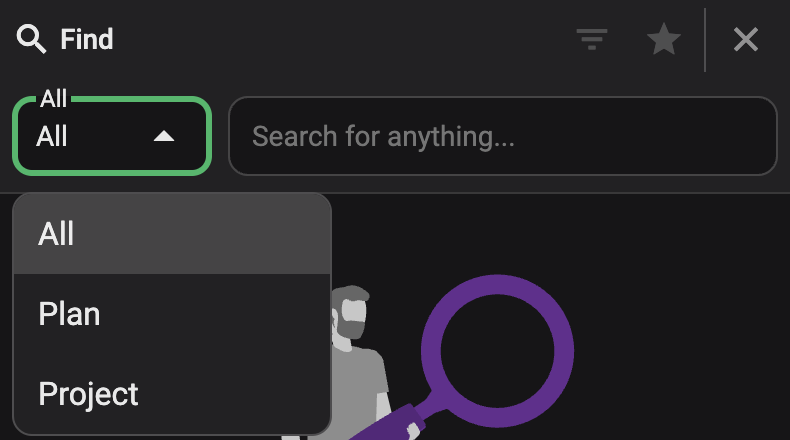
Set the category for what you want to search for: "All, Plan or Project".
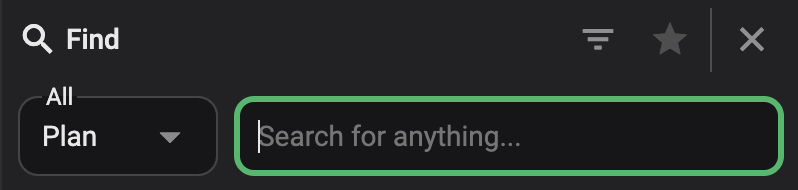
Type in the keyword(s) related to the project or plan you wish to find. You can only search for the plan or projects title.
Use the available filters to narrow down your search results even more, based on various criteria such as Date range, Status, Workgroup, Author, etc. The criteria can vary based on the data model setup your organization has defined.
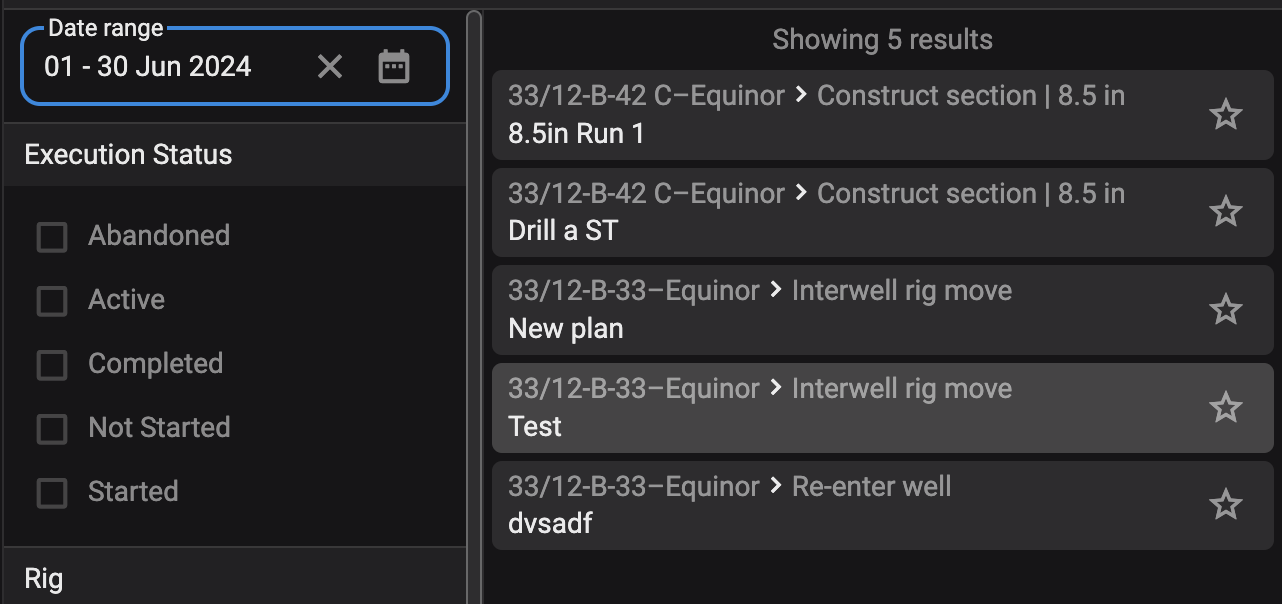
Click on the Project or Plan to see a drop down menu.
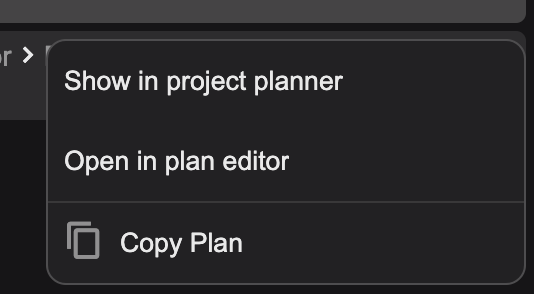
You can now choose to open the project or plan using Show in Plan overview, the Open in plan editor or
 Copy Plan.
Using favourites in RigBridge can enhance productivity by quickly accessing frequently used projects and plans. Follow the steps to add, manage, and use favourites effectively.
Open Favourites: Click the
 Favourites icon in the Find feature to see your list of favourites.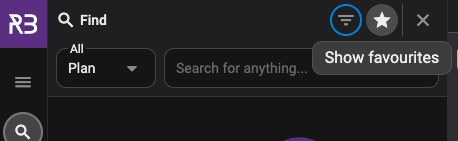
Search for a Project or Plan: Find and hover the Project or Plan you want to add to your favourites.
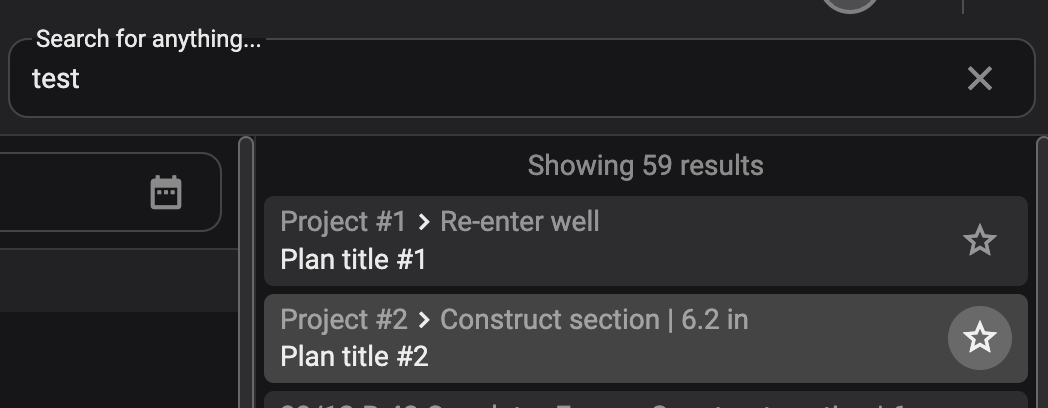
Add to Favourites: Click the
 star icon next to the Project or Plan. The star changes to active , indicating the Project or Plan is added to your favourites.
Search for a Project or Plan: Find and hover the Project or Plan you want to add to your favourites.
Remove from Favourites: To remove a project or plan from your favourites, click the active
star icon next to it. The star will revert to deactivated .
Add a project or plan to favourites from Plan overview
Navigate to the Project or Plan: Find the Project or Plan and you want to add to your favourites. Hover over the plan to activate the favourites option.
Add to Favourites: Click the star icon next to the Project or Plan. The star changes to active
, indicating the Project or Plan is added to your favourites.
Add a plan to favourites from Plan Editor
Navigate to the Plan: Find the Plan you want to add to your favourites and open it in the Plan Editor.
Add to Favourites: Click the favourite star icon next to the Plan title. The star changes to active
, indicating that the Plan has been added to your favourites.
Update Regularly: Keep your favourites list relevant by updating it periodically.
Limit Projects or Plans: Maintain a manageable number of favourites to avoid clutter.
Project or Plan not appearing: Ensure the star icon changed to active. Refresh the page if needed.
Unable to remove favourite: Refresh or log out and back in. Contact support if the issue persists.
Tips for Effective Searching
Be Specific: Use specific keywords related to the project or plan to narrow down results.
Combine Filters: Use multiple filters to refine search results more effectively.