Pending Approvals
The Pending Approvals tab lets Admins and Super Admins review new user access requests submitted via the login page form.
How it looks
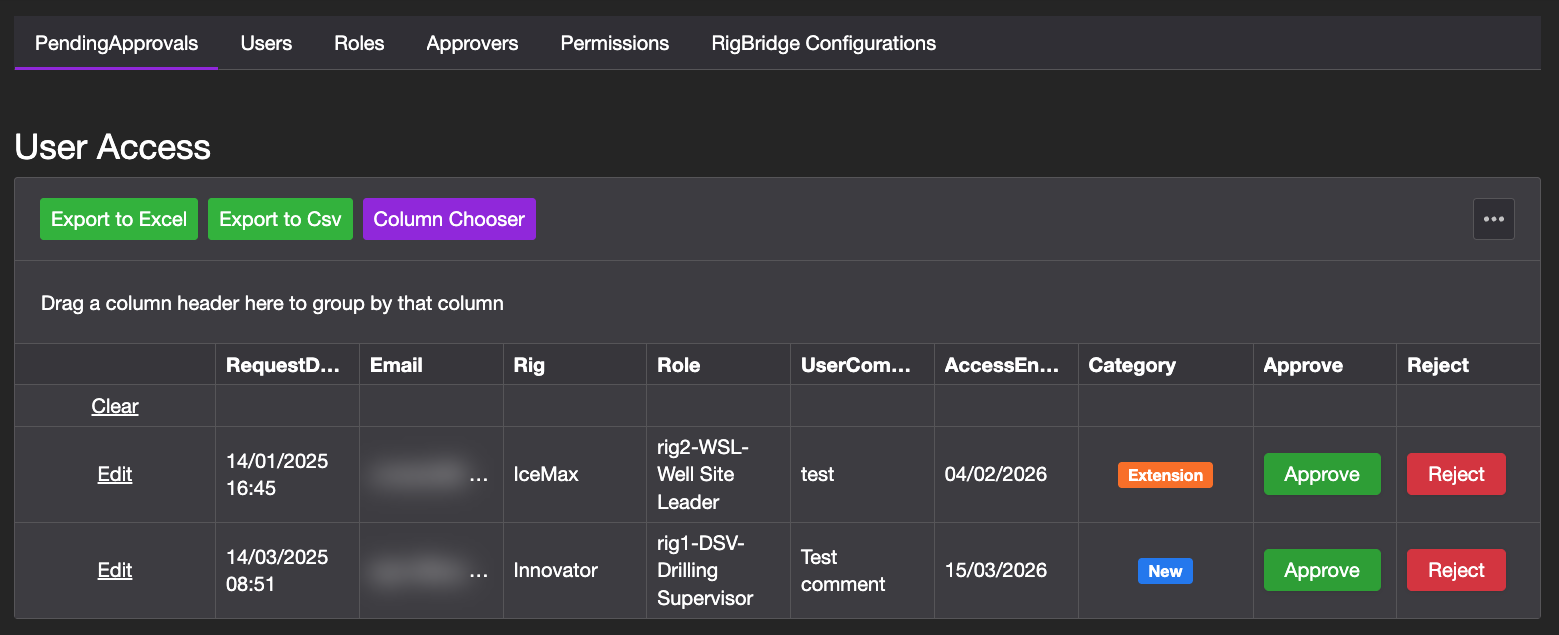
The tab shows a queue of requests awaiting access approval for either admins or users. Each request includes the user's email, requested group, rig selection, and requested role.
Each request can be:
Approved, granting access.
Rejected, denying access.
Edited before approval (for role or rig adjustments).
Additional tools available in this view include:
Export to Excel/CSV: Download the current list of roles and their assigned permissions in either Excel or CSV format. This is useful for documentation, sharing, or preparing a template for bulk import.
Column chooser: Customize your view by selecting which roles columns are visible in the table.
Step-by-step instructions
Approve request
Go to the Pending Approvals tab: Navigate to the PendingApprovals section from the main menu.
Find the user: Use the search filters in the top of the table, to locate the user by email or name if the list is long.
Adjust the request (optional): If needed, click the link Edit in the front of the user row to change the expiration date. Available options may vary depending on the customer’s system configuration. When done, click Save.
Click Approve: Press the Approve button to finalize the request. The user will now gain access to RigBridge and recive an email with more information.
Reject request
Go to the Pending Approvals tab: Navigate to the PendingApprovals section from the main menu.
Find the user: Use the search filters in the top of the table, to locate the user by email or name if the list is long.
Click Reject: Press the Reject button to deny access.
Add a reject reason: It's possible to set a reject reason, and then click Confirm rejection after. The user will recive an email with the rejection and reason.
Examples
A new Service Provider submits access for one rig. You verify details, edit the end date to 6 months, and approve.
A user selects the wrong group (Operator instead of Contractor); you reject and instruct them to resubmit.
Troubleshooting
No requests showing: Ensure the user submitted the access form correctly. If that continues, contact our support for help.
Edits not saving: Only Super Admins can make changes to group/rig selections for all roles.