Revisions
In the right-side panel view, you will find the  Revisions tab, where you can get a comprehensive overview of all your plans revisions. This includes details such as the revision number, status, publish date, the identity of the plan publisher, and any accompanying revision comments.
A new revision is generated each time you alter the plan's state in the Plan status bar or manually save a revision.
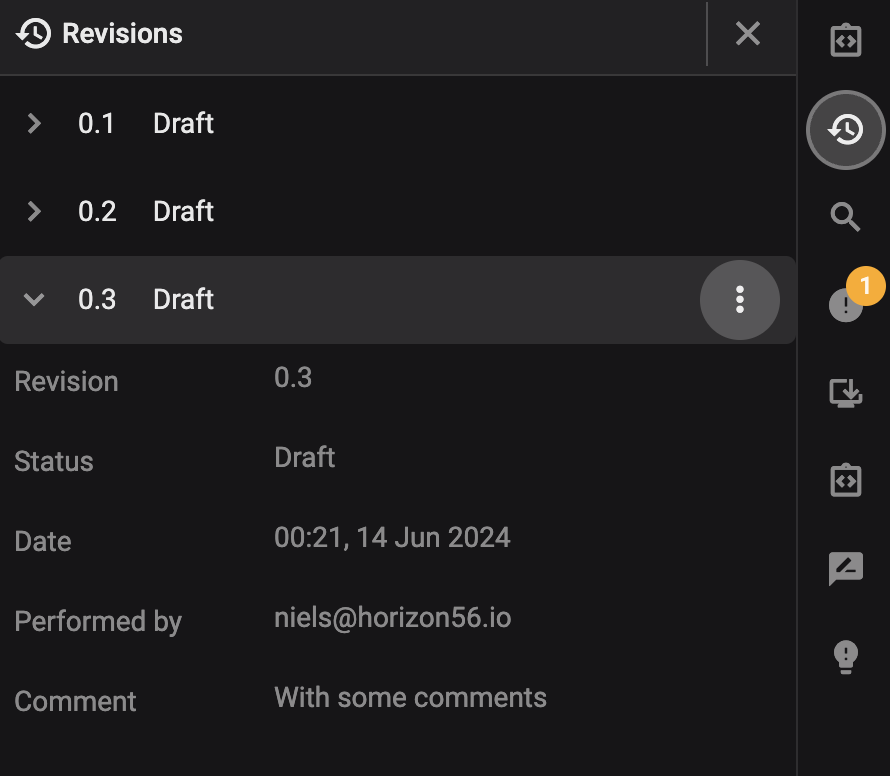
Hovering your mouse over a revision line reveals a  More icon. Clicking on this icon grants users access to the following options for each plan revision:
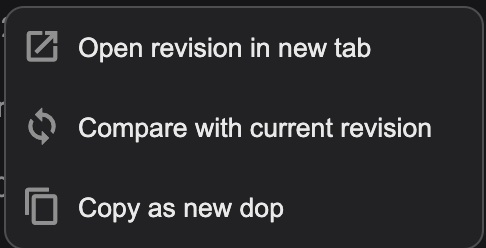
Open revision in new tab
Compare with current revision. You can read more about how that works on ???
Copy as new plan. You can read more about how that works on ???
Note
This feature's availability depends on the plan's stage—it will be available only when the plan is in Draft, Open for review , or Completed states.
In RigBridge, changes made to a plan are continuously and dynamically saved. Saving as a new revision will update the plan with any changes and generate a new revision. Additionally, you can specify change information, ensuring transparency and accountability.
This provides more control and trust that RigBridge will not lose any data. Furthermore, this facilitates more accessible documentation of decisions and events, such as team reviews of the plan.
Tip
If you're actively working on a plan and have performed a preliminary review with service providers, you may want to document this by saving it as a new revision.
How do I save a new revision?
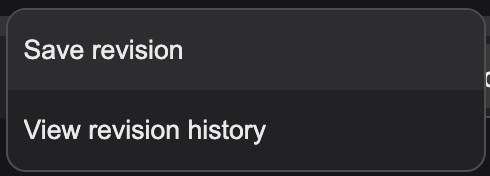
In the plan status bar, find the revision number.

Click the
 drop-down arrow next to it.
Select Save as new revision.
Optionally, add a comment in the pop-up window to document changes and click the Save button.
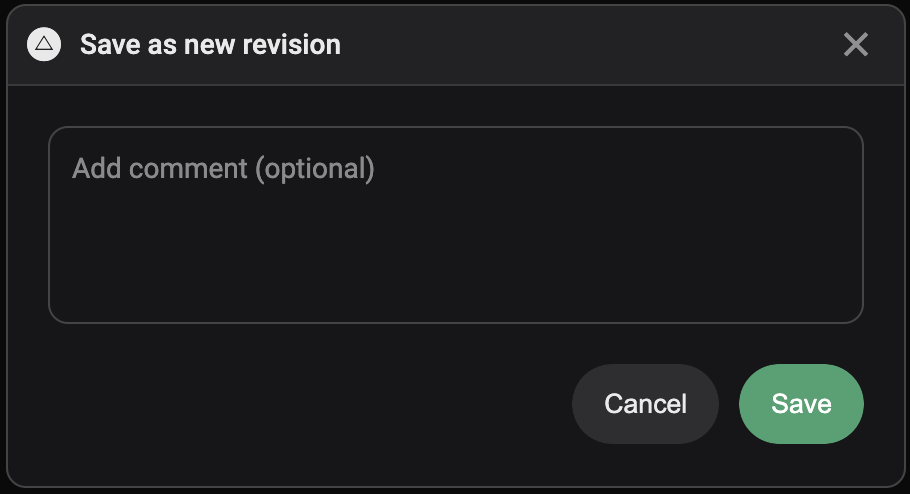
The revision number will increment by one minor number. Note that a major number increase occurs when the plan changes status.
You can easily monitor revisions under the "Revisions" tab in the right-side panel. Each plan iteration is saved as a revision, along with associated comments.
You have the ability to compare your current plan revision with any previous revisions of the plan.
How to compare revisions
Open the
Revisions tab in the Right sidebar.Locate the specific revision you wish to compare with the existing plan revision.
Hover your mouse over the revision line to reveal a
More icon. Click on it.Select
 Compare with current revision.
You can now analyze the changes between the two revisions.
Note
It's straightforward to identify the changes
Red strikethrough text indicates content that has been removed.
Green text indicates content that has been added.
Other colored text denotes either highlighted sections (such as yellow) or text colored by the user (like blue, red, or purple).
Sometimes, it may be necessary to duplicate a revision of a plan to create a new plan.
How to copy a historical revision
Open the
Revisions tab in the Right sidebar.Locate the specific revision you wish to compare with the existing plan.
Hover your mouse over the revision line to reveal a
More icon. Click on it.Select
 Copy as new plan.
The plan will be placed in the clipboard. You can now go to the location in the Project Planner and paste the plan using the
 paste icon.
A copy of the plan will be generated in that location.