Find & Replace
When you have a plan in which you are required to change multiple lines of text, you can use Find and Replace. That way, you can go through all the elements of the searched text and decide which you want to change.
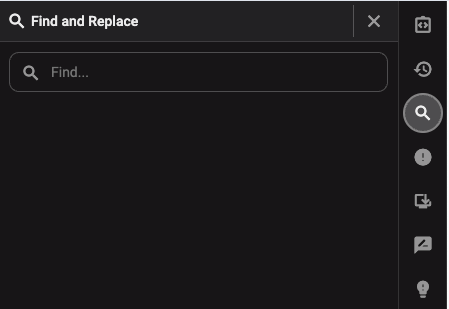
How do you use find & replace
Open a plan.
In the right-side panel, select the
 Find & Replace icon.
Enter the text you want to search for. If a match is found, it will appear automatically.
All results found will be listed in the search field.
You can either go directly to the entry in the plan or choose to replace the content.
To replace the content, fill in the Replace with... field.
The button Replace under each result will now be active for you to replace the content.
Once replaced, the result will disappear from the list.
Note
It's only possible to replace one result at a time.