BHA
The BHA (Bottom Hole Assembly) third-party integration is a feature within RigBridge that enables seamless integration and sharing of BHA data between different software applications. This feature is designed to minimize manual data entry by automatically synchronizing planned BHA configuration from your third-party integration into RigBridge. It ensures that drilling engineers and rig personnel have up-to-date information on planned BHAs without needing to manually copy or edit the data.
How it looks
The BHA Integration in RigBridge is displayed in two main areas:
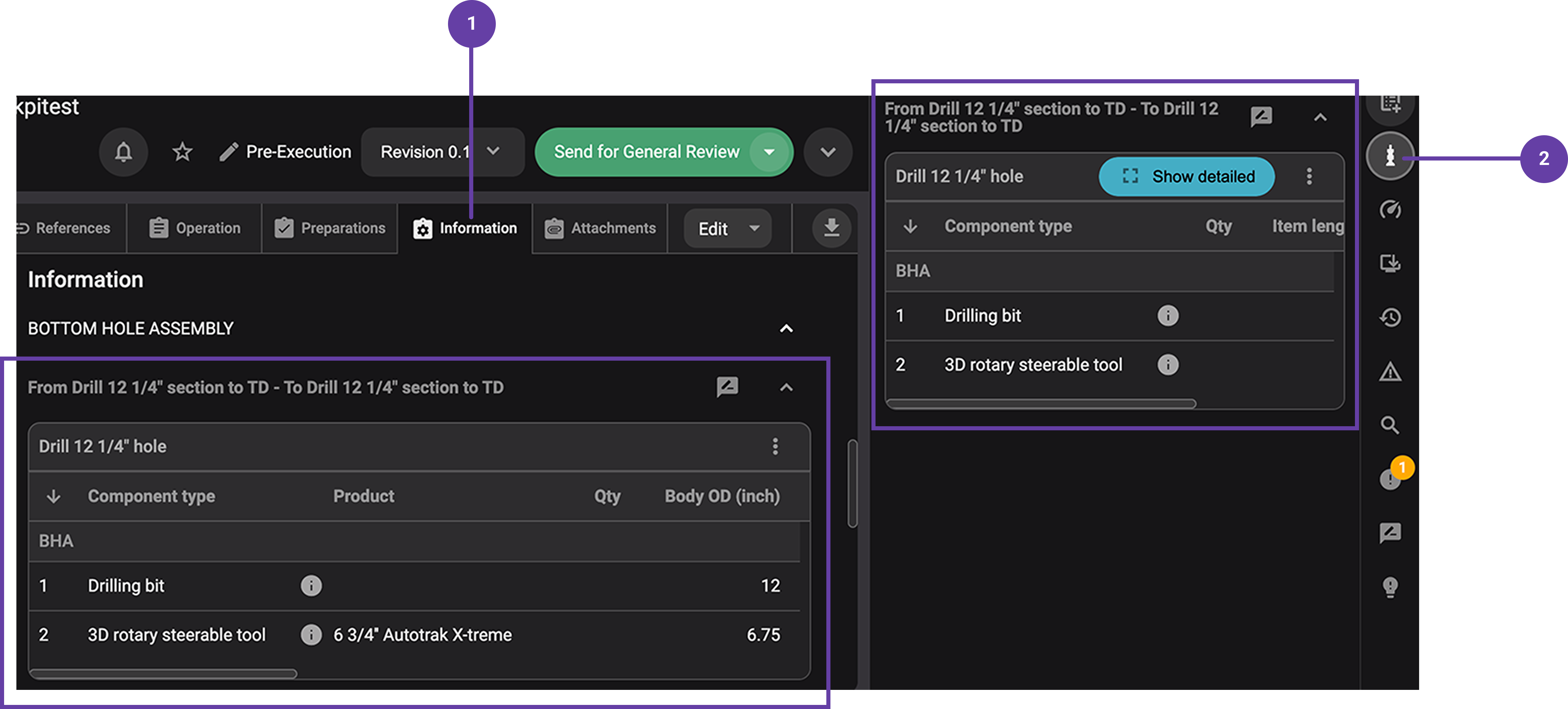
 Information Tab
This tab provides a complete breakdown of all the planned BHA components, including:
Component Type – The specific part (e.g., drill bit, stabilizer, MWD tools).
Product Name – The exact model or name assigned to the component.
Quantity – The number of each component in the assembly.
Outside Diameter (OD) – The external measurement of each tool.
Inside Diameter (ID) – The internal diameter where applicable.
Length – The individual length of each component.
Cumulative Length – The total length of the assembly as components are added.
Weight – The weight of each component.
Tensile Strength – The maximum stress the component can endure.
Supplier – The service company providing the component.
Comments – Any additional notes related to the BHA.
 Bottom Hole Assembly Tab
The side panel provides a simplified version of the BHA table with fewer details for quick reference.
It displays:
Component Type
Quantity
Item Length
Cumulative Length
The
 Show detailed view allows the users to access the complete BHA information breakdown without opening the full table.
Note
When hovering over the name of each component type, there is a  product sata tab. It provides a detailed breakdown of each BHA component's specifications. This tab includes technical parameters, supplier details, and operational limits.
Important
For the BHA Integration to work correctly, tasks must be linked to the plan, and these tasks must contain BHA data in the third-party integration. If the tasks are not properly linked or if the BHA data is missing in the third-party integration, the BHA information will not be transferred to RigBridge.
Step-by-Step instructions
Viewing BHA data in RigBridge
Select and open a plan that contains BHA data on
 Plan editor.
Click on the
Information tab to view the full BHA details.Click the
BHA icon in the Right sidebar for a compact summary.
Adjusting the BHA display
You can modify how the BHA table appears using the following actions:
 Flip BHA Orientation: Users can flip the list to view components from the top-down or bottom-up by clicking on the flip direction tab inside the
  more menu icon or the
  downward arrow tab on the BHA table header.
  Set as Not Applicable: If a BHA configuration is outdated or irrelevant, users can mark it as Not Applicable, on the more tab preventing it from being sent toRigFlow.
 Review Feature: Users can add comments, flag issues, or provide feedback on the BHA by clicking on the review icon and selecting a category.
Examples
A drilling engineer can use the information about the planned BHA to create his instructions.
The rig crew (drillers, assistant drillers) can verify the expected BHA configuration before tripping in the hole.
Directional drillers can confirm if all planned survey tools and stabilizers are included in the BHA.
Troubleshooting
BHA Data Not Appearing: Verify that the linked tasks contain BHA data in your third-party integration.
Missing Component Information: If a field is empty, it means the data was not provided in your third-party integration.
Cannot Edit BHA: The BHA feature is read-only in RigBridge. Edits must be made in your third-party integration.