Adding Equinor Activity codes to steps
The operator wants to move the job of assigning codes to steps from post-execution reporting to pre-execution during the initial creation of the plan. It is expected that this will alleviate the work burden of creating daily drilling reports at the end of the shift and increase the accuracy of the selected codes.
Definitions
Activity code - Operator's term for a reporting code that should be added to each step of a RigBridge plan and henceforth referred to as code.
Code Selector Modal
This modal makes the Operator's activity codes available in RigBridge. It utilizes the Operator's filtering logic to assist the user in quickly and accurately finding the correct code for a step.
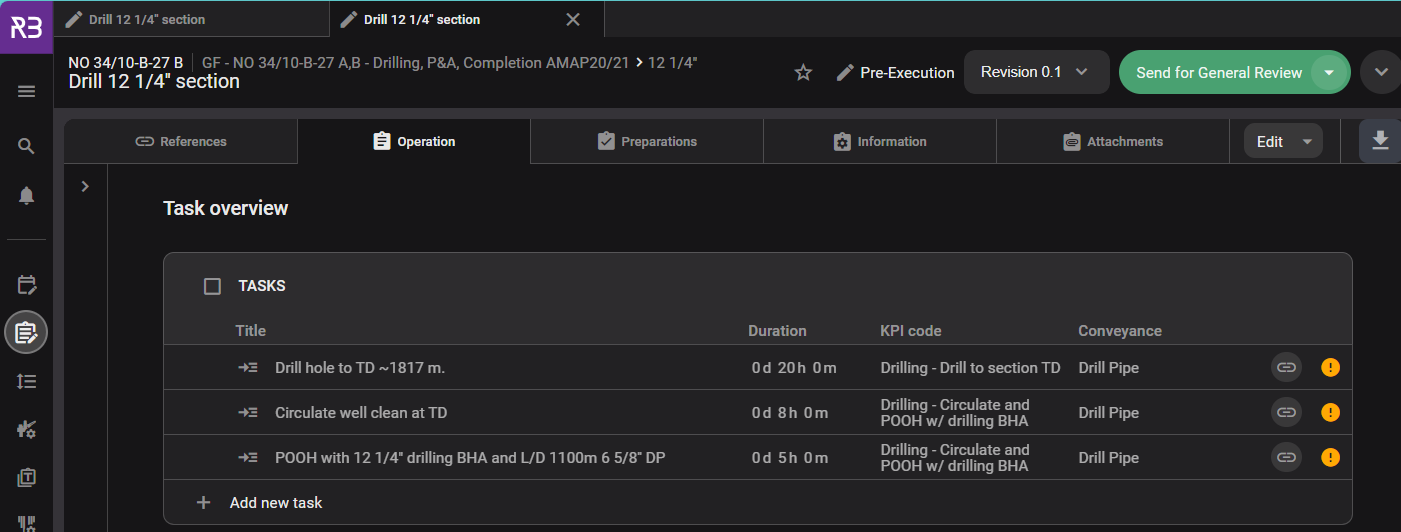
The code selector modal uses KPI's and the conveyance method from the linked Wellcom Task. If linked, KPIs and conveyance can be viewed on the task level.
Note
This feature requires that Wellcom integration is used to link Wellcom Tasks to RigBridge Activities. See more on Integration.
Overview of Code Selection
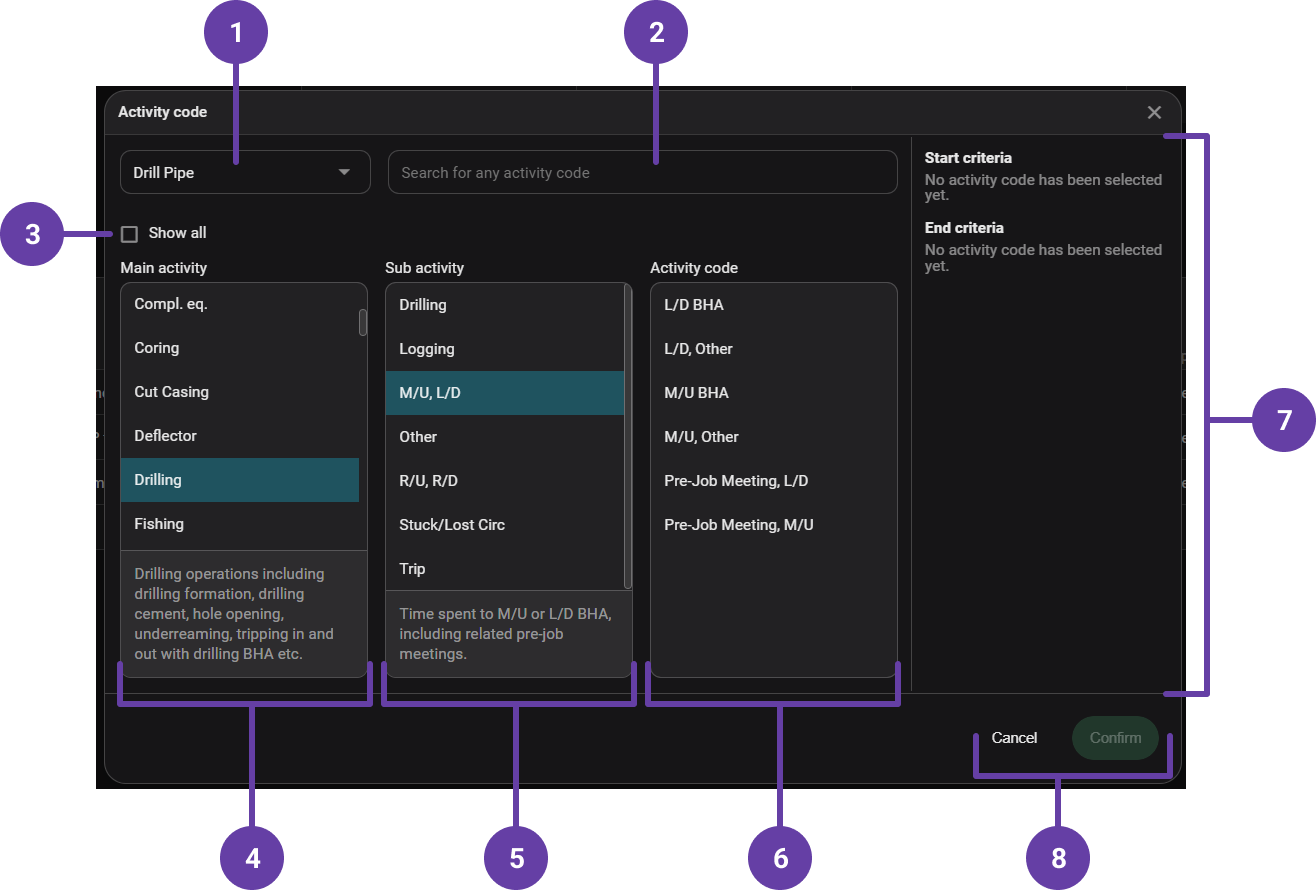
Conveyance: If the step belongs to a linked task, the conveyance method is pre-populated.
Search for any activity codes: Keyword search for the activity code.
Show all: Select this to browse all codes within the modal.
Main activity: User must select the main activity from the list.
Sub activity: User must select the sub activity from the filtered list.
Activity code: User must select the activity code from the filtered list.
Description: Use the descriptions to help you decide which code to select.
Action buttons: Confirm to add the code to the step once selected.
Tip
If you know which code you want, run a keyword search to find it quickly.
How to Add a Code
Use the code selector modal to help you locate the correct code. Once an activity code is selected, press confirm to add it to the step.
New Code Column
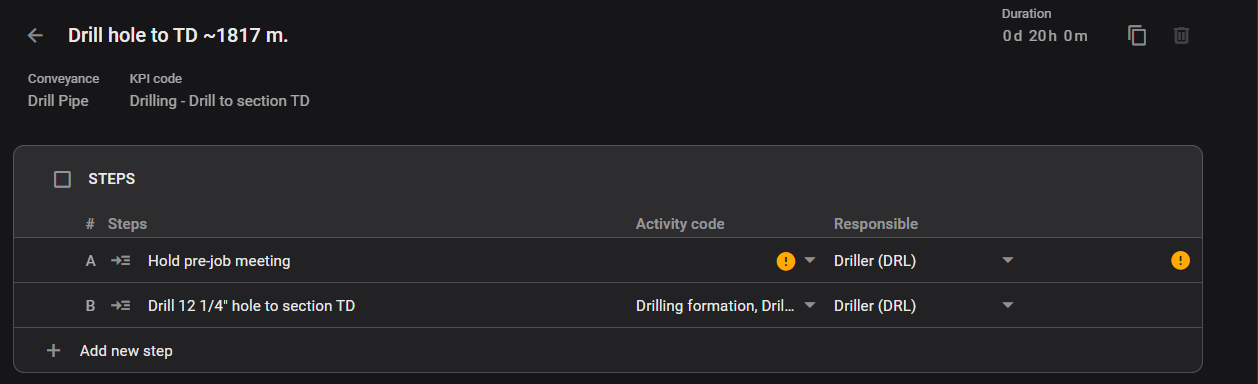
A new code column is introduced on the step overview. This gives a quick visual of steps that are missing codes. Clicking on the dropdown shows the code selector modal.
Once selected, the code can also be viewed on the step itself.
Validation Issues
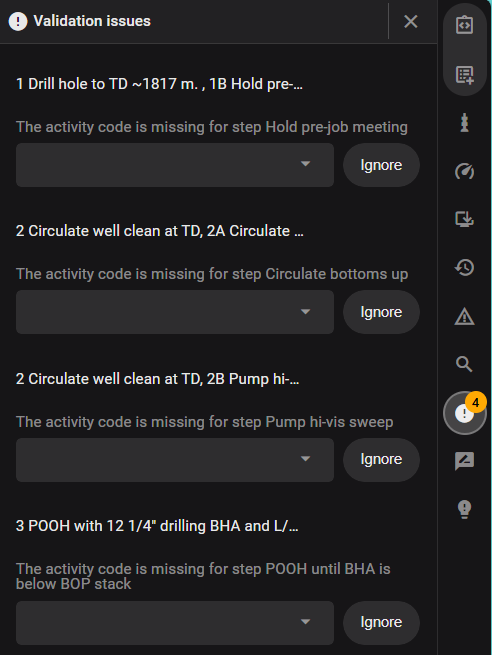
Validation issues may appear when a plan is sent for approval.
Validation issues alert the user when a code is missing.
Clicking on it gives you the code selector modal.
Note
Adding codes to steps is not mandatory, so you can choose to ignore the validation issue.
A validation issue also appears if the copied code doesn't match the KPI from the linked task. In the validation panel, you will be given the option to keep or replace the copied code. You can choose to keep the selected code.
Copying plans with codes

Copying plans where Activity codes have been added also copies the codes. It may be necessary to change the Activity codes when the related tasks are re-linked to new Wellcom tasks.