RigBridge version 2.10
November 2024
The document covers the release of software updates for RigBridge, focusing on incremental improvements and bug fixes outlined in these detailed release notes.
Minor improvements and features
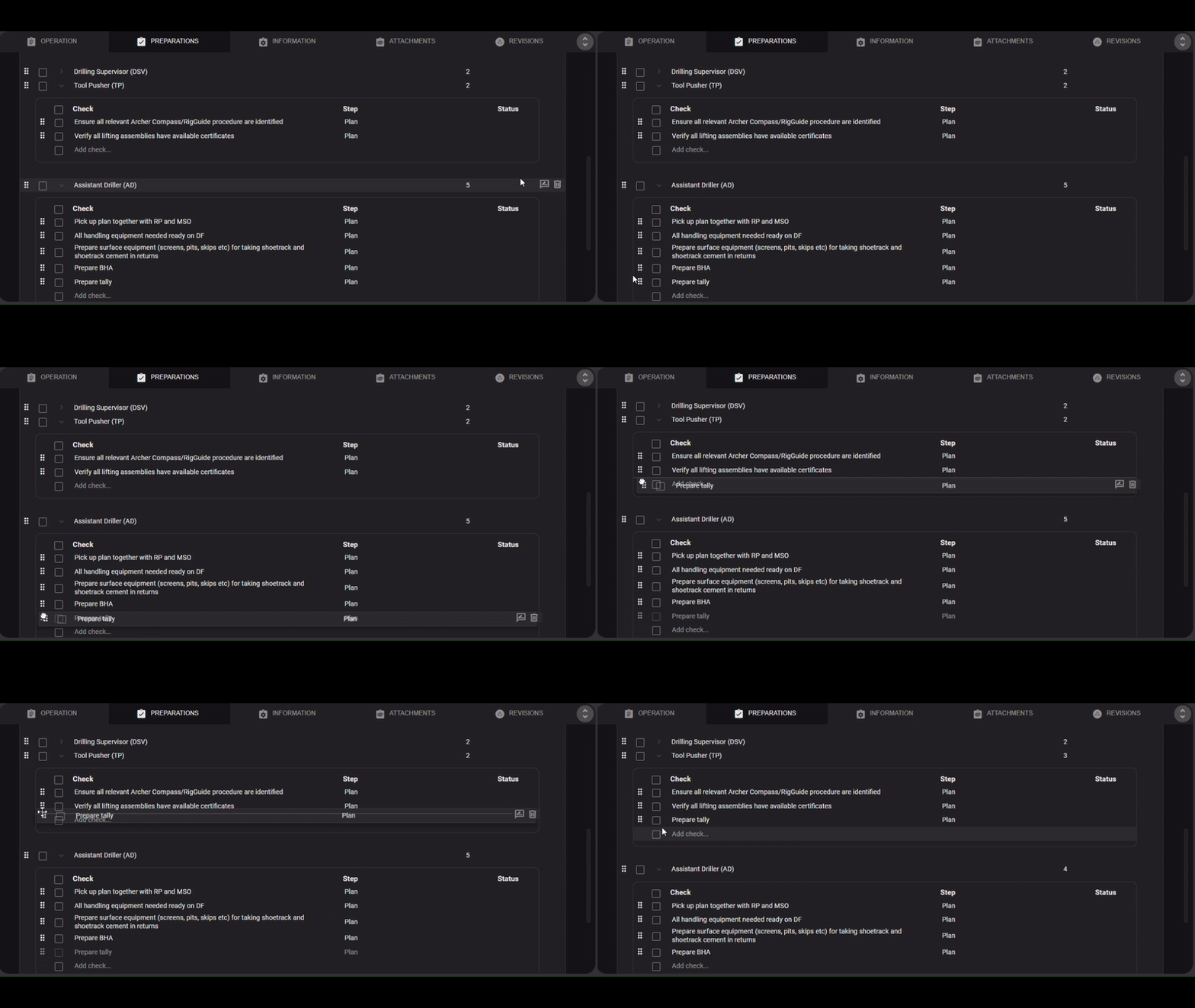
Preparation Responsible - option to edit role and to move preparations
While a DOP / Plan is still open for editing, the responsible Role & Name for checks can now be edited/changed. Furthermore, specific preparations can be moved to other responsible roles by drag and drop.
Well name under Execution Order Tab
In the Plan list of the Execution Order tab the well name is now shown added, this ensures a better overview for the users, especially when it comes to switching to the next event.
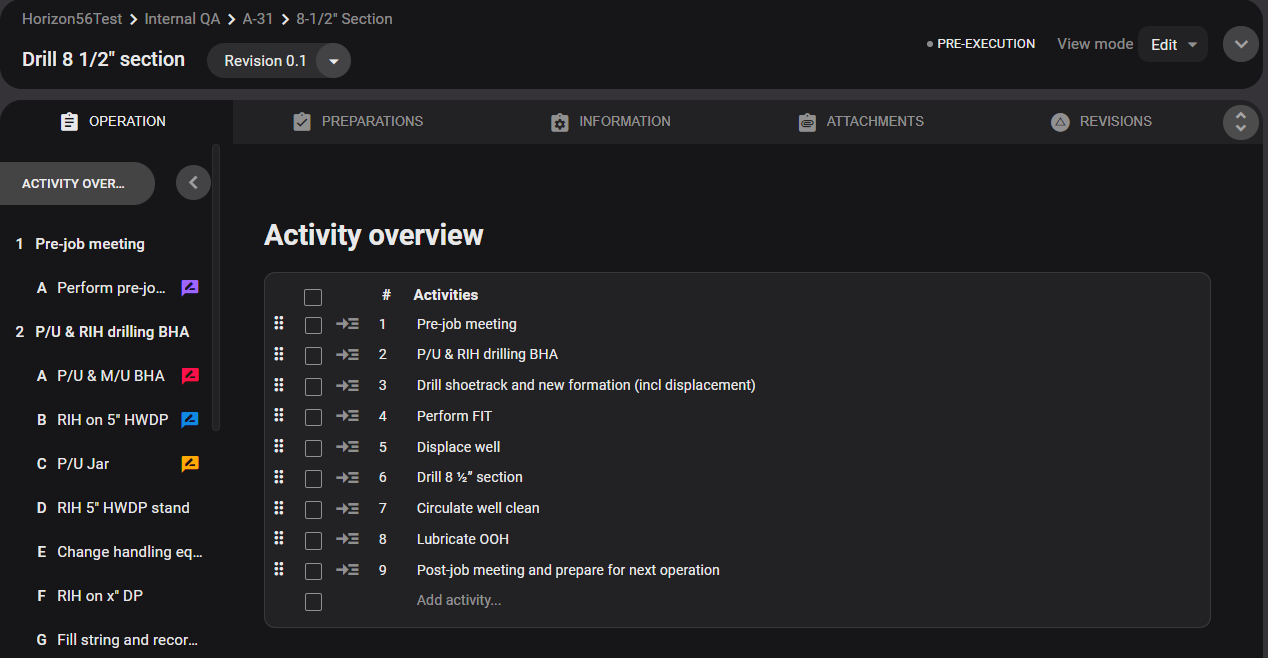
Colour of Review comment icon in Activity overview
The review comment icon in the activity overview now reflects the type of review (e.g. general input, highlight for discussion, etc.) and its colour from the review panel that was added at the specific step.
RB mobile requirements, review & approve plans
Adaptions were made to facilitate the use of RigBridge on mobile devices. It is now ensured that reviews can be marked as done, Plans / DOPs can be approved, and it is possible to scroll through the information.
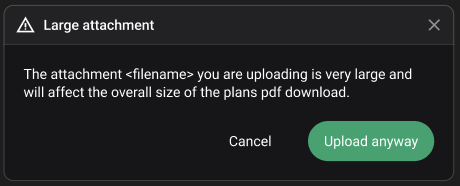
Attachment size warning
To prevent plans from being too big in size in case they need to be downloaded, a warning message was introduced to warn users who are about to upload attachments with a size of over 10 MB.
Fixed issues
Wrong Info Pop Up - “outstanding review comments”: When approving a plan, with open insights and no open review comments, a pop up notified you of “outstanding review comments”. It is now resolved and only if review comments are still open, this notification shows up.
Custom unit value in operational parameters: When a custom unit was added for an operational parameter it was not visible in the edit mode, only in the read and print view. This bug is solved, and the custom unit is visible in every view.
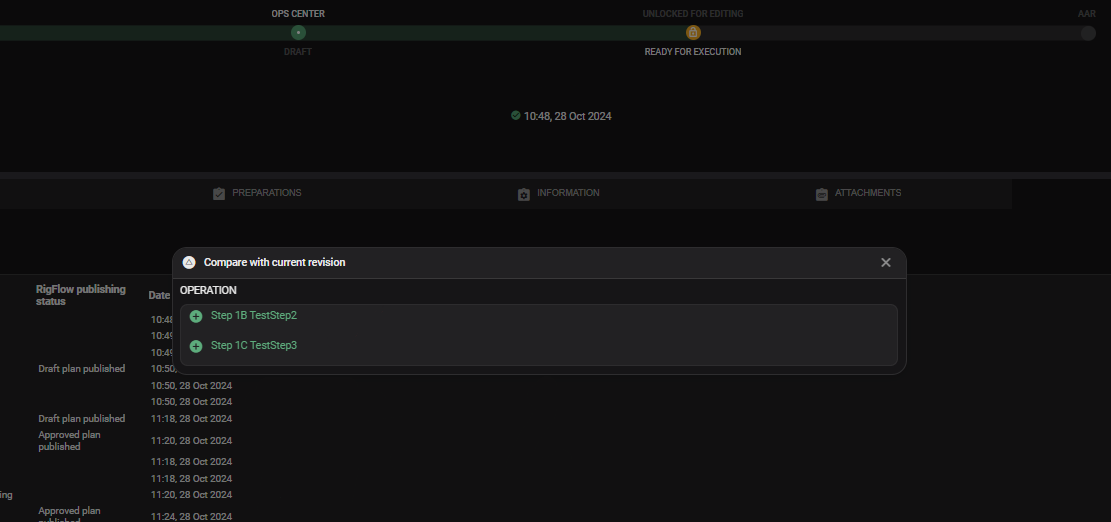
Change Approval - New Steps not showing green: When submitting a change for approval, new steps where not shown in green in the compare with previous plan section, how it is usually the concept for added information. With this bug fix completely new steps are also shown green in the compare with previous plan section.
Insert properties in read mode: The insert property function was only available in edit mode and not in read mode. This issue is solved it is now also possible to add properties to Plans / DOPs when you are in read mode.