Text Editor
For users with editing privileges, the system offers options to incorporate details and information into the plan.
Within RigBridge, users have access to a text editor designed to facilitate the addition of descriptive information to elements like Instructions under the tab Operations. This editor provides basic text formatting options, ensuring clarity and readability of all text when the plan is published into RigFlow.
You can link or un-link an attachment to your instruction directly from the text editor. Let's take a look
Smart reviews are utilized for commenting on and reviewing plans prior to their approval.
To add a comment, select any aspect of the plan and click on the Add review comment button in the toolbar. Please choose the appropriate comment category. Once you submit the comment, it will be visible in the right-side panel, with a time and date stamp and the username of the person who made it.
How to add a review to a plan
Select relevant text in the plan to which you want to add a review.
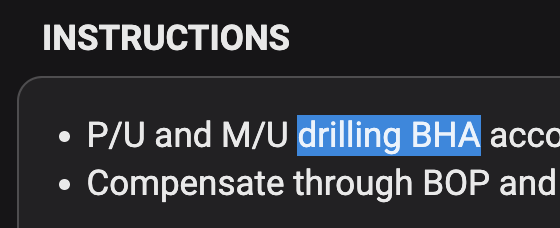
Click on the
 Review icon.
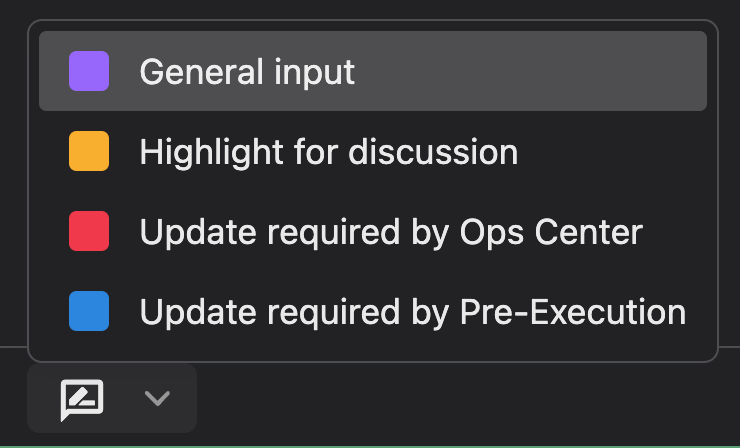
Choose a category that relates to what you wish to add (could be configured differently for your company).
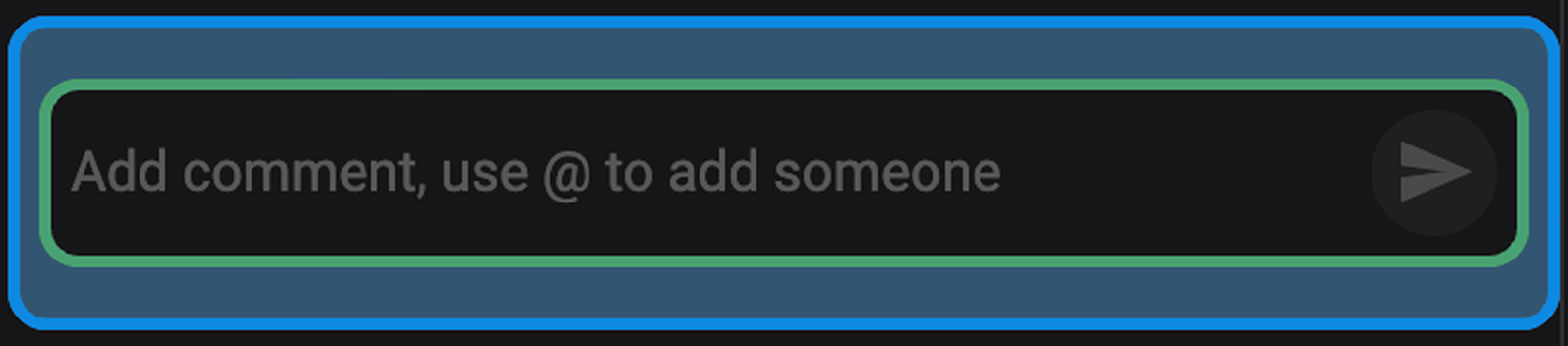
Then, add text to your review comment in the text box in the right side panel.
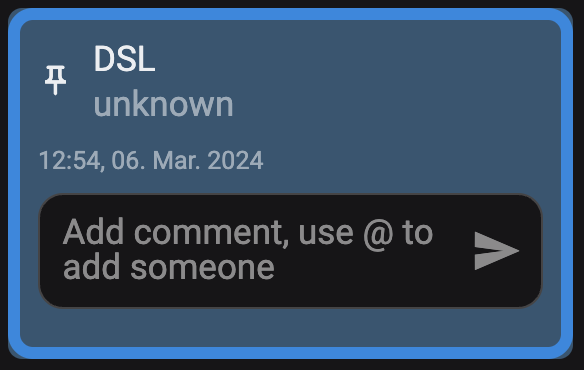
Save by clicking the
 Send icon.
Tip
You can direct a review comment to a specific person by typing in their email address. Upon clicking send, they will receive an email with the review comment.
Once your plan is approved, you're free to incorporate insights throughout various sections, including but not limited to instructions, parallel activities, attachments, and additional information.
Add an insight: Select relevant text in the plan to which you want to add an insight and click on the
 Insights icon.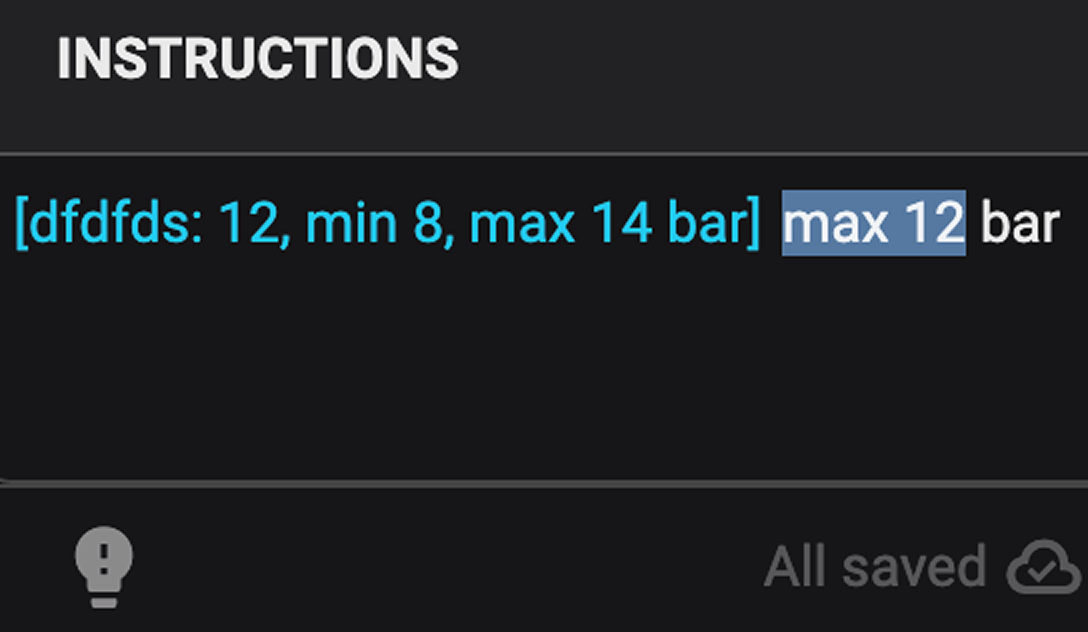
Assign a category to the insight: Choose a category that relates to what you wish to add (could be configured differently for your company).

Add a comment: Add text to your insight in the text box in the Right sidebar panel.
Save or create a new line: Save by clicking the
Send icon or by clicking Enter. To create a new text line, useShift+Enter.