Attachments
It is often necessary to provide more detailed information about the plan from other sources, e.g., a well status schematic or a planned BHA fishing diagram. This information is relevant to different locations in the plan and should be easily located. You can upload and maintain your attachments under our  Attachment tab.
To add an attachment to a plan:
Navigate to the Attachments tab within the Plan view

There are two ways to upload an attachment: you can click Upload or you can drag and drop your files into the area within the attachment view.


Supported files
Attachments are limited to the following files: PDF, images (jpg, jpeg, png) and Excel (xls and xlsx)
If you wish to replace or update an attachment with a newer version, there are some simple steps to follow:
Navigate to the Attachments tab within the Plan view
Locate the attachment you wish to exchange and hover the mouse over it.

Icons will be displayed next to the line. Click on the
 Replace file icon.
Select your new file and upload it.
The old attachment will be replaced with the newly uploaded one.
If you no longer require an attachment, you have the option to remove it from the plan.
Here is how you delete an attachment from the plan:
Navigate to the Attachments tab within the Plan view
Locate the attachment you wish to delete and hover the mouse over it.

Icons will be displayed next to the line. Click on the
 Delete icon.
A modal dialog box will appear, asking whether you wish to delete the file. Please note that this action cannot be undone.
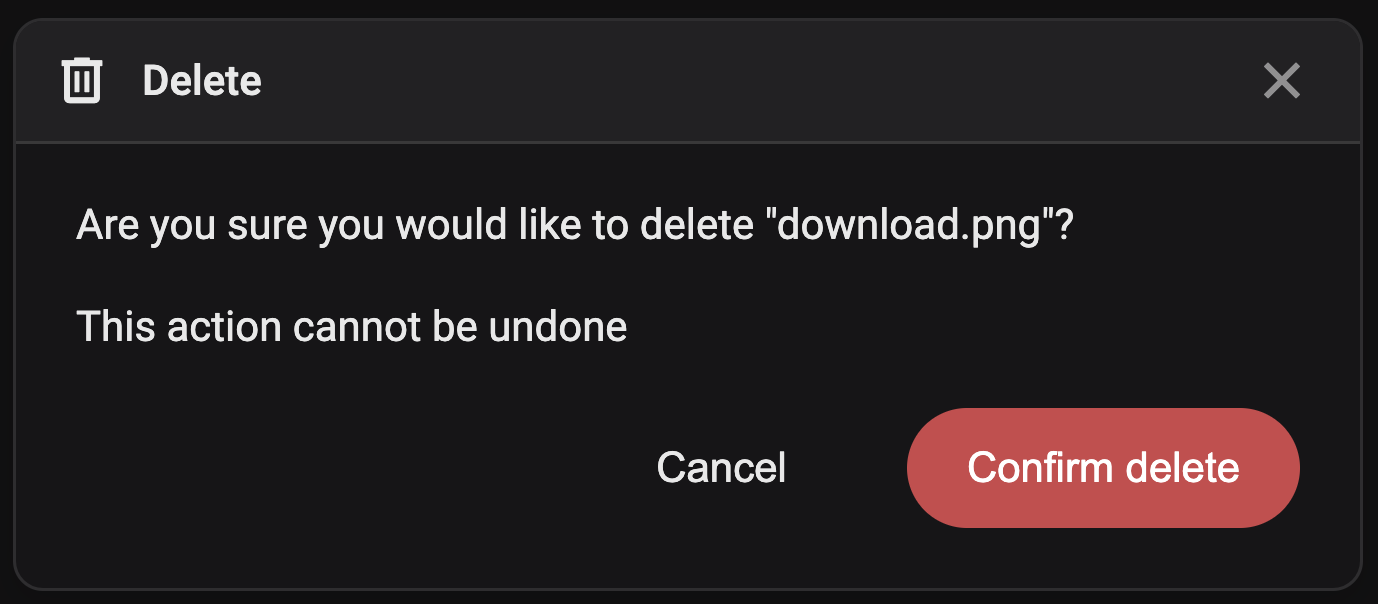
Upon clicking Confirm delete, the file will be permanently removed.
Note
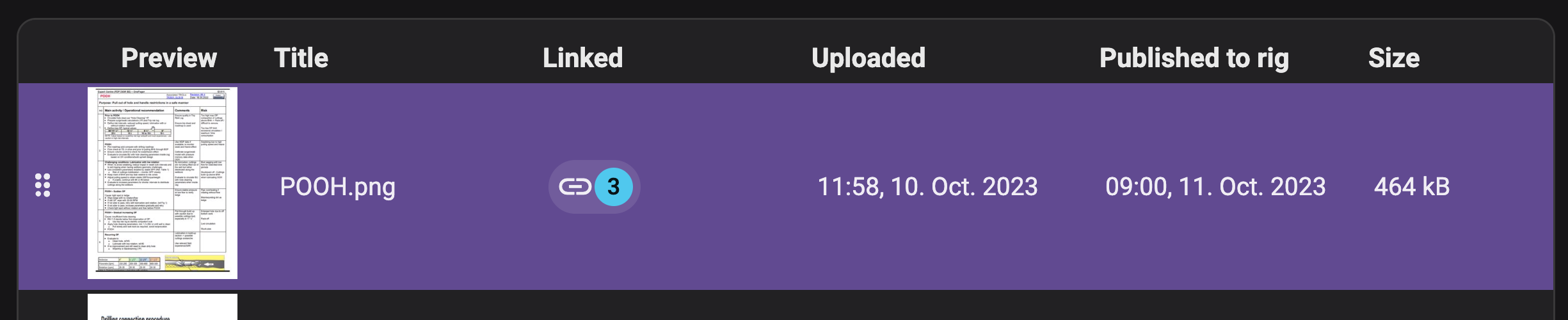
Attachments can only be deleted if they are not linked to any operation steps. A link to the plan will appear on the attachment row, indicated by a  link icon.
Tip
If you don’t see the when hovering over an attachment, you may not have permission to delete it.
By adding a link, you can directly reference an attachment within the plan. This allows those executing the plan to easily identify which attachment is being referred to in a particular step without having to open the attachment tab each time.
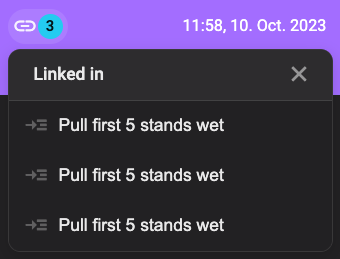
Within the list of attachments, you'll notice a link icon whenever the attachment is connected to a specific part of the plan. Clicking on this icon will provide additional information about where the attachment is linked.
Note
Attachments have to be added to the plan before they can be linked to a plan.
How to link an attachment
Highlight the desired text in the instructions.
Click on the
 link content icon.
Choose
Insert attachment from the menu.Select the attachment you want to add from the drop-down menu.
The attachment is now linked to the text.
How to un-link an attachment
Click on the linked attachment within the instructions.

In the modal window, locate and click the
 Unlink attachment button at the bottom.
A warning message will appear; click Remove to confirm the removal of the link.
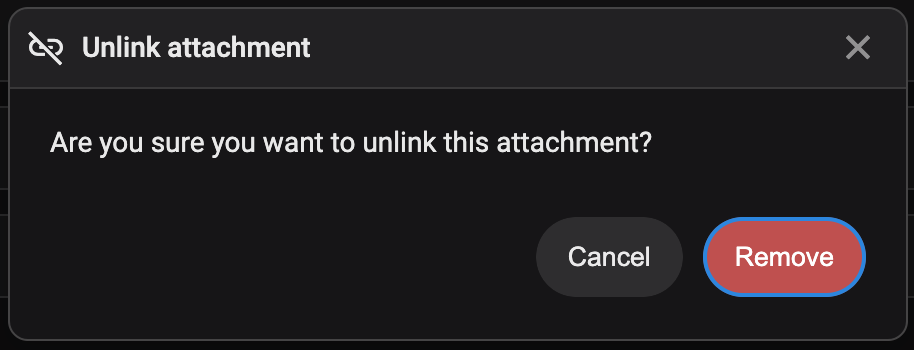
The attachment is now detached from the text.
In RigBridge, the  Review icon on a given attachment allows you to gather feedback and input from other users. You have the flexibility to define the review categories and engage in comment discussions with fellow users.
How to add a review to an attachment
Navigate to the Attachments tab within the Plan view.
Locate the attachment you wish to review and hover the mouse over it.
Icons will be displayed next to the line. Click on the
Review iconSelect a category that aligns with your review.
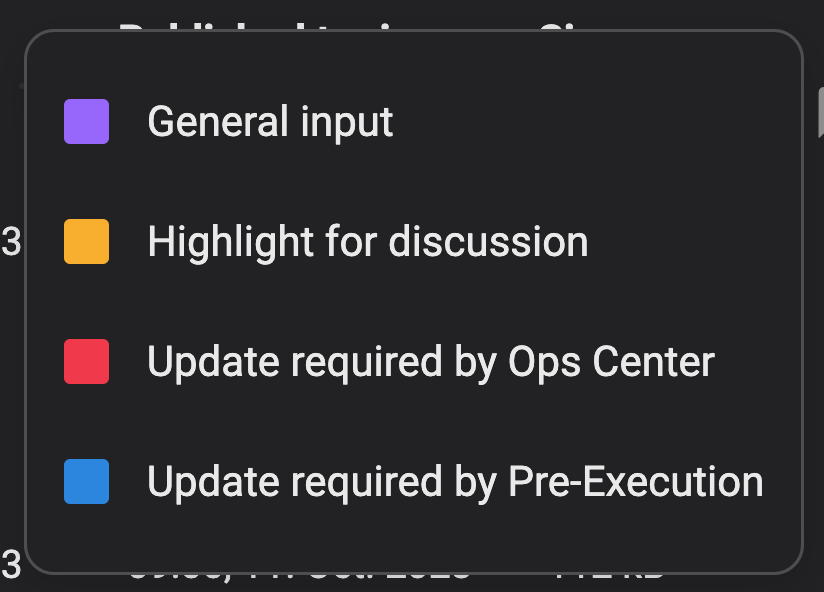
The category color will be displayed on the attachment row, and the review will appear in the right sidebar.
Tip
For further details on how Smart Review operates, please refer to our article on Smart reviews
To download the attachment:
Navigate to the Attachments tab within the Plan view
Locate the attachment you wish to download and hover the mouse over it.
Icons will be displayed next to the line. Click on the
 Download file icon.
The file will be downloaded to your device.
Docked attachments
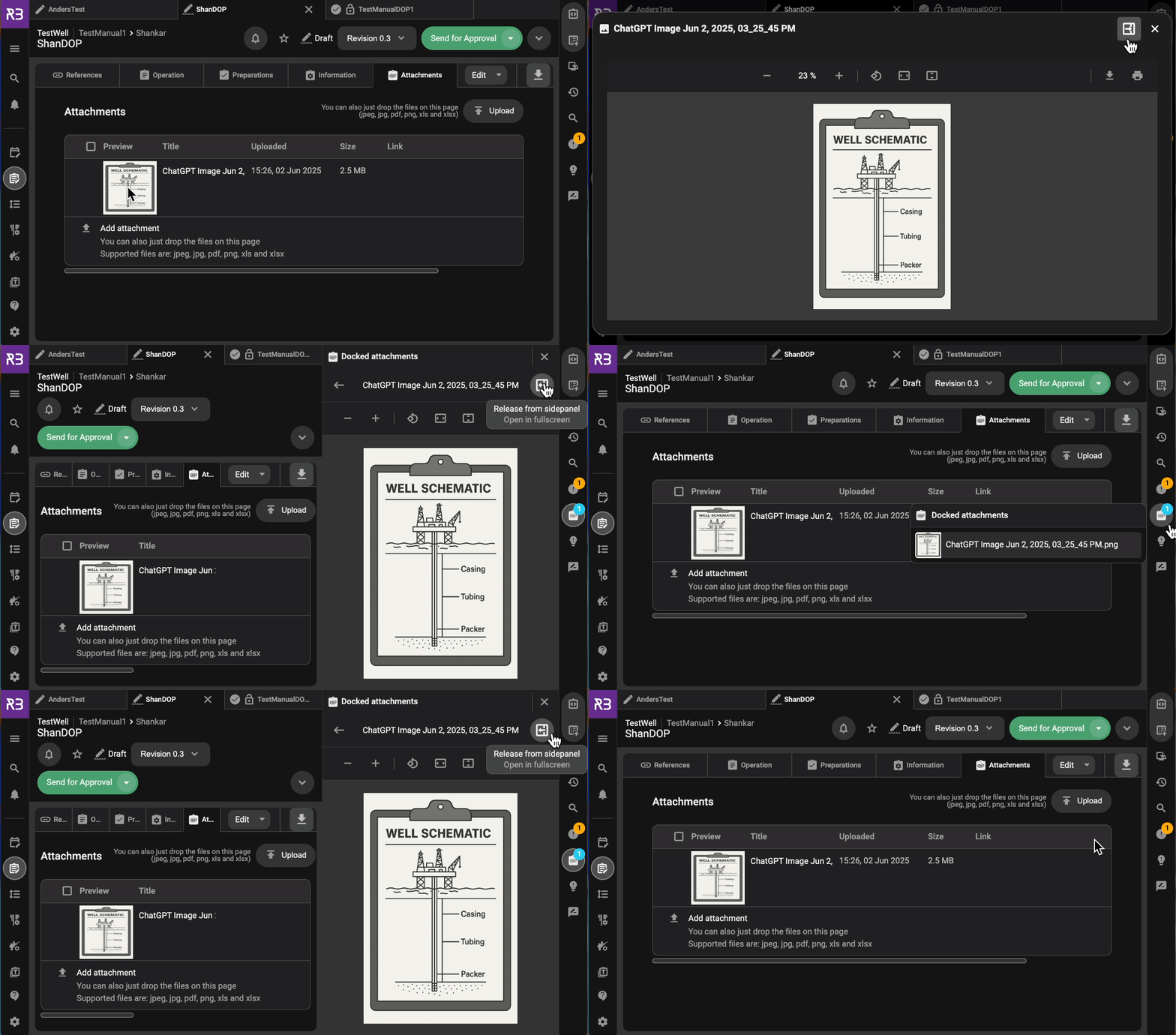
Docked attachments allow you to pin frequently used files—such as images or documents—to the Right sidebar. This feature is useful when you need to reference a file multiple times while working. Once docked, the attachment remains easily accessible within the sidebar. You can undock the attachment at any time when it's no longer needed.
Go to the Attachments tab: Open the
 Attachments tab inside the Plan edito
Click the image under the preview column: Select the image by clicking on it; this will open a modal window with a larger preview.
Click the Dock in sidepanel icon: In the top-right corner of the modal, next to the close icon, click the
 Dock in sidepanel icon.
View the docked attachment: The selected document or image will now appear in the Right sidebar under
Docked attachments.Undock the attachment: To remove the item from the sidebar, go to the
Docked attachments section in the Right sidebar.Click the Release from sidepanel icon: Click the
 Release from sidepanel icon to undock the file; it will no longer be shown in the Right sidebar.
The linking of an attachment depends on whether there is a text editor. It is possible to link attachments in instructions under the operation tab and all fields in the information tab. However, it is not possible to link attachments to preparations (checklists), parallel activities, and risks.
Currently, we do not offer the option to select multiple (batch) plans and download them as a package of PDFs.
Note
Attachments along with the plan will be duplicated, provided it remains within the same environment. For instance, if you're transferring from a sandbox to a production environment, attachments will not be copied.