Insights
Insights, also known as After Action Review (AAR), are valuable lessons that users can learn from while performing a specific activity or step in RigFlow or directly within RigBridge. Once a plan is approved, it becomes accessible for viewing and adding insights in both RigFlow for offshore users and RigBridge users. If a plan is copied, it may contain insights from previous operations associated with the plan template, provided the insights were pinned to the plan.
Once your plan is approved, you're free to incorporate insights throughout various sections, including but not limited to instructions, parallel activities, attachments, and additional information.
How add an insight to a plan
Select relevant text in the plan to which you want to add an insight.
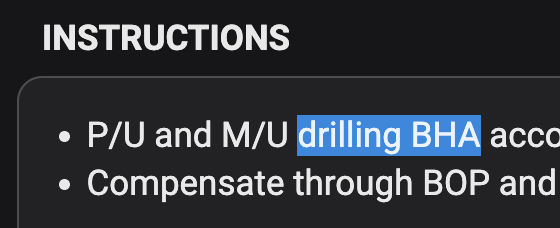
Click on the
 Insight icon.
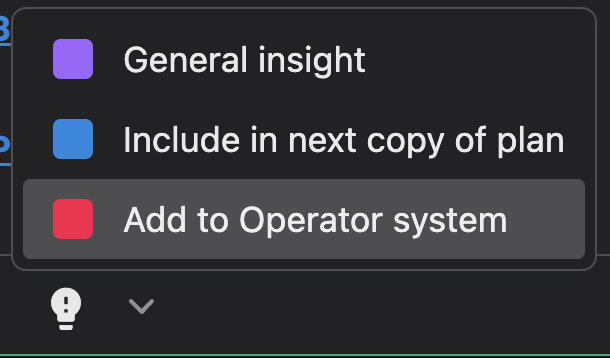
Choose a category that relates to what you wish to add (could be configured differently for your company).
Then add text to your insight in the text box in the right-side panel.
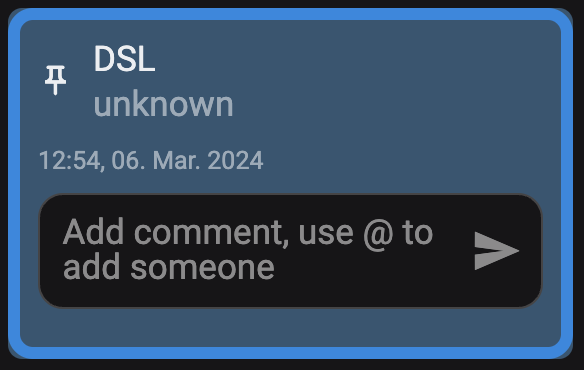
Save by clicking the
 Send icon.
If you wish to share an insight with specific individuals using our platform, you have the option to do so. This can be done either when adding a new insight or on an existing one.
How to send an insight to other user(s)
Select the text you want to highlight and add a new insight, or choose an existing insight from the right-side panel.
In the comment field, type @ followed by the email address of the person you want to send it to, e.g. @john@doe.com
If the email address has not been inserted before, an Add button will appear. Click on it to add the email to your mailing list. If the email is already in your list, a dropdown menu will display all previous emails used.
Once the email address has been added to the comment, it will turn blue. Click the
Send icon to send it.Upon sending, a notification email will be sent to the user, alerting them of an action item in the plan.
Tip
It is also possible to assign the insight or comment to multiple users if needed.
Occasionally, the category chosen for your insight may change later on, or you might have accidentally selected the wrong category. If this occurs, feel free to choose another without any issue.
How to switch an insight category
Locate the desired insight for modification in the panel on the right-hand side.
Click on the
 Change type icon
Choose a new category type
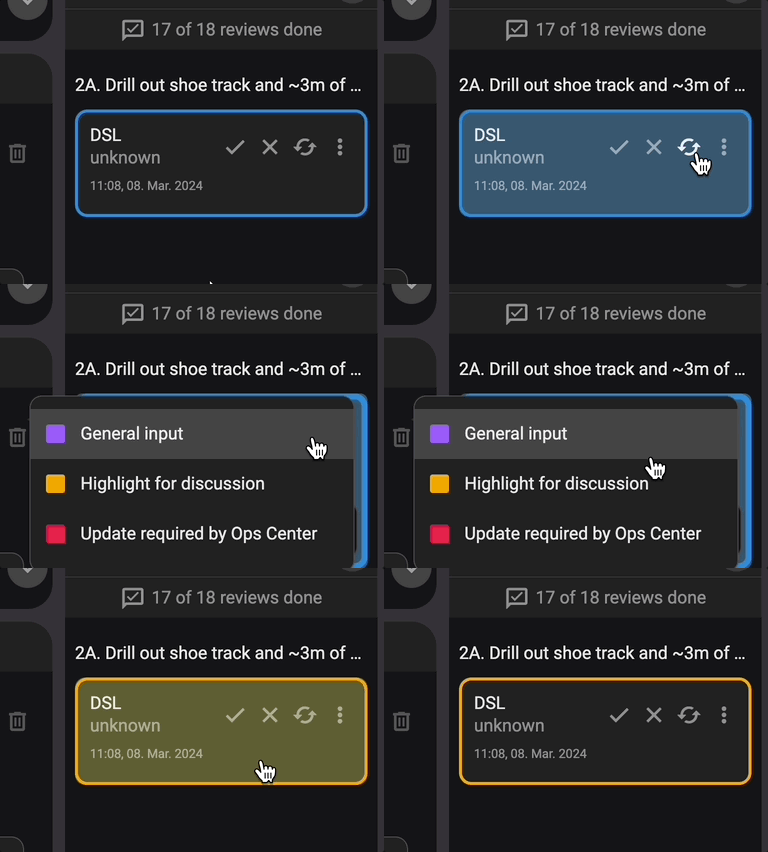
The box's border color will update to reflect the newly selected category type.
To manage numerous insights in a plan, use the filter option. You can filter by:
Assigned insights to you
Category types
Completed insights
Rejected insights
How to use the filter
Open
Insights section in the right-side panel.Click the
 Filter icon.
Choose your filter preferences.
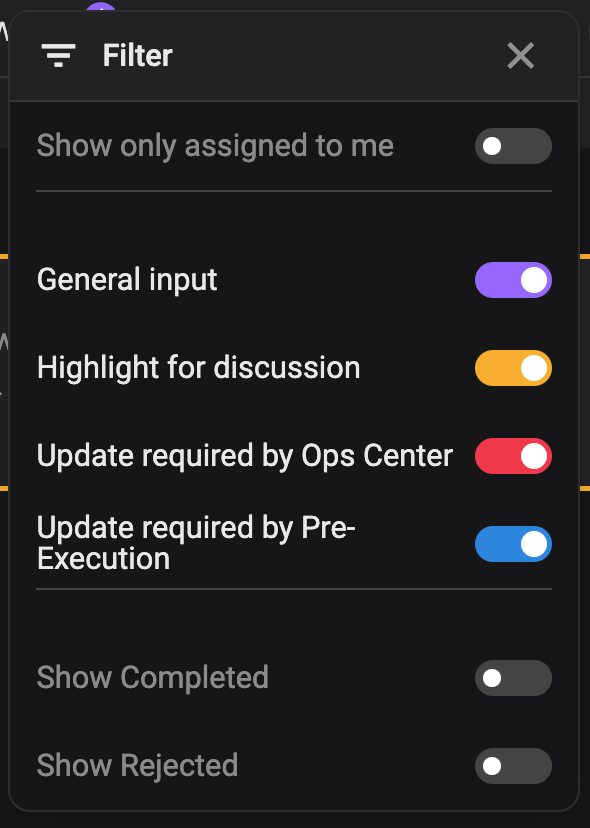
Close the menu to view only the filtered insights.
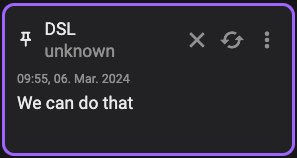
Sometimes, you find an insight crucial for future plans. This functionality is useful when you wish to copy the plan along with selected insights. During the After Actions Review (AAR), you can review each insight and determine whether you want to include them in a copied plan or not. This can be achieved by pinning an insight to the plan.
How to pin an insight
Locate the insight you wish to pin within the right side panel.
Select the
 Options icon on the insight.
Click on the
 Pin icon
The insight has been pinned and will be available on the copied plan.
How to un-pin an insight
Locate the insight you wish to pin within the right side panel.
Select the
Options icon on the insight.Click on the
 Unpin icon
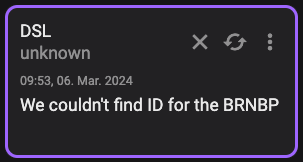
The insight has been pinned and will NOT be available on the copied plan.
Occasionally, an insight may become irrelevant or unnecessary, in which case it can be removed from the plan and the After Action Review (AAR).
How to delete an insight
Locate the insight you wish to delete within the right side panel.
Select the
Options icon on the insight.Click on the
 Delete icon.
A modal dialogue box will appear, asking whether you wish to delete the file. Please note that this action cannot be undone.
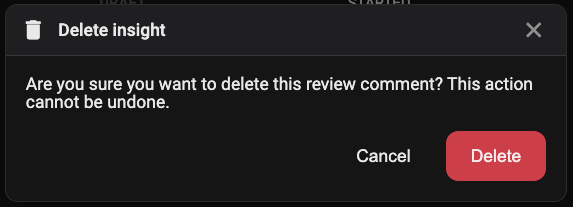
Upon clicking Delete, the insight will be permanently removed.
Warning
An insight can be deleted a specified number of hours after its creation. The duration before it becomes locked for deletion is determined by the RigBridge setup.