How to make a revision
RigBridge doesn't feature a dedicated "Save" button for creating revisions. Instead, revisions are automatically generated when the plan's status is progressed.
Whenever a plan is moved forward or backward within the system, a revision is created. You can easily track these revisions under the  Revisions tab, where each push or movement of the plan is saved as a revision. If you're actively working on a plan and want to create a revision, simply push it forward and then pull it back to its original position on the status bar.
How to save a revision
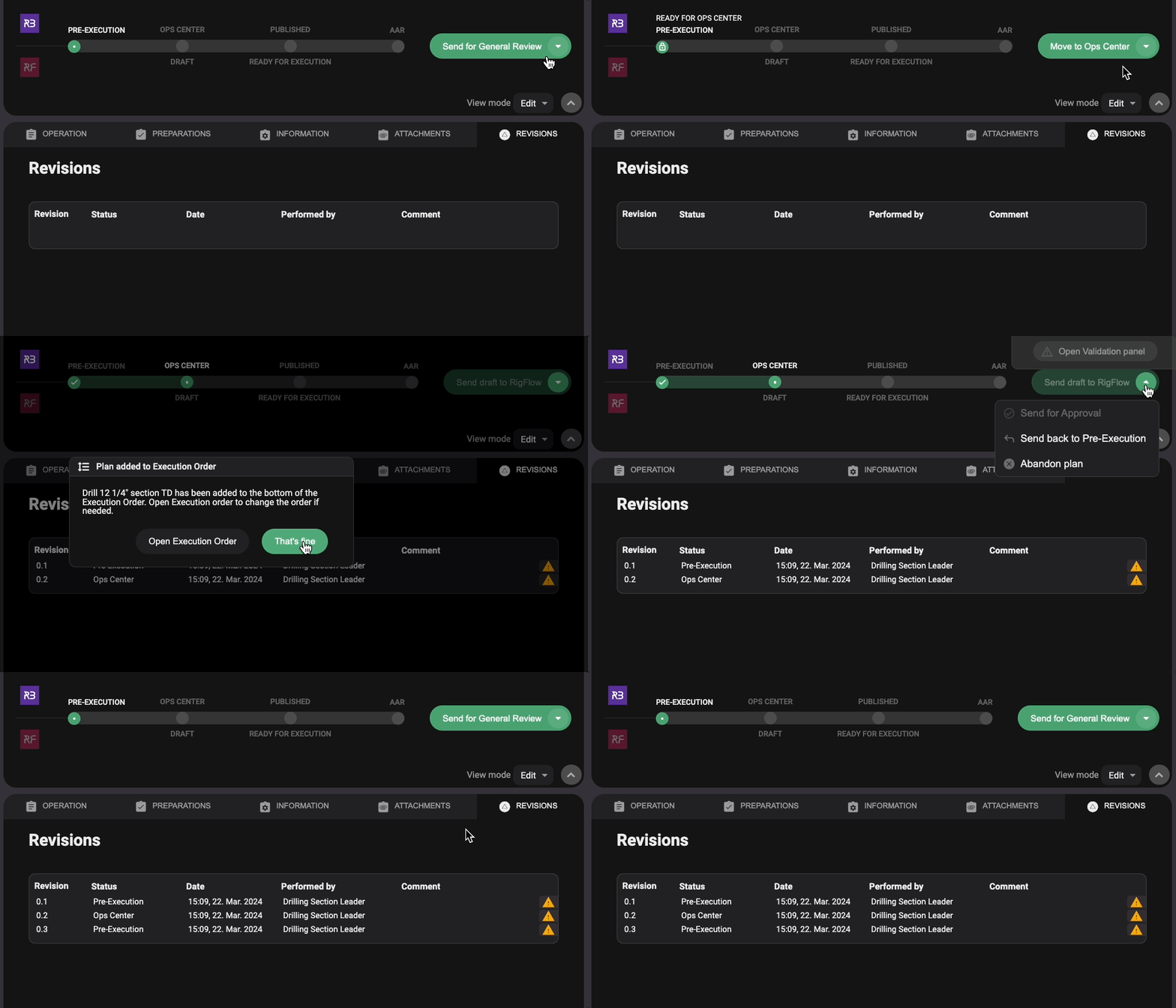
Make changes to the plan.
Click on the
 dropdown icon located on the button within the plan status bar.
Select the next plan status from the dropdown menu, for example, Ready for Ops Center.
Click on the plan status button and choose the next plan status.
Click That's fine in the modal box that appears.
The plan status will be moved to the next plan status step.
Now click on the
dropdown icon on the button in the plan status bar.This time, choose Send back to Pre-execution.
You have now saved the revision and returned to the first part of the plan status again.