Revisions
In the Plan view's  Revisions tab, users can get a comprehensive overview of all plan revisions. This includes details such as the revision number, status, publish date, the identity of the plan publisher, and any accompanying revision comments.
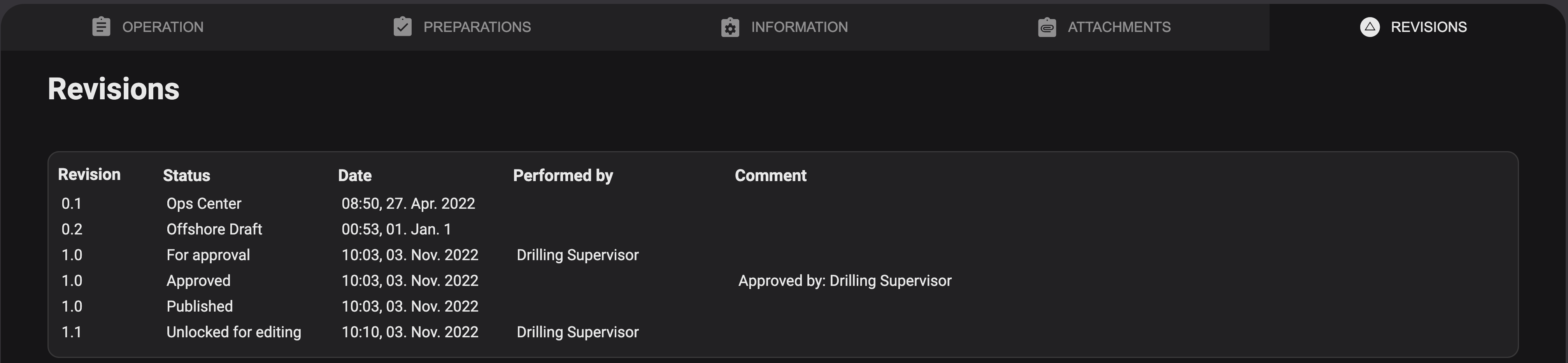
Each time you alter the plan's state in the Plan Progress section of the plan header, a new revision is automatically generated. Let's explore how a revision versioning could evolve as you move through the plan state progression.

Hovering your mouse over a revision line reveals a  More icon. Clicking on this icon grants users access to the following options for each plan revision:
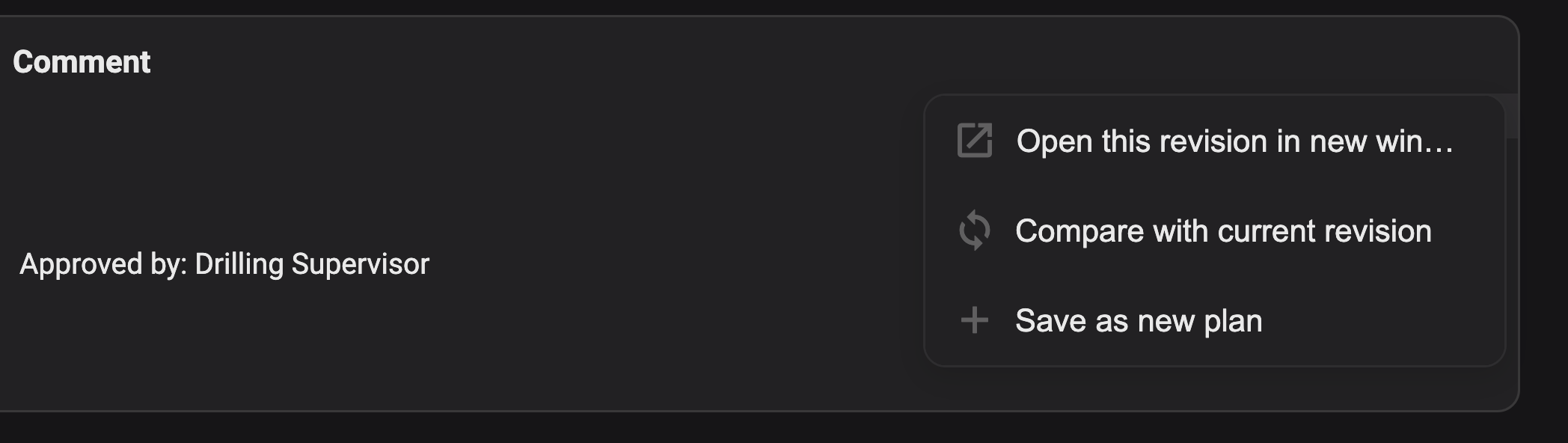
Open the revision in new window
Compare with current revision. You can read more about how that works on Compare different revisions
Save as a new plan. You can read more about how that works on Copy a historical revision to a new plan
You have the ability to compare your current plan revision with any previous revisions of the plan.
How to compare revisions
Open the Revisions tab in the Plan view.
Locate the specific revision you wish to compare with the existing plan.
Hover your mouse over the revision line to reveal a
More icon. Click on it.Select Compare with current revision.
You can now analyze the changes between the two revisions.
Note
It's straightforward to identify the changes
Red strikethrough text indicates content that has been removed.
Green text indicates content that has been added.
At times, it may be necessary for you to duplicate a historical revision from one plan and create a new plan with that information.
How to copy a historical revision
Open the Revisions tab in the Plan view.
Locate the specific revision you wish to compare with the existing plan.
Hover your mouse over the revision line to reveal a
More icon. Click on it.Select
 Save as new plan.
A new plan will be generated, and you will be redirected to it.