Preparations
Under the  Preparations tab, preparations are tasks you need to do before starting a plan or step. There's no automatic stop for beginning a new step or plan in RigFlow, but a warning will pop up to validate if you want to continue without finishing the preparations.
These preparations are specific to roles within the operator and drilling contractor organizations, chosen from a drop-down list. You can assign them at either the step or plan level.
In RigFlow, preparations are organized accordingly. Authors can decide which preparations are ready to start even while the plan is still in draft.
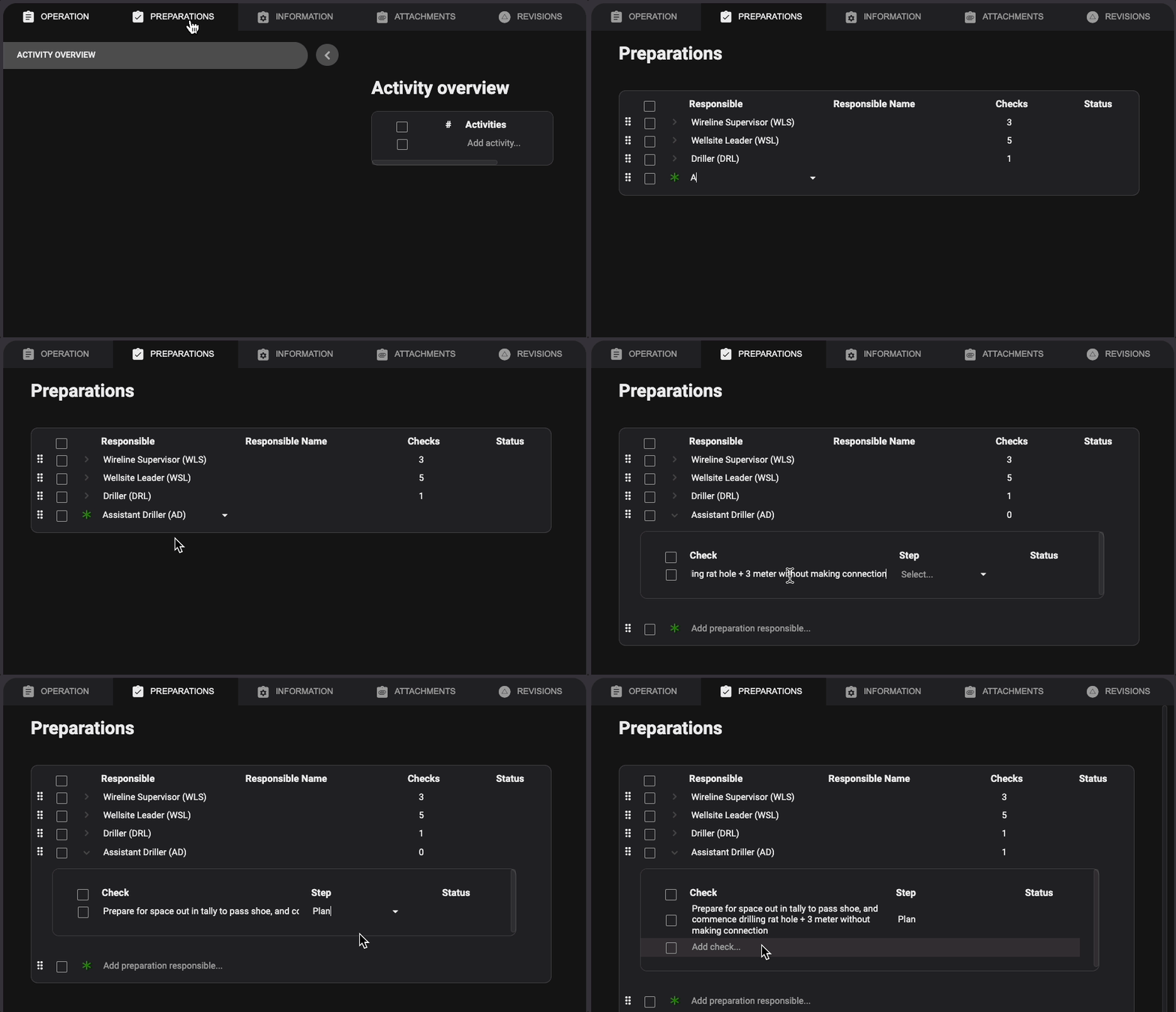
Open a plan.
Navigate to the
Preparations tab.Click on Add preparation responsible...
Enter the responsible job title. You can search for the job title or click the
 Dropdown icon to view the full list.
Once the responsible job title is selected, a checklist table will appear. If it's not shown, you can click the
 arrow-down icon next to the Responsible job title.
Add checks for the given job title by clicking Add check...
Specify if the step is related to the overall plan (click "Plan") or an operation-specific step.
Repeat the process of adding checks and responsibilities until the preparation list for the plan is ready.
Warning
It's not possible to add any attachments to a preparation.
Open a plan.
Navigate to the
Preparations tab.Identify the check you want to edit.
Click on the written text of the check or step.
Add or remove the content in the check or step.
To save the change, you can either press [Enter] or [Tab] on your keyboard or click outside the text box with your mouse.
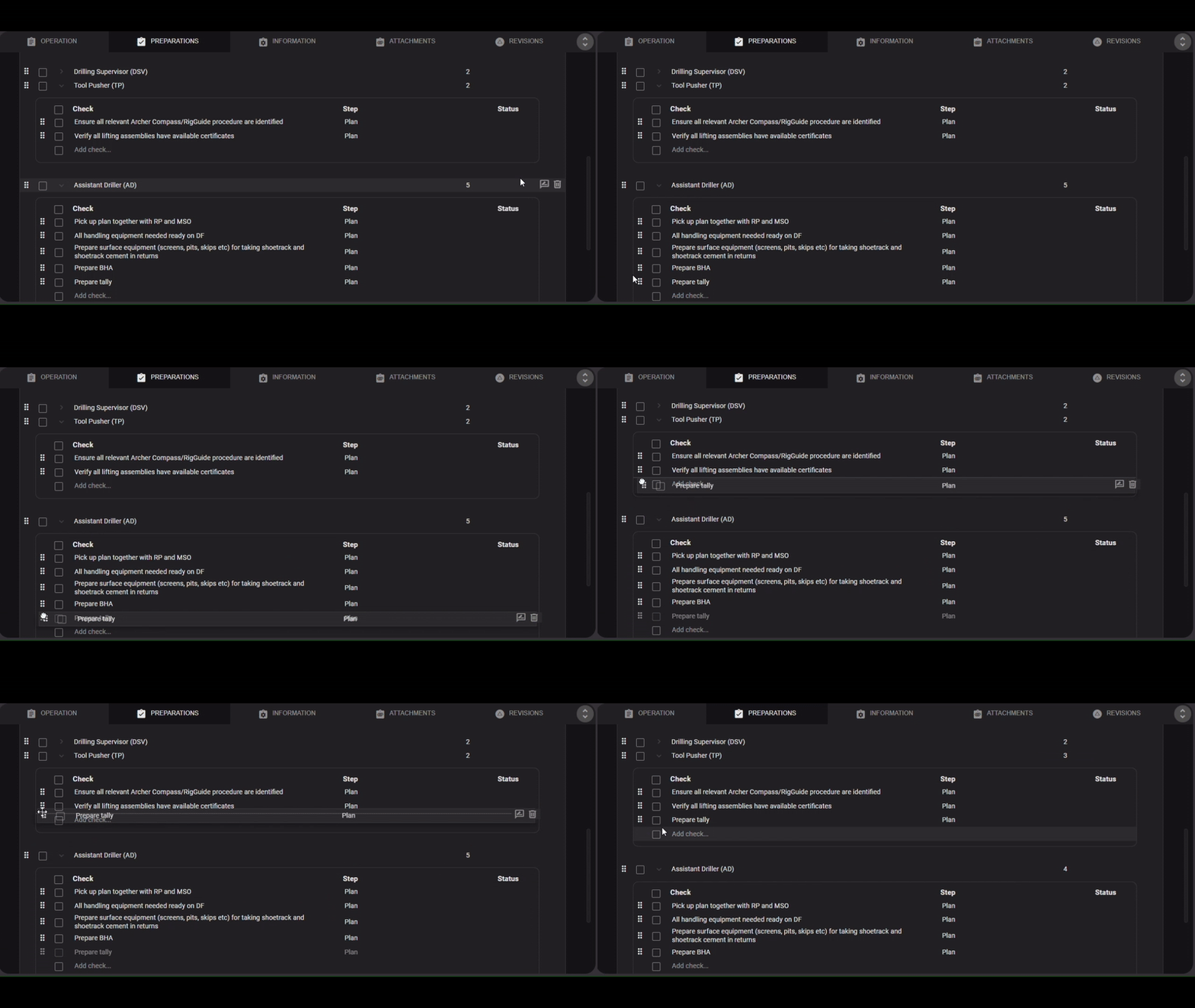
Open a plan.
Navigate to the
Preparations tab.Identify the preparation you want to move.
Click and hold on the
 move icon before the preparation you want to move.
Drag the preparation to the new responsible person and let go at the desired location.
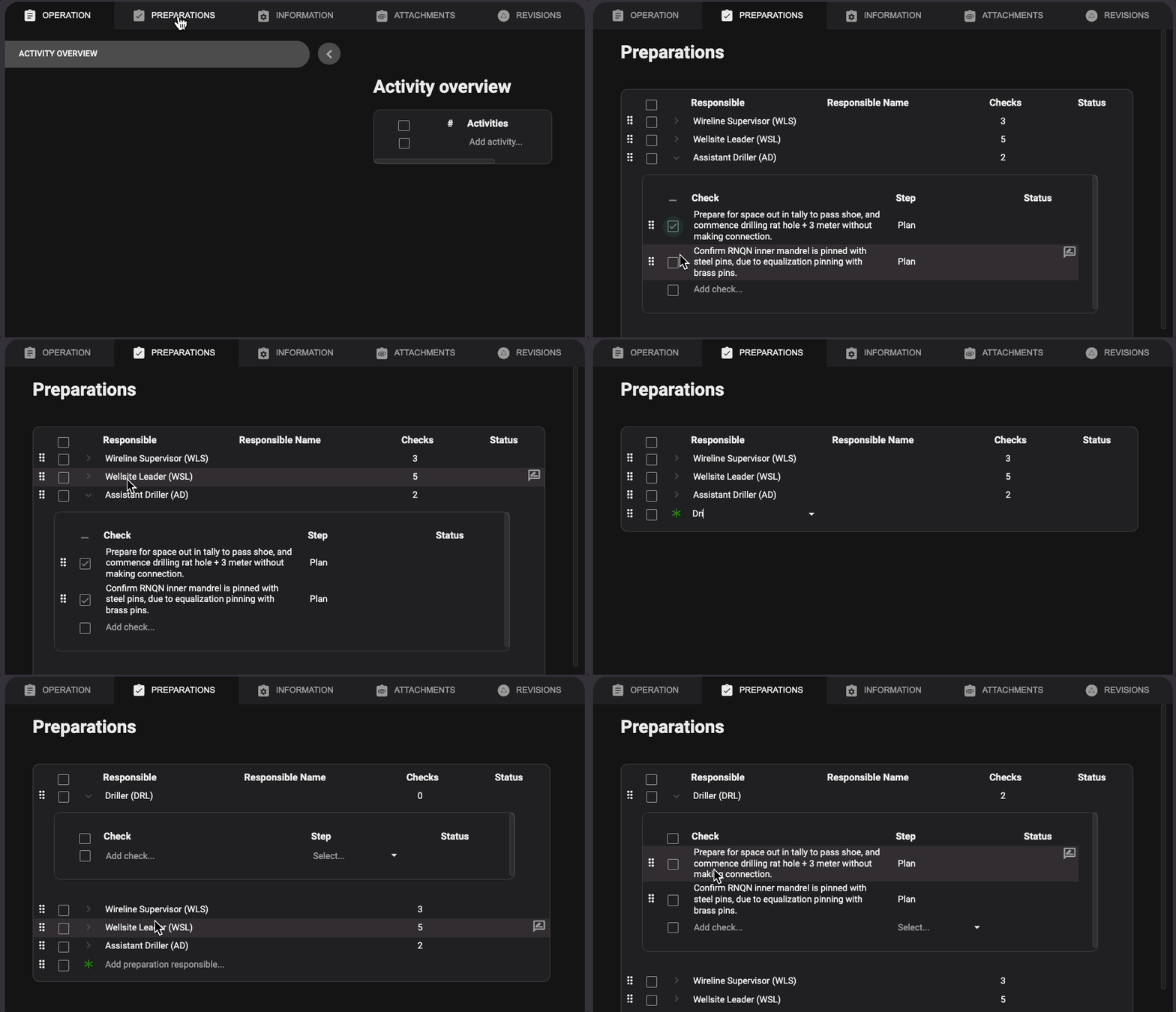
Open a plan.
Navigate to the
Preparations tab.Identify the check you want to edit.
For copying a single responsibility or check: Hover over the desired responsibility, right-click, and select the
 Copy icon.
For copying multiple responsibilities and checks: Use the checkboxes located on the left side of the responsibilities or checks.Right-click and select the
Copy icon.Find the location where you want to paste the copied content.
Right-click on either Add preparation responsible... or Add check... to display the Paste icon.
Click on the
 Paste icon to complete the copying process.
Warning
You cannot copy a responsibility and its associated checks within the same preparation. Attempting to copy and paste within the same preparation will replace the original responsibility.
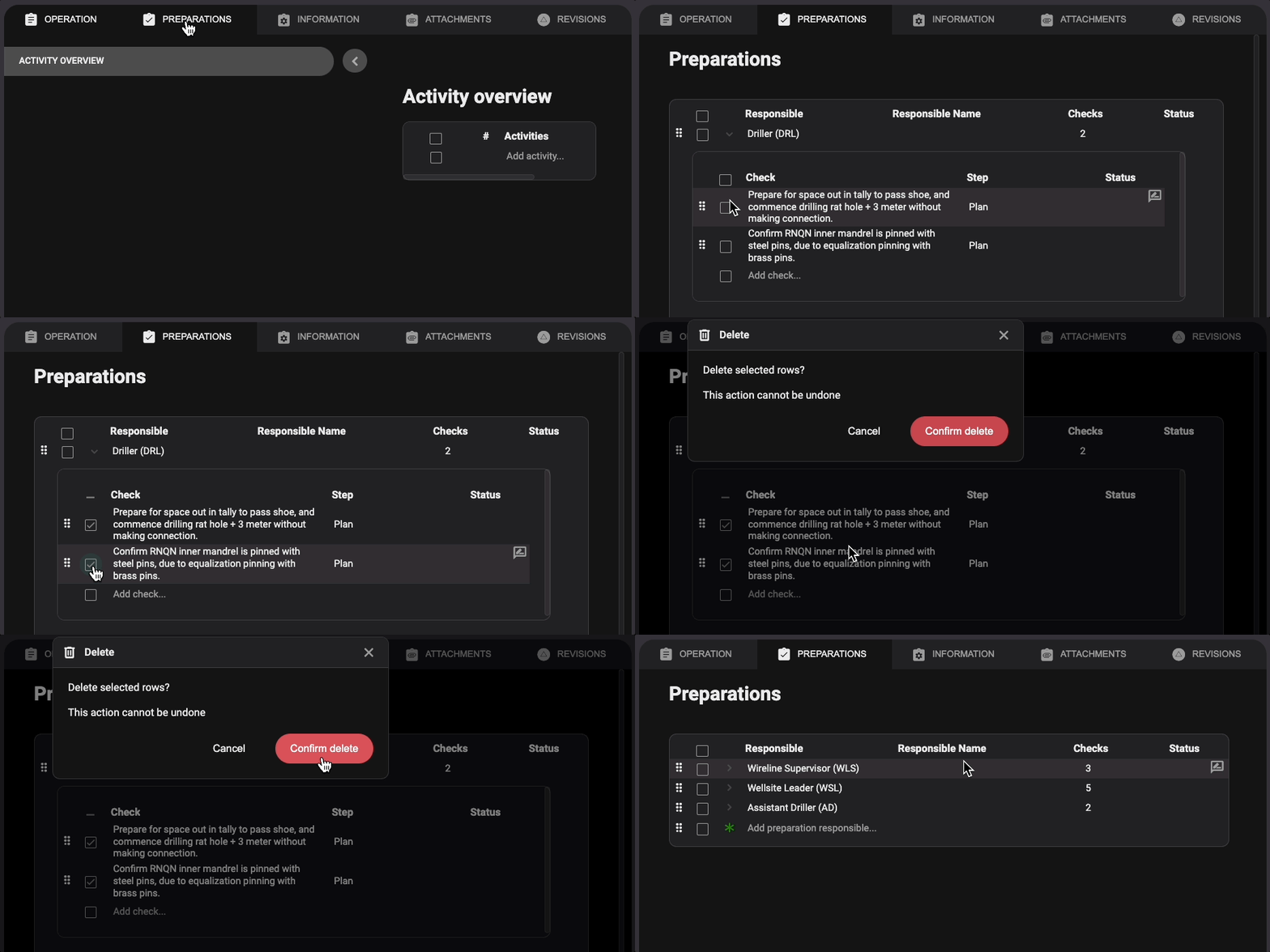
Open a plan.
Navigate to the
Preparations tab.For deleting a single responsibility or check: Hover over the desired responsibility, right-click, and select the
 Delete icon.
For deleting multiple responsibilities and checks: Use the checkboxes located on the left side of the responsibilities or checks.Right-click and select the
Delete icon.A modal dialogue box will appear, asking whether you wish to delete the file. Please note that this action cannot be undone.
Upon clicking Confirm delete, the file will be permanently removed.
Open a plan.
Navigate to the
Preparations tab.Identify the preparation responsible you want to edit.
Click on the preparation responsible.
Select the new preparation responsible you want to assign the preparations to.